
Reserve a desk on behalf of another person (Web)
Serraview Engage
If part of your job is to reserve desks on behalf of another then your System Administrator can give you permission to complete this.
For details on the secured actions to set up, refer to Set up a Person to book on behalf of another.
Follow the Steps
Click on the Now icon.

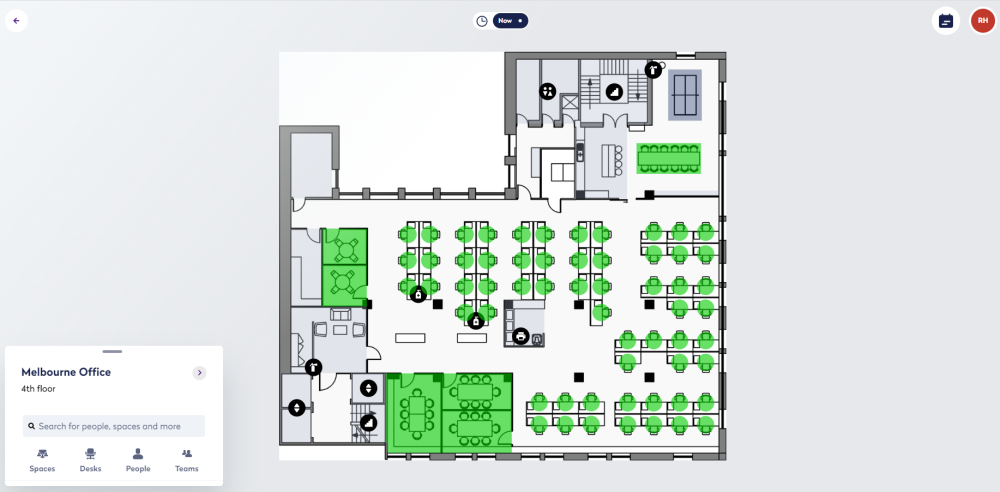
The calendar displays.
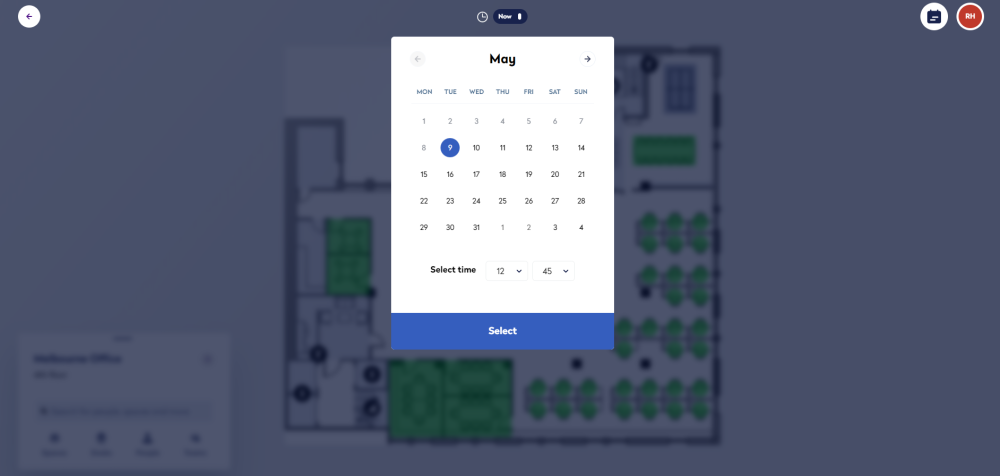
Change the date and time and then click the Select button.
The floorplan displays the available desks.
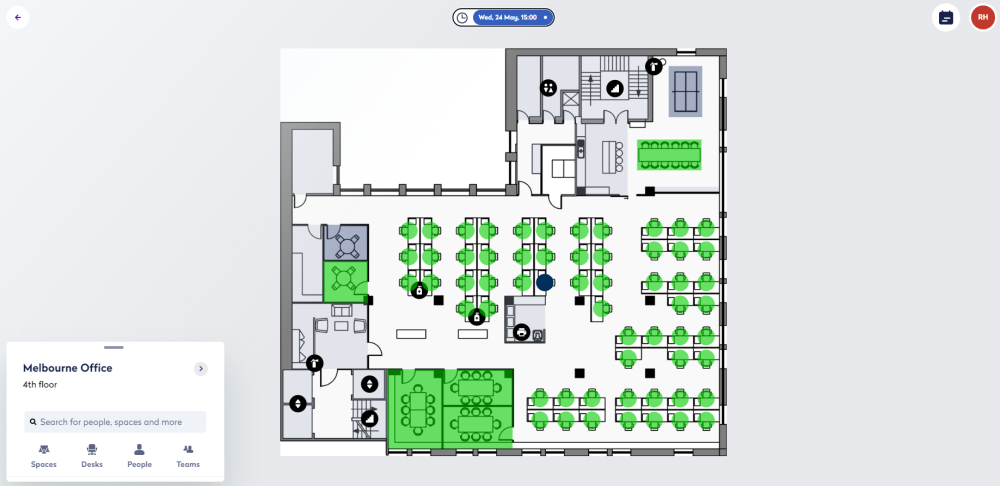
Click the desk you want to reserve and the day(s).
Then click the name in the Book for selection.

This displays the person search.
Search for the person's name you want to making the reservation for and then click their name.
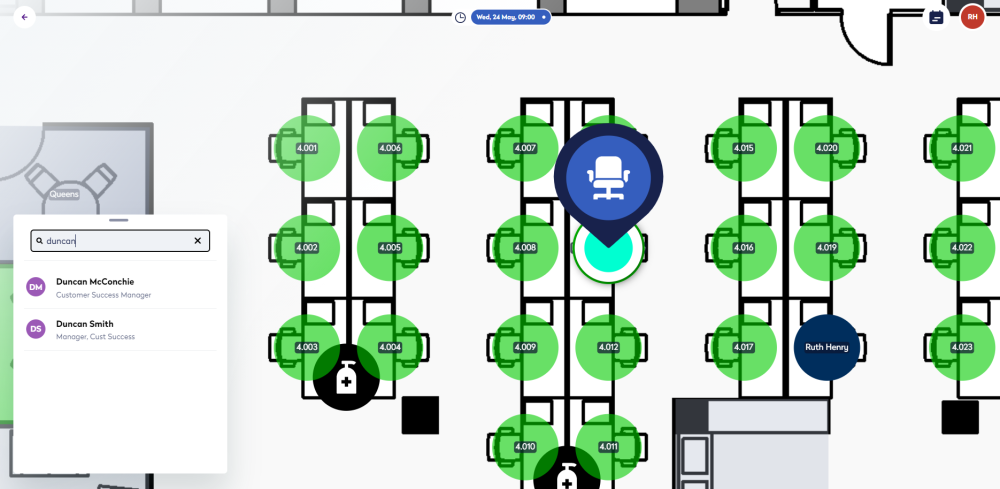
The person's name now displays in the Book for selection.
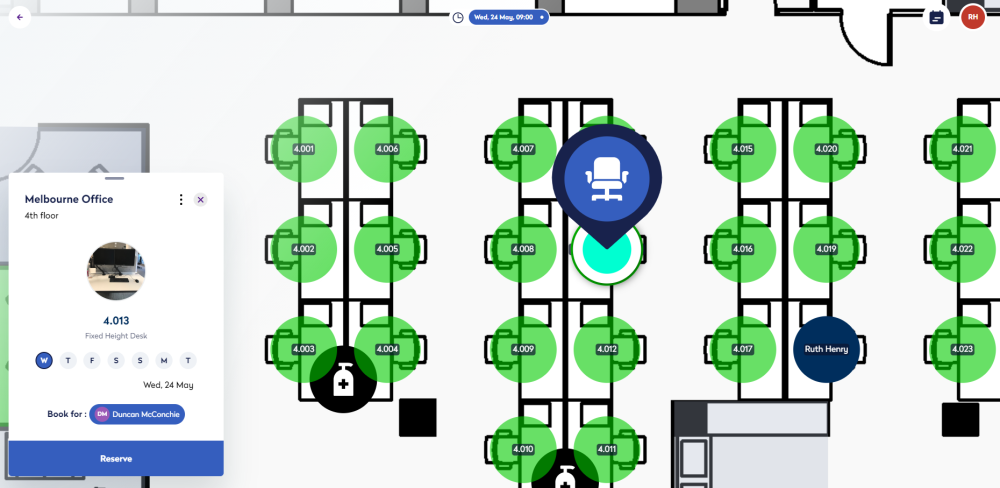
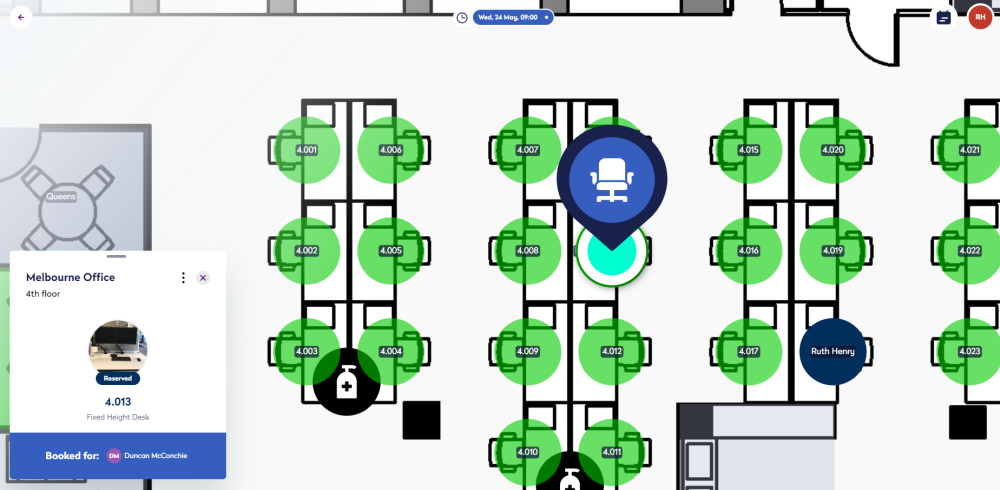
Click the Reserve button and the desk booking is made.
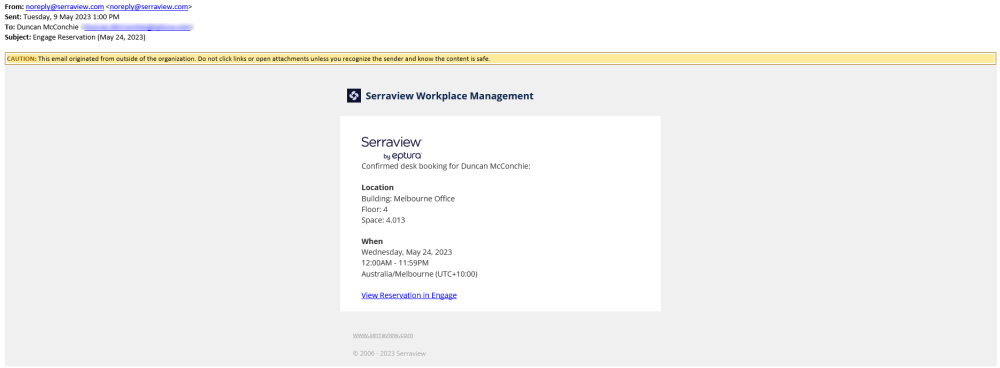
Email Confirmation
When you reserved a desk then the confirmation email is sent to the person for whom the booking is for.
Notes:
- Confirmation emails are an optional feature that can be switched on or off by your Administrator. Learn more in Set up Engage to send out Confirmation Emails and Engage Emails.
- If you check the Serraview Email Outbox (Admin Settings > System Config> General > Email > Email Outbox) the name of the reservee is shown in the To column, and the person who made the reservation is shown in the From column.