
Scenario Planner Overview
Overview
Organize your high-level strategic planning with Scenario Plans. These plans allow you to plan simple or complex team moves quickly and efficiently using:
- Visual Block and Stack (VBS) live data
- Utilization data
As you are developing your strategies, you can manage the scenario in multiple phases to:
- move teams to a newly purchased building or relinquish space when a lease is ending.
- right-size teams to identify poorly utilized space.
- bulk update teams to shift into a flexible Activity Based Working (ABW) environment.
- increase or decrease team numbers.
Access to the Scenario Planner module and to the Scenario Plans is managed using secured actions and roles and the security is detailed in Security in Scenario Plans.
Scenario Plans may contain confidential plans to merge, downsize, or relocate work activities. In these circumstances, it can be necessary to limit the visibility of the Scenario Plan and the data it contains. The security is maintained by:
- access to the Scenario Planner module via the secured roles and actions.
- access to Scenario Plan. The plan can be made private, which means it is visible only to individuals who have been explicitly granted access to the plan.
Watch the video to learn more about Scenario Planner
Audio: Sound Length: 2:53 mins
What is the difference between Scenario Planner and BOS?
Scenario Planner and BOS work separately.
- Scenario Planner is for moving teams.
- BOS is for moving people.
After the Space Planner identifies a potential scenario, the Scenario Planner module is used to move teams around. The BOS module can then be used to move individual people. This is so that moves can be implemented in a more structured way and caters for situations where some people in the same team are moving to different locations.
You can use the Scenario Plan to either manually Move Teams, update Team's Allocation and Occupancy, or update space details. Also, you can use the Right-size tool to automatically adjust teams or use the Bulk Update tool to update team's target ratio or change team's working style.
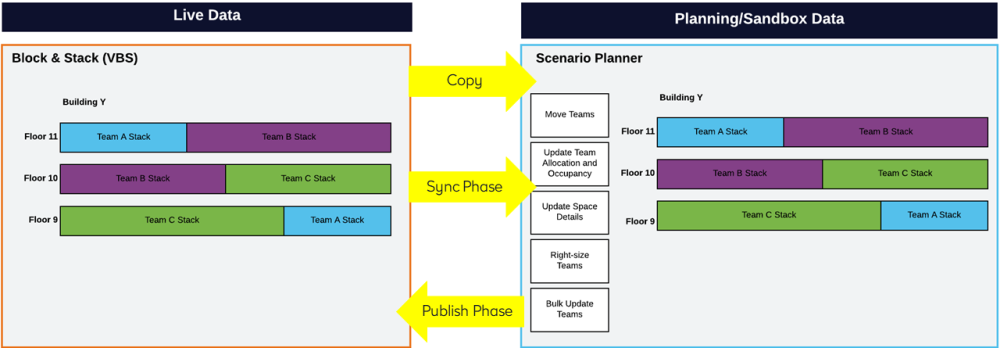
- Navigate your Scenario Plan - Use this to learn about the Scenario Planner module so you can become more familiar with this module.
- Navigate your Scenario VBS - Use this to learn about the Scenario VBS which is similar to the Block and Stack (VBS) but it has a additional tools you can use when creating scenarios.
- Set up the initial Scenario Plan - Use this to learn about the prerequisites and then how to set up a Scenario Plan.
- Understand Scenario Plan Phases - Use this to learn about multiple phases or single phase concepts and what happens when you sync your Scenario Plan with Live VBS data . Also, we will guide you through how to insert, delete, or make adjustments to phases.
- Rightsizing Teams in Scenario VBS - Use this to learn about how to through how to right size teams.
- Bulk Update Tools in Scenario VBS - Use this to learn about how bulk update your teams in a scenario. Go Action your Scenario Plan
- Go Action your Scenario Plan - Use this to lean how you can action your Scenario Plan and then publish it into the Live VBS data.