Allow Employees in a Building or Floor to Reserve Desks
Serraview Engage
Building Example
In the VBS you can see that the Harrison Office, Boston is allocated to different teams and/or neighborhood(s). In this example you will set up the employees in the building to be able to reserve any desk in the building.
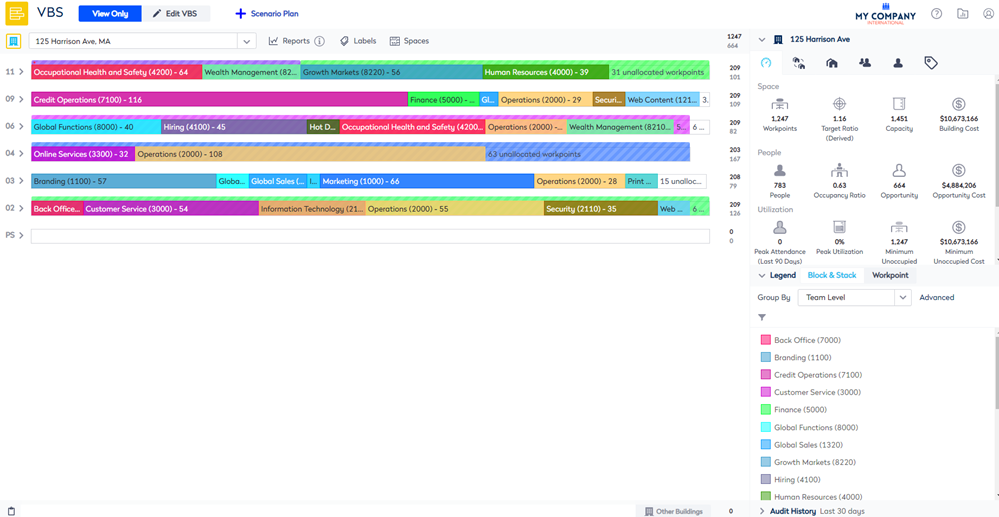
For each floor in the building you will need to set up the desks booking access to Building.
From the Spaces Module, complete the following:
- Navigate to Spaces.
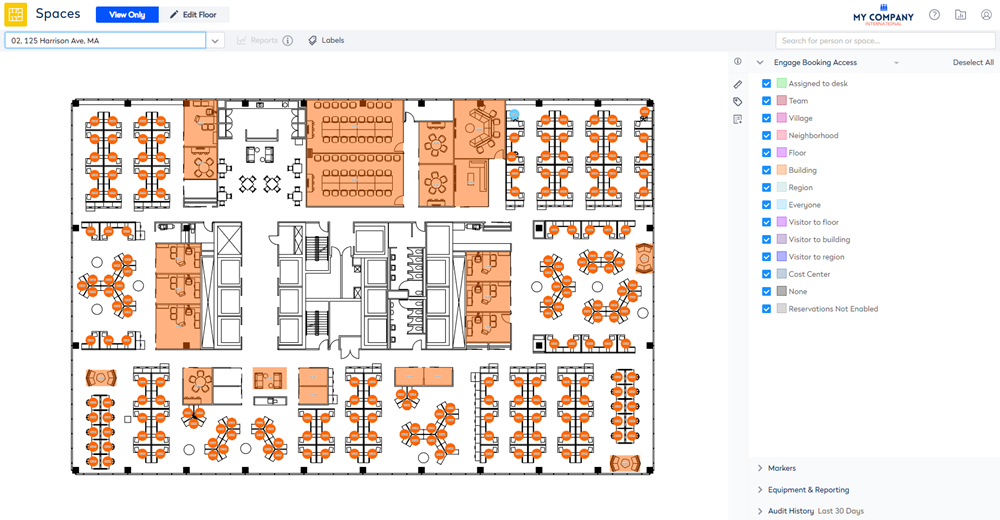
- Use the Location Selector drop-down to navigate to the building and floor. For example, you navigate to the 2nd floor of the Harrison Office.
- From the Selector, select the Engage Booking Access view. The floorplan displays the booking access by color.
This view only displays spaces that are set to Interactable, if you do not see a specific space then check the Space Type's setting, refer to Set up the Space Types for Engage.
4. Click the Edit Floor icon.
5. Click the Bulk Update  icon.
icon.
6. Click on the floorplan and drag the cursor across the points to select.
If you need to reposition the floorplan when selecting points, then use the panning mode. Either hold down the space bar or click the Planning Mode  icon and then reposition the floorplan.
7. For the Reserving Enabled check box, click the Don't Update and change this to Overwrite.
8. Check the Reserving Enabled check box. When this checked this will enable the Booking Access drop-down.
9. For the Booking Access drop-down, click the Don't Update and change this to Overwrite.
10. From the Booking Access drop-down, select Building.
If your existing building has employees with assigned seats then you will need change the fixed team to a flexible team.
11. Click the Update button.
12. Click the Publish Changes button.
13. Important Step - For each floor in the building repeat steps 2 to 12.
14. Click the Cancel button to close the Bulk Update.
The spaces are updated to allow the employees in the building to reserve the desks.