
Gather Issue Information
If you experience an issue with Serraview or have any questions, there will be one or more System Administrators (super users) within your Corporate Real Estate team who will be able to assist you with certain issues. When System Administrator is unable to assist, they may raise a support ticket or ask you to raise one directly with Serraview Support team. Learn more about Serraview Support.
Gather Issue Information
As the Serraview Support team work on an issue, they may request more information about issue. We have listed few guidelines to help you gather information on the issue.
| Questions | Details |
|---|---|
| What is the exact timestamp and timezone of when the issue was observed? | |
|
What are the affected user's details? Such as username and whether they logged in via SSO or direct login? |
|
|
What is the environment (operating system)? Such as Windows or MAC for a laptop device. Such as iOS or Android for a mobile device. |
For example: Serraview or Engage Web (Desktop): Windows 11 Enterprise Serraview Engage Mobile: Phone or Tablet Model: Samsung Galaxy S25 Ultra, Android Version: 16, Serraview Engage App version: 1.51.3 |
| What are the browser details, such as the browser name and version? |
For example: |
|
What are the steps to reproduce the issue? If you create a screen recording, include the steps of how you accessed Serraview and how you navigated to the module, etc. Additionally, include a short description of what you were doing when the issue occurred. |
|
| Collect the Console Logs, see below for instructions. | |
| Collect a HAR File, see below for instructions. |
Collect a HAR File in Google Chrome
- Open Google Chrome.
- Navigate to the page where the issue occurs.
- Open the Devloper Tools, press Ctrl + Shift + I (Windows/Linux) or Cmd + Option + I (Mac).
- Select the Network tab.
- Check the box Preserve log check box, so Chrome keeps all requests, even after navigation or refresh.
- Check the Disable cache check box (optional but recommended).
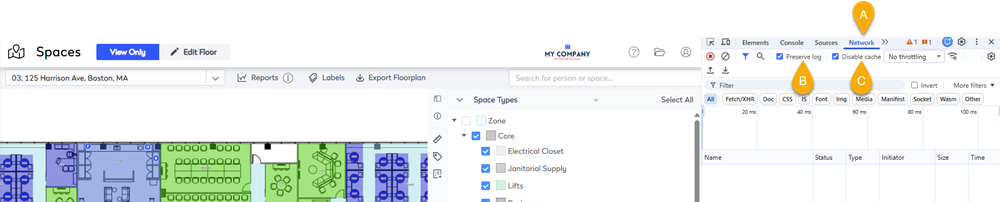
- Click the Clear Network Log
 icon to clear the log (optional)
 - Reproduce the issue while the Network tab is recording.
- Click the Export HAR
 icon and save the file to your device as a HAR File (*.har).
Microsoft Edge
If you are using this browser, you can open the Developer Tools.
- Press the F12 key.
- Click the Network tab.
- Follow the same steps as the Chrome browser.

Collect Console Logs in Google Chrome
- Open Google Chrome.
- Open the Devloper Tools, press Ctrl + Shift + I (Windows/Linux) or Cmd + Option + I (Mac).
- Select the Console tab.
- Click the Clear console
 icon to clear existing logs (optional).
 - Reproduce the issue.
- Right‑click inside the console output and the pop-up menu displays.
- Click the Save as and save the file to your device as a Log File (*.log).

Microsoft Edge
If you are using this browser, you can open the Developer Tools.
- Press the F12 key.
- Click the Console Settings icon.
- Follow the same steps as the Chrome browser.
