
Serraview-Engage Onboarding Checklist
Serraview-Engage
Use the checklist below to get your business up and running.
- HR and Location Data
- Booking Rules
- Meeting Rooms and Calendar
- Parking
- Distribution
- Additional Configuration
HR and Location Data
Complete the Serraview Checklist:
- Onboarding Prerequisite Decisions - Use the prerequisite decisions list to ensure you have made decisions on the following areas before you commence the onboarding.
- #1 - Initial Integrations - We have a collection of integrations that will make it easy to manage single sign-on, transfer of import files, and desk bookings with calendars.
- #2 - Buildings, Floors, and Floorplans - Set up your buildings, floors, and floorplans.
- #3 - Allocation and Occupancy - Using Serraview you can quickly set up seating charts to suit your business.
Booking Rules
If you want your employees to be able to book a desk from Serraview-Engage, then this can be configured.
Step 1. Set up the Space Types for Serraview-Engage
First, you need to set up the space type for Serraview-Engage. You will need to configure whether the spaces are Hidden, Visible, or Interactable on the floor plan and this is based on their Space Type.
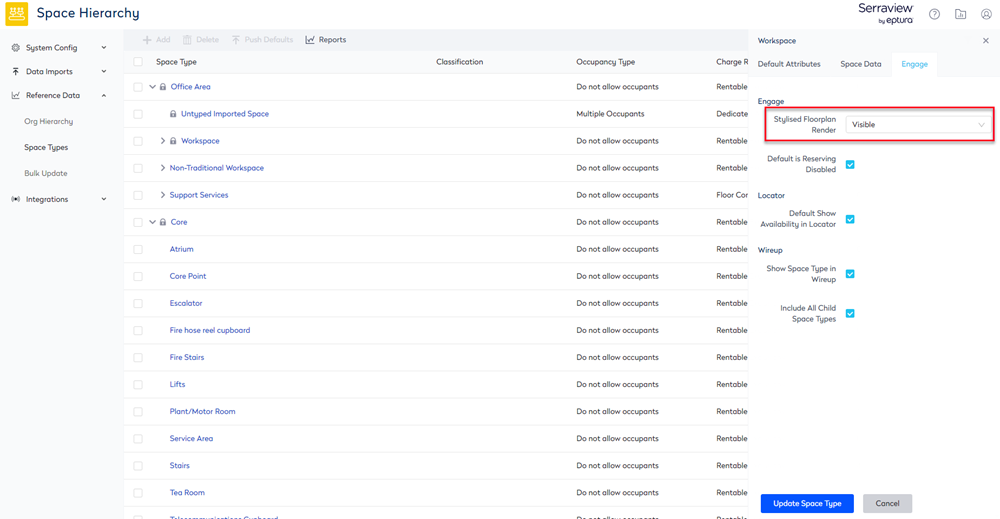
The following options can be applied to each Space Type:
- Hide the space type all together - these spaces appear as "negative space" and indicate to the user that they should be able to walk through that space. All circulation space types (corridors, ground floor atriums, elevator lobbies, etc) should be hidden.
- Show (visible) the space type but do not let the user interact with the space - you normally want to make all non-occupiable spaces visible. They are shown in light-grey and indicate that there's a space there, but there's nothing interesting for the user to interact with
- Make the space interactive - all desks and meeting spaces that you want users to interact with via Serraview-Engage should be interactive. You might want to make some spaces like kitchens or storage spaces interactive if they are important for your users to find out more about.
For more information, see Set up the Space Types for Serraview-Engage.
Step 2. Set up the Desk Reservations for Serraview-Engage
Now, you have your employees in their teams and some will be assigned to desks or maybe neighborhoods; you can set up which desks are reservable and by whom.
The "Engage Booking Access" view in the Spaces module will allow you to visualize the booking access applied to spaces. This will give you a quick and visible way to allocate the booking access required for your business.
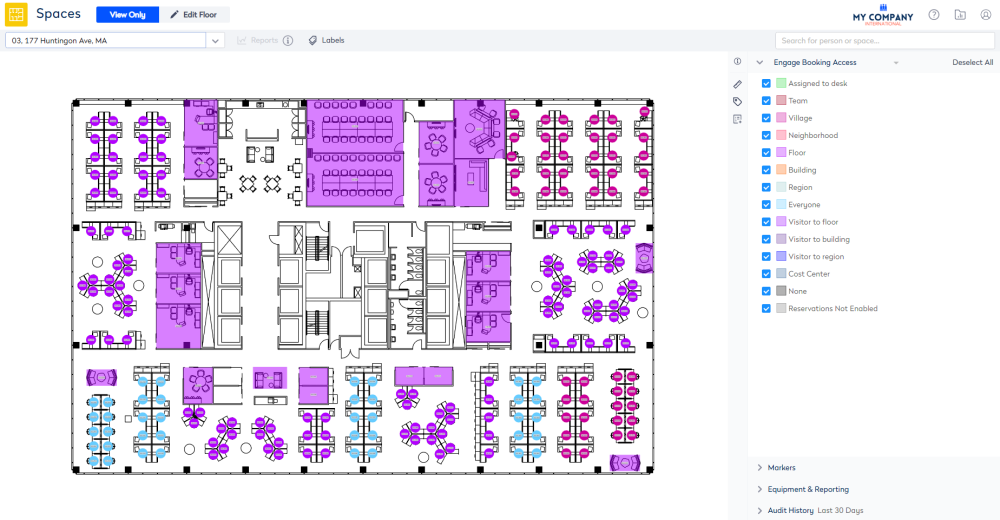
The settings can be updated in bulk in the Space module for Regions, Buildings, Floors, Teams, Neighborhoods, an Employee's assigned desk, etc.
For more details, see Set up Desk Reservation Permissions and ...
- Allow Employees in a Region to Reserve Desks
- Allow Employees in a Building or Floor to Reserve Desks
- Allow Employees on a Floor to Reserve Desks
- Allow Employees in a Cost Center to Reserve Desks
- Allow Employees in a Team or Neighborhood to Reserve Desks
- Allow Employees to Reserve their Assigned Desk
- Allow all Employees to Reserve Desks
- Allow Visitors to your Region to Reserve Desks
- Allow Visitors to your Building to Reserve Desks
- Allow Visitors to your Floor to Reserve Desks
- Allow Employees with an Employee Grade to Reserve Desk
- Update Reservation Permission for a Space
- Update Reservation Permission for an Office
- Deny an Employee to Reserve a Space with the "Reservation - Bypass booking rule"
Step 3. Desk Reservations & Check-in Times
If your business wants employees to make desk reservations as:
- All-day Desk Reservations - then see Set up All Day Desk Reservations and Check-in Times.
- Time Block Reservations - this allows your employees to choose the desk booking, such as All day or 1 hour, 2 hours, 3 hours, or 4 hours; then see Set up Time Blocked Desk Reservation & Check-in Times.
If you want your employees to check-in to their desks, then in the ""Engage Configuration"", your System Administrator can update the desk check-in window settings. Also, if you have different desk reservation requirements for your buildings, your System Administrator can set this up.
Auto-Cancellation of Desk Reservations
When auto-cancel is enabled, it will cancel the desk booking if an employee does not check into the desk by the required time. Their desk booking is cancelled and freed up for someone else to use. For details, see Set up Auto-Cancellation of Desk Reservations. If you have different Auto-Cancellation of Desk Reservation requirements for your buildings, your System Administrator can set this up.
Additional Configuration for Desk Reservations
Below lists the additional configuration.
Limit Concurrent Bookings
- Your System Administrator can set the number of desk reservations an employee can make that overlap. For more details, see Limit Concurrent Bookings for Desks.
Limit Future Desk Bookings
- Your System Administrator will be able to limit in weeks, how far into the future an employee can make a desk reservation. For more details, see Limit Future Desk Bookings.
Available Desk Visibility
- When your business has employees with assigned desks, these will not be able to be reserved. Now, employees can visually differentiate reserved desks from assigned ones on the floor plan. Your System Administrator can update Serraview's Configuration setting. Also, if you want, you can change the color of the available desks. For more details, see Set up the visibility of reserved desks on the floor plan.
Desk Reservation on Behalf of Another Person
- If you have employees that make desk reservations on behalf of another person, then your System Administrator can give employees permission to complete this task, see Set up a Person to book on behalf of another and Reserve a desk on behalf of another person.
Desk Reservation or Check-in via QR Code
- Your System Administrator can set up QR Codes on your organization’s desks so that employees can quickly make a desk reservation or check-in to their desk reservation, see Set up the QR Codes for Desk Check-in and Reservation.
Desk Reservation Confirmation Emails
- If your business wants to send out Confirmation Emails when an employee books a desk. Note that the confirmation email is sent to the person whom the booking is for. For more details, see Set up Serraview-Engage to send out Confirmation Emails.
Meeting Rooms and Calendar
If you want your employees, to be able to book a meeting room from Serraview-Engage then this can be configured.
Step 1. Set up the Space Types
The following options can be applied to each Space Type:
- Hide the space type all together - these spaces appear as "negative space" and indicate to the user that they should be able to walk through that space. All circulation space types (corridors, ground floor atriums, elevator lobbies, etc) should be hidden.
- Show (visible) the space type but do not let the user interact with the space - you normally want to make all non-occupiable spaces visible. They are shown in light-grey and indicate that there's a space there, but there's nothing interesting for the user to interact with
- Make the space interactive - all desks and meeting spaces that you want users to interact with via Engage should be interactive. You might want to make some spaces like kitchens or storage spaces interactive if they are important for your users to find out more about.
For more information, see Set up the Space Types for Serraview-Engage.
Step 2. Set up the Calendar
Serraview-Engage can integrate bi-directionally with your organization's Corporate Calendar (as long as it's Exchange/Outlook, Office365, or Google Calendar).
With this integration turned on:
- Your administrator can connect specific spaces (typically meeting rooms, conference rooms, huddle rooms, etc) in Serraview-Engage to the matching resources in your Corporate Calendar
- Serraview-Engage users can then see which rooms are free/busy based on their status in your Corporate Calendar
- When Serraview-Engage users book these spaces in Serraview-Engage, that booking is automatically synced back to your Corporate Calendar so that everyone can see that its book in Outlook or GCal.
For more details, see Serraview-Engage Calendar Integration and if you have questions, then see Serraview-Engage Calendar Integration FAQ.
If you don't want to use a Calendar Integration, Engage can be still used to make space reservations, refer to Set up Space Reservations without Calendar Integration.
Parking
If you want your employees, to be able to book a parking space from Serraview-Engage then this can be configured.
All you need is a simple drawing that includes the basic boxes that represent the parking layout, then set up the space type so your employees can interact with it, and finally set up the "Engage Booking Access" for the parking spaces. For more details, see Set up Parking.
Distribution
Timings
Before your employees starting using Serraview-Engage, we recommend that you coordinate the timings with your Customer Success Manager.
We need to know the expected number of new users and the dates of when they will start using Serraview-Engage. We want to make sure your environment has enough resources to handle the incoming traffic.
Distribution
- URL Link that takes the employee to the app in the relevant store.
- QR Code that takes the employee to the app in the relevant store.
- Employee searches directly in the App Store/Play Store for the app.
Then you can send out an email notification to your employees.

Distribute the App from a Link or QR Code
We supports the distribution of the Engage App from a Link or QR Code. When your employee uses either the Link or QR Code these will take then directly to the relevant store, where they can download Serraview's Engage or Engage Intune, if your company is using Microsoft Intune.
For details on how to configure the Link or QR Code, see Configure the Engage App or Engage Intune App for Distribution.
Download the App from the App Store or Play Store
 Serraview-Engage
- Your employees can search directly in the the relevant store for the app.
 Engage Intune
- If your company is using Microsoft Intune for mobile device management (MDM) and mobile application management (MAM). Then your IT team will know how to set this up, for more details, see Serraview-Engage and Microsoft Intune for iOS and Serraview-Engage and Microsoft Intune for Android.
For more details on downloading the different apps, see Download, Sign In, and Engage.
It's a wrap you have completed the onboarding!
Additional Configuration
If you want to adjust the other settings for your business, then see below.
- Employees to Regularly Login
- Employee Privacy
- Floor plan Style
- Filters
- Branding
- Wayfinding
- Parking
- COVID Compliance
- Photography
- Only using Serraview-Engage Mobile or Web
Employees to Regularly Login
If you want your employees to regularly log in to Serraview-Engage (after 2 hours of activity) using a passcode or bio-metrics, then you can enable simplified authentication. For more details, see Enforce Simplified Authentication.
Employee Privacy
Opt-out an Employee
If you have an employee that requires not to be found in Serraview-Engage, your System Administrator can opt-out the employee from Serraview-Engage's search.
For more details, see Opt-out an Employee from Serraview-Engage's Search.
Disable Employee's Contact Information
If your business needs to hide contact information from a Person card, then your System Administrator can set this up. This will hide the contact information from all Person cards. For more details, refer to Disable a Person's Contact Information.
Floor plan Style
We recommend you use the default floor plan style as Architectural Floorplans, if you want to use the Stylized Floorplans then you will need to make sure your polylines are around all your spaces and the classification of the space types is accurate.
For more details, refer to Set up to use the Architectural Floorplans or Stylized Floorplans.
Filters
Space Type and Equipment Filters
Your employees will be able to filter for desks, such as, if they want a desk that has dual monitor and is a sit stand desk. Also, employees will be able to filter for spaces, such as if they want a meeting room that has a conference phone.
The filter options display in the Reservations Assist under the headings:
- Type - this displays the space types that are set to interactable.
- Equipment - this displays the space's attributes.
For information on how to set up the filters, see Configure Assets for Desks and Spaces. If you want to hide an attribute from the Equipment filter list, your System Administrator can hide the attribute and this will make sure employees can find spaces with the equipment they need.
First Responders Filters
If you don't use the First Responders as a menu item, you can still set up the Person of Interest filters for Serraview-Engage so your employees can search for First Aid Officer, Fire Warden, etc. For more details, see Set up the Concierge Menu item to launch the First Responders.
Branding
Corporate Branding
Your brand is important to you. That makes it important to us. When you have the branding files then you can set up your Corporate Branding, see Set up your Corporate Branding.
Acknowledgment Message
If you need to display a message such as Terms and Conditions in the Engage app, you can set this up to display either daily or when the message is changed. For more details, see Set up Acknowledgement Message.
Concierge Menu
You will need 3 items in the Concierge Menu for this to work, for example:
- Set up the Concierge Menu item to launch Maps
- Set up the Concierge Menu to the Employee Survey
- Set up the Concierge Menu item to launch the First Responders
Concierge Menu in a different Language
We support the following languages:
- English UK
- English US
- French Canadian
The languages will be based on your device or browser's language setting. Also, the language must be enabled per instance, learn about Multilingual Support. You can set up the Concierge Menu to be in French Canadian, see set up the Concierge Menu for Multilingual.
Concierge Menu Image Gallery
When you have decided what to include in the Concierge Menu, then your System Administrator can either source the images for the menu items or use the images in the Concierge Menu Images Gallery. The setup is completed in Serraview's Configuration module, see Set up the Concierge Menu for 3 or more menu items.
Regional Concierge Menu
Serraview-Engage can display a localized concierge menu for your organization’s different countries, cities, or buildings. Your System Administrator can set up the regional menu, see Configure the Regional Concierge Menu.
Wayfinding
When you want to only allow a floor to be used for Wayfinding, your System Administrator can complete the setup. This will hide the NOW control from the screen, so your employees can not search for future reservation dates. Also, if you want to find a space, the Reservations Assist will have the reservations controls for the date selection hidden. Your employees can still use the filter for Capacity, Space Types, or Equipment.
For more details, see Set up Serraview-Engage for Wayfinding.
COVID Compliance
When your buildings have different COVID Compliance requirements, then this can be configured. For more details, see Configure COVID Compliance.
Book Safe Distance for a Building
You can turn on the Book Safe which will automatically take care of social distancing for you. Whenever an employee books a desk, Serraview-Engage will automatically disable any desks within your configurable social distancing threshold (e.g. 1.5 meters) from being booked by someone else. If you have different Book Safe requirements for your buildings, your System Administrator can set this up. For more details, see Set up Book Safe and Distance.
Set Daily Limits for a Building
Building capacity limits can be set:
- Limit the Total Reservations with a Building - This is used to limit the total number of reservations for a building. For example, if your COVID-19 restrictions only allow your building to have 50% capacity, then you can set the total number of reservations for the building, so a building that has 250 employees can only have 125 employees able to make reservations.
- Limit the number of Reservations made within a Building per 15 minutes - This is used to limit the number of users making a desk booking at the same time. Serraview-Engage can assist your employees with social distancing, by preventing large volumes of staff from arriving at a similar time to use common access areas such as lifts.
For more details, see Set Daily Limits for a Building.
Health Declarations
You can set up a Health Acknowledge message as part of your desk check-in process. Your employees cannot check-in to the desk unless they agree with the custom acknowledge message first. For more details, see Set up a Health Declaration Message. If you have different Health Declaration requirements for your buildings, your System Administrator can set this up.
Photography
The photography is optional and if you do have photos of them, the employee's initials display and for a space the default icon displays.
Employee Photos
Before you configure, you will need:
- Images are in a square aspect ratio, with a resolution of at least 300px x 300px.
- Images are linked via a URL to each employee's photo.
Space Photos
Before you configure, you will need:
- Images of each meeting room.
- Images are either a link URL to the image or the image is uploaded. If you want to use the link to the URL, then the images must be uploaded first to the referenced URL.
For more details, see Add Photography for Employees and Spaces.
Only using Serraview-Engage Mobile or Web
If your business will only use Mobile or Web, then your System Administrator can disable the other application.For more details, see Disable an Serraview-Engage Application.