Using Serraview-Engage Mobile
Serraview-Engage
Overview
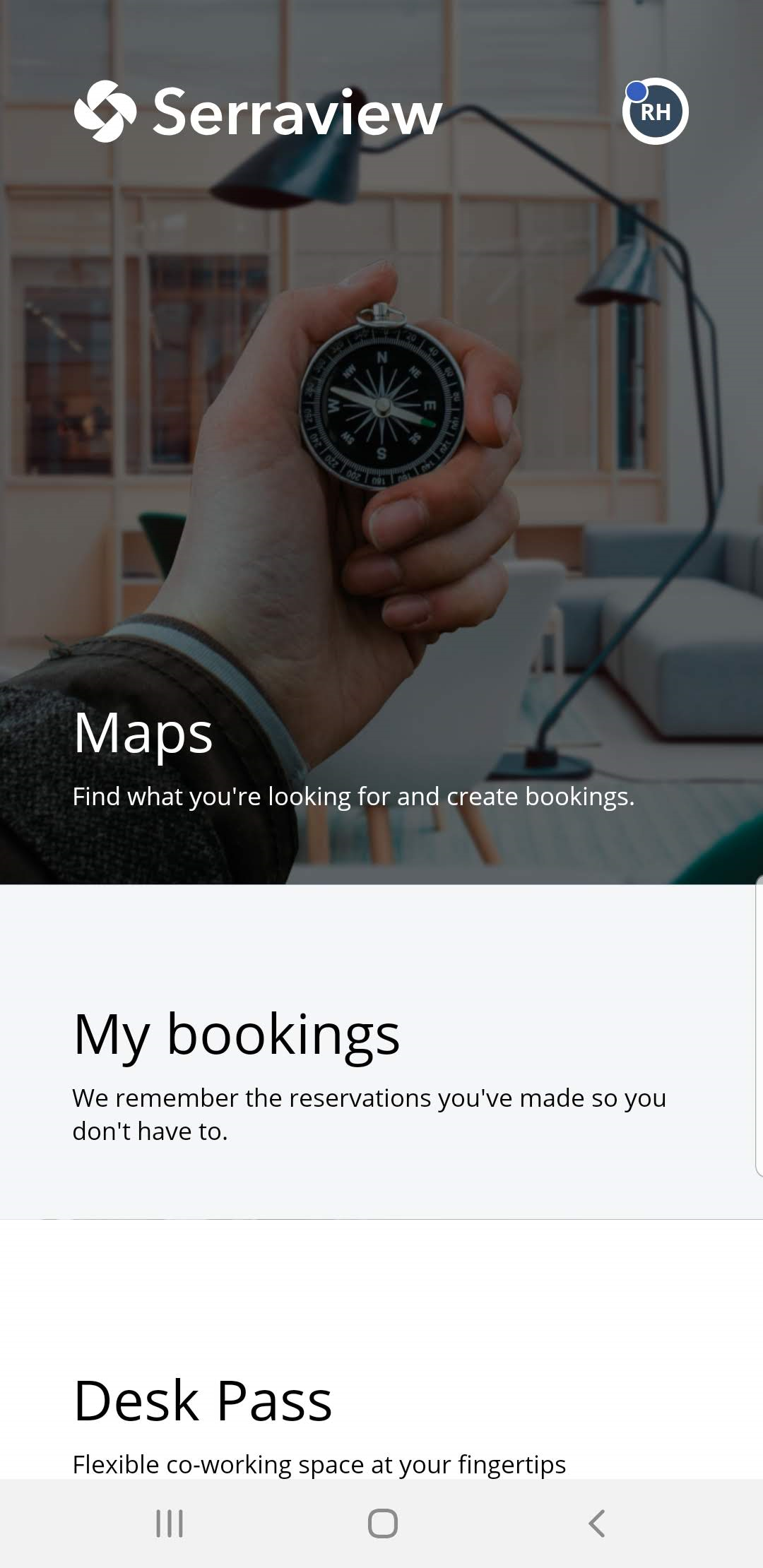
Serraview-Engage Mobile app is available on iOS and Android. It provides users with your corporate directory and indoor maps – allowing them to rapidly find colleagues, and locate desks, rooms, and other key resources within your workplace.
Remember your employees will have a similar experience when using the Mobile app, Tablet app, or Web app.
Serraview-Engage Mobile contains the following features:
- Workplace Selection - allows the user to choose their client's workplace
- SSO Authentication - users will be redirected to your SSO provider (Azure AD, Okta, etc) for authentication
- Concierge menu - quick access menu
- Building and floor Navigation - quickly switch between floors
- Interactive floorplans - zoom, pan, and tap on desks on a floor plan.
- Available desk listing - easily see which desks are available
- Future bookings - view desk availability and book desks now or in the future
- Desk filter - easily find a single desk for a space type or equipment
- View my upcoming reservations - View the reservations I have made
- Cancel reservation - Delete reservations you no longer want
- ... and so much more!
Access Serraview-Engage Mobile
For your employees to access the mobile (or tablet) app, see Download, Sign In, and Engage.
Configuration
Serraview-Engage Mobile uses the same configuration as Engage Web and as new features are introduced both Web and Mobile will use the same settings. A comparison of the configuration for Engage Web and Engage Mobile is found in Serraview-Engage Configuration.
Concierge Menu
|
Serraview-Engage's Concierge Menu is a quick access menu to many useful areas, such as:
The Concierge Menu is a continuous scroll menu in both directions up and down. Watch Serraview-Engage in Action |
|
Search the Corporate Directory
Your employees will be able to search for people in your business' corporate directory.
Find a Person
|
Your employees will be able to search for people as they need to find a person to sit next to them as they are collaborating on a project OR they need to find a person in another location they as they will be visiting another office. Watch Serraview-Engage in Action |
|
Flexible Person
|
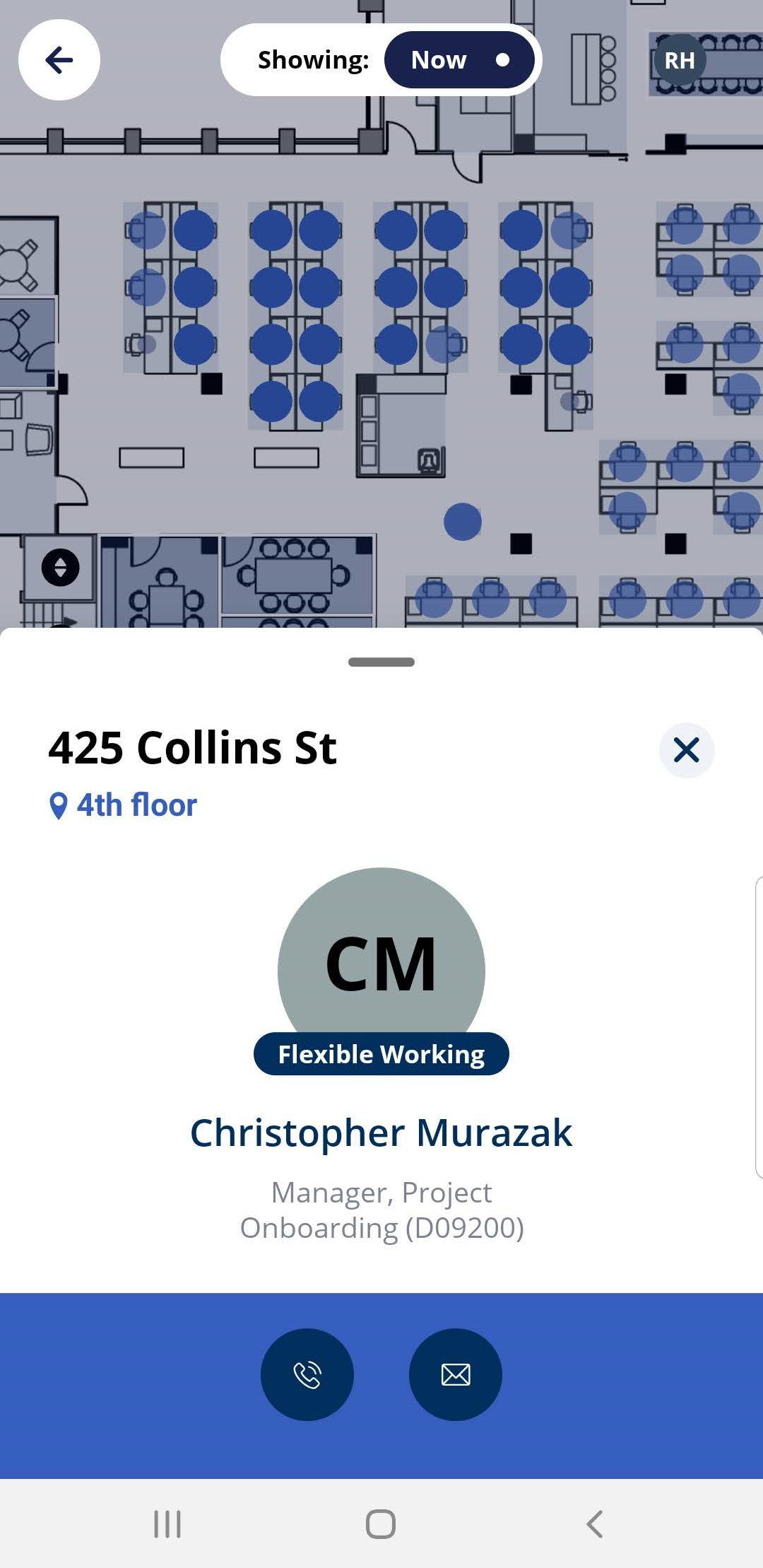
When you search for a person who is flexible working then their location displays and the floor plan highlights the flexible team or if the person is in a neighborhood then this is highlighted on the floor plan. Watch Serraview-Engage in Action |
|
Remote Person
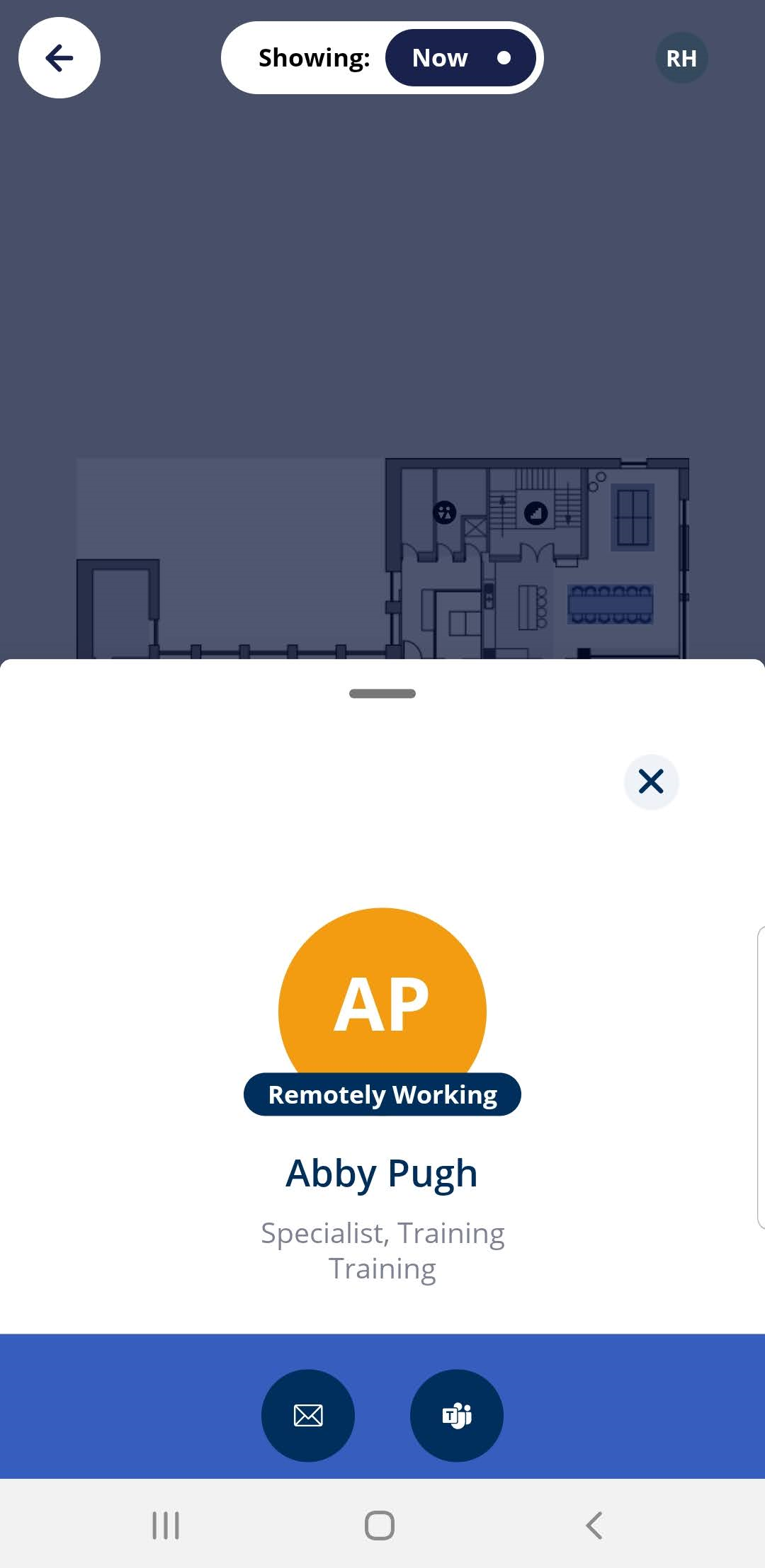
| When you search for a person and they are remotely working then the floor plan is grayed-out and the person card displays Remotely Working. |
|
First Responders
|
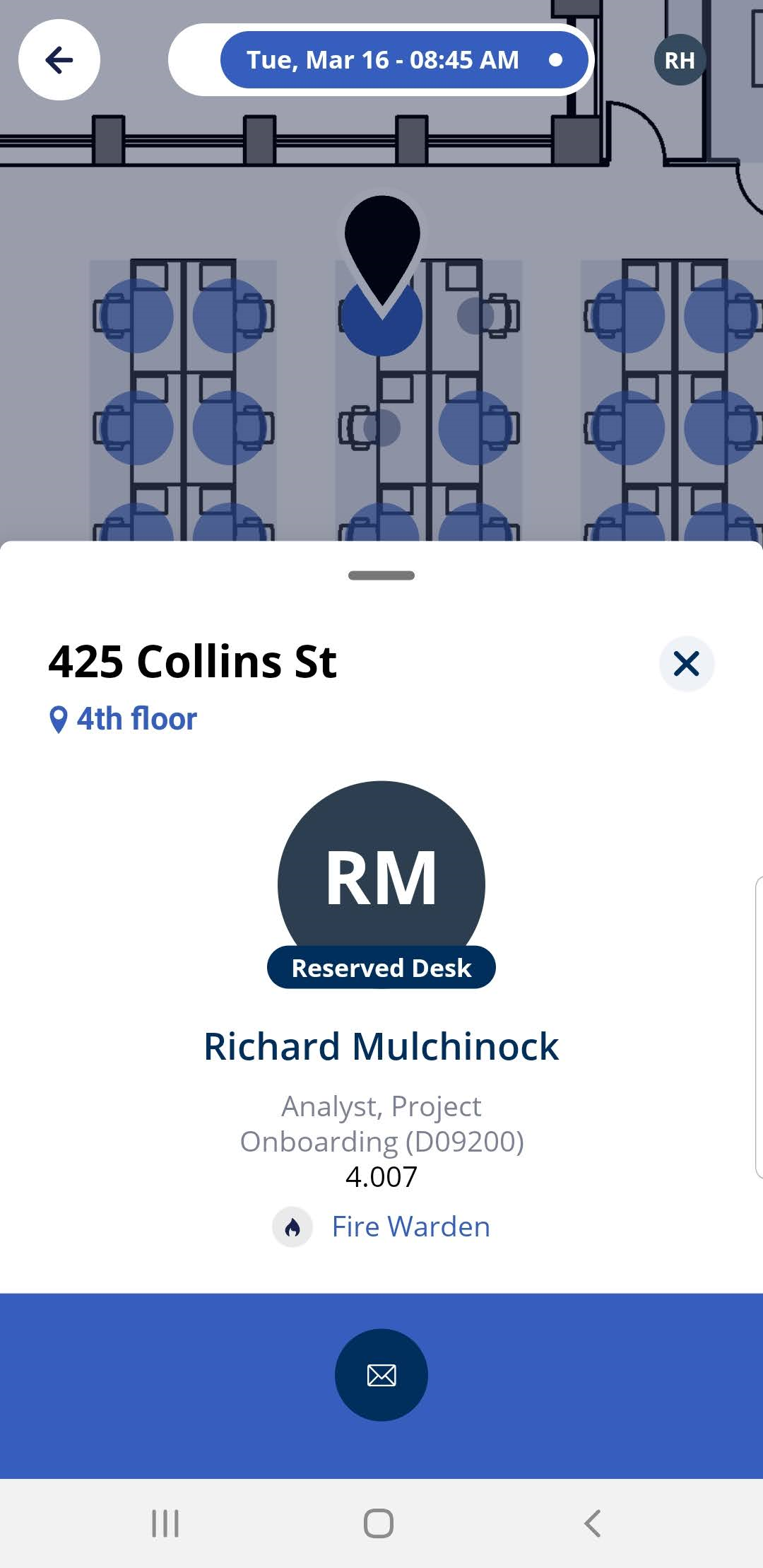
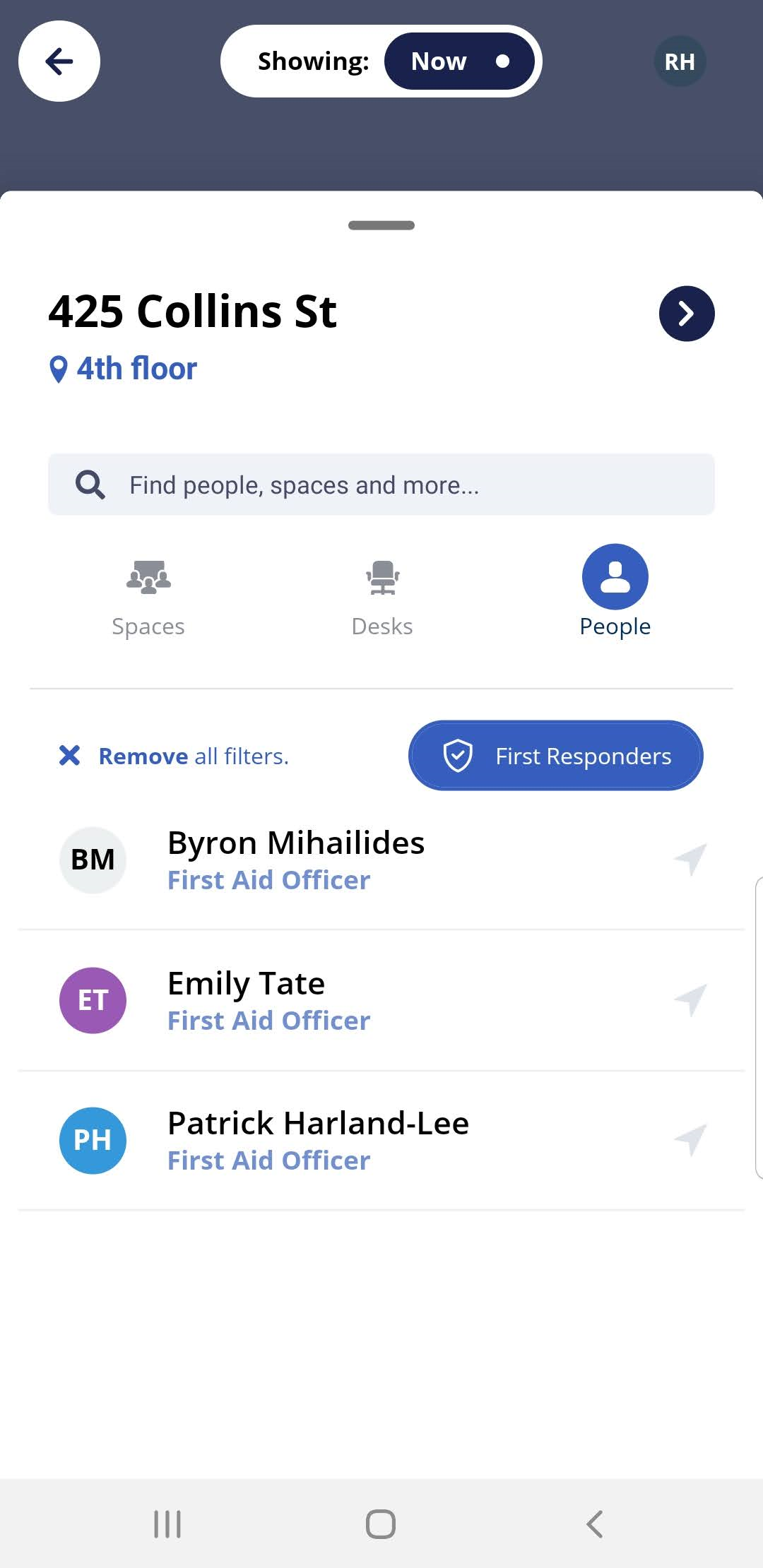
When an incident occurs in the office and your employees can search for your First Responders, such as a First Aid Officer or the Fire Warden. Also, the Person of Interest filters can be configure to include others tags. For example your business may have Chief Fire Warden, Deputy Fire Warden, and Fire Warden or you may have First Aid Officer and a Nurse. Learn how to set up the filters, refer to Set up the Person of Interest Filters Watch Serraview-Engage in Action |
|
Search by Assets to find a Desk
Use the Filter to find a Desk
|
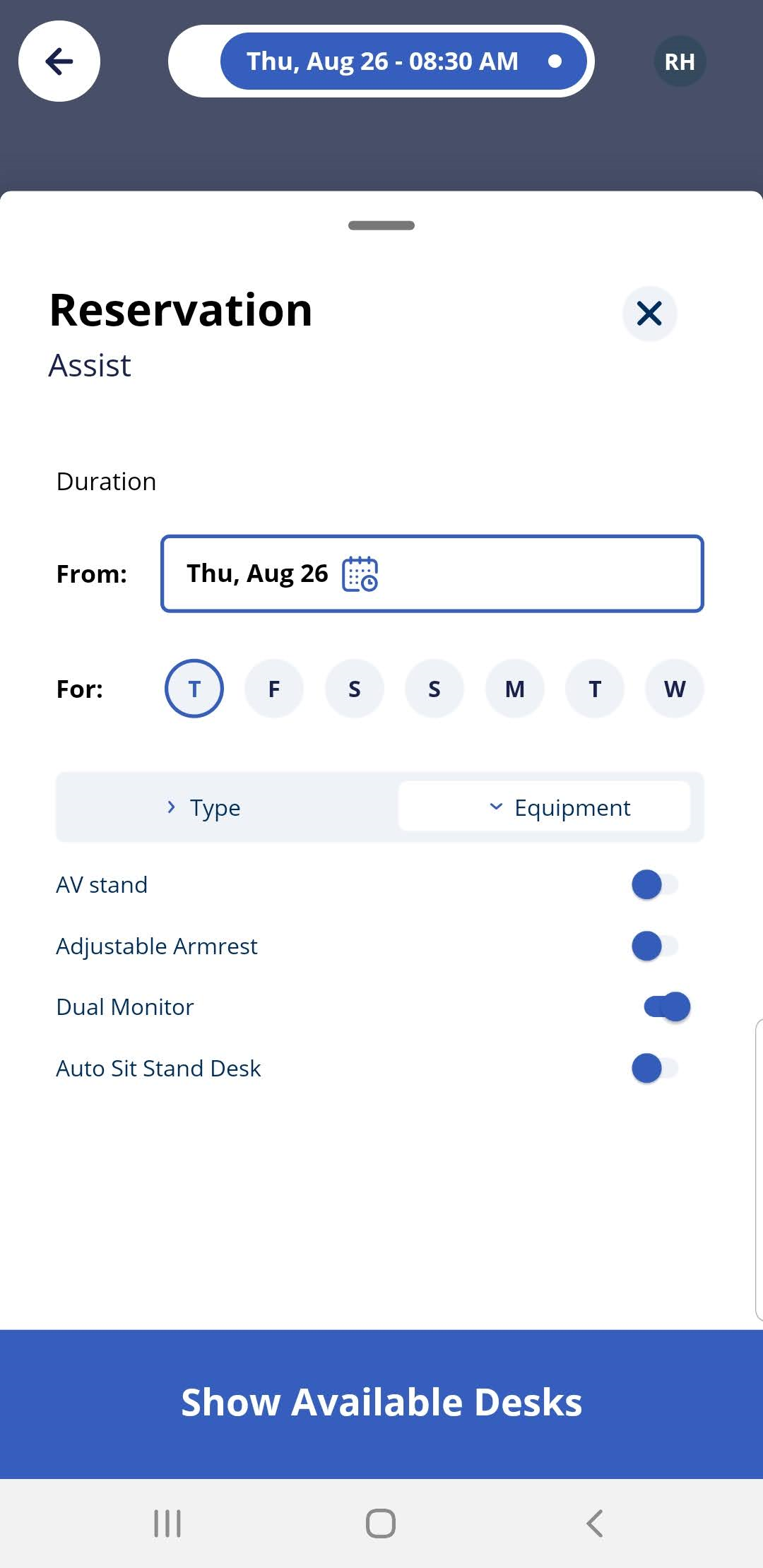
Your employees will be able to filter for desks, such as, if they want a desk that has dual monitor and is a sit stand desk. The Desk Filter lets you filter for the following
Learn how to set up the filters, see Configure Assets for Desks and Spaces. Watch Serraview-Engage in Action |
|
Desk Availability and Reservations
If the employee has permission to reserve the desk and another person has not already reserved it at the selected time, then desks are shown as available.
There are two ways for employees to identify which desks are available for them to reserve:
- Desk Listing
- Highlighted Desks
Desk Listing
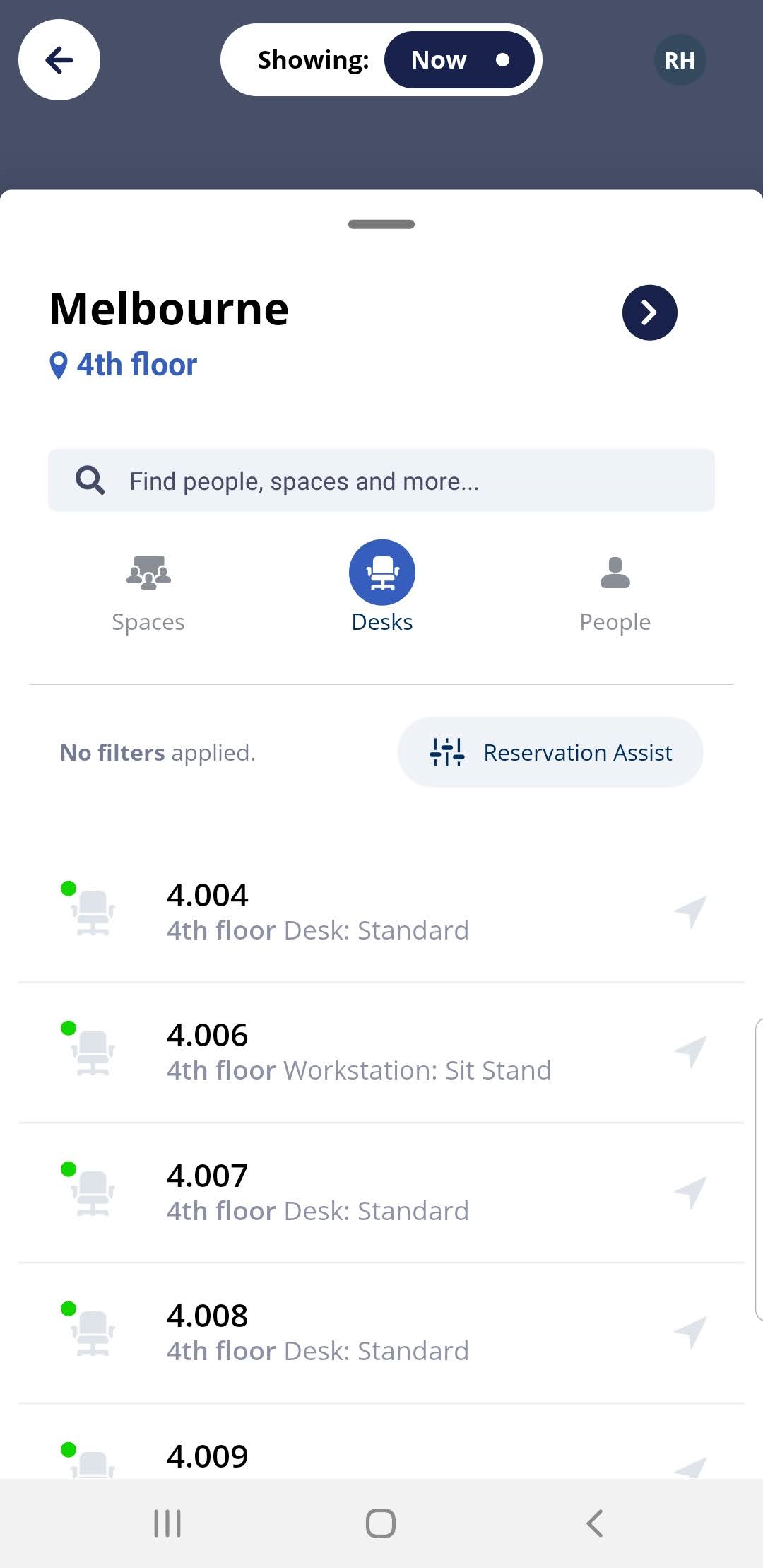
| The desk listing displays all of the available desks (green circle) on a floor, followed by unavailable ones (amber circles). |
|
Highlighted Desks
|
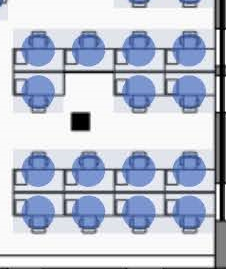
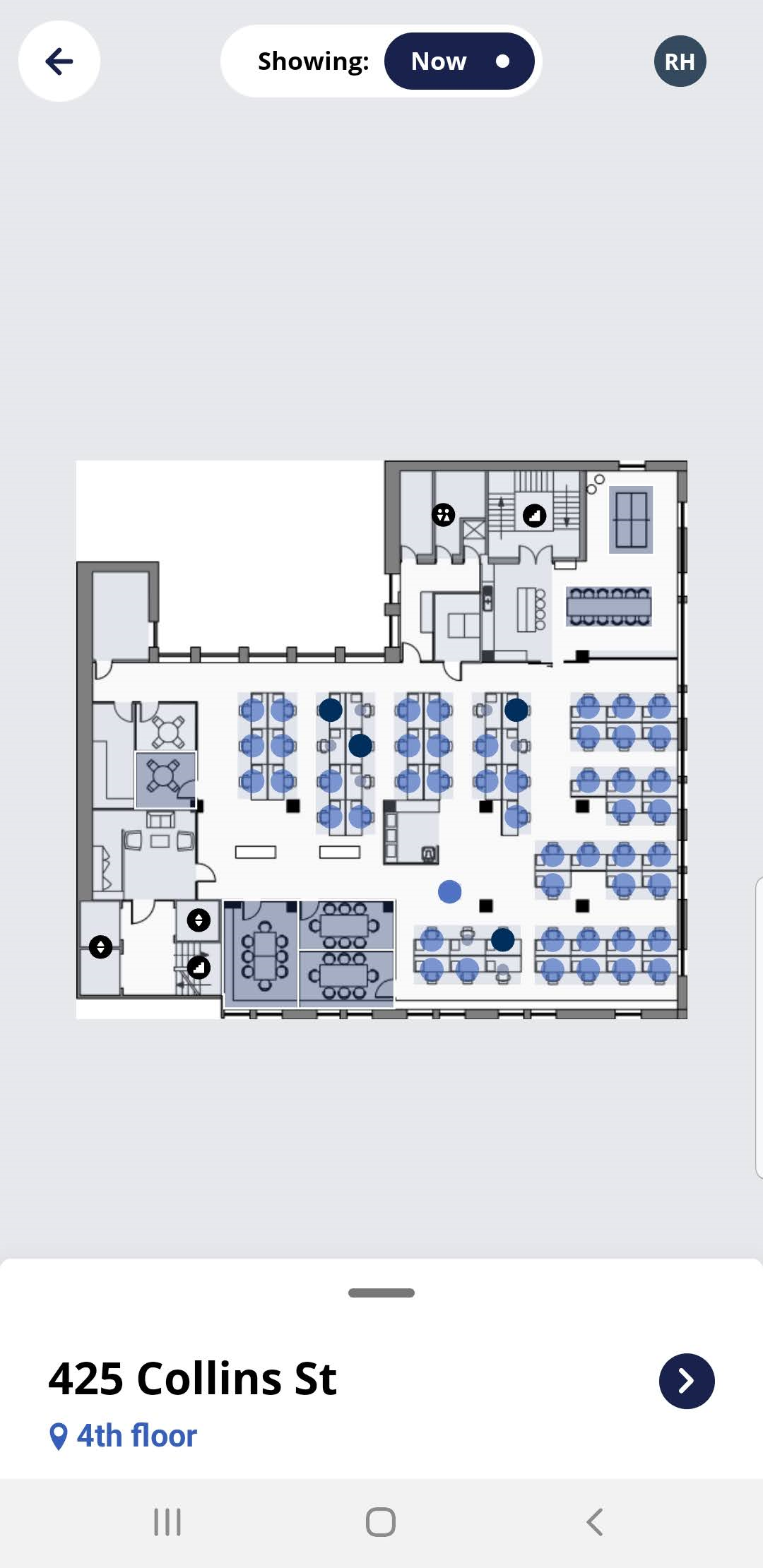
Desks that are available for the user to reserve are highlighted on the floor plan.
|
|
Customize the Floor plan Color for Available Desks
|
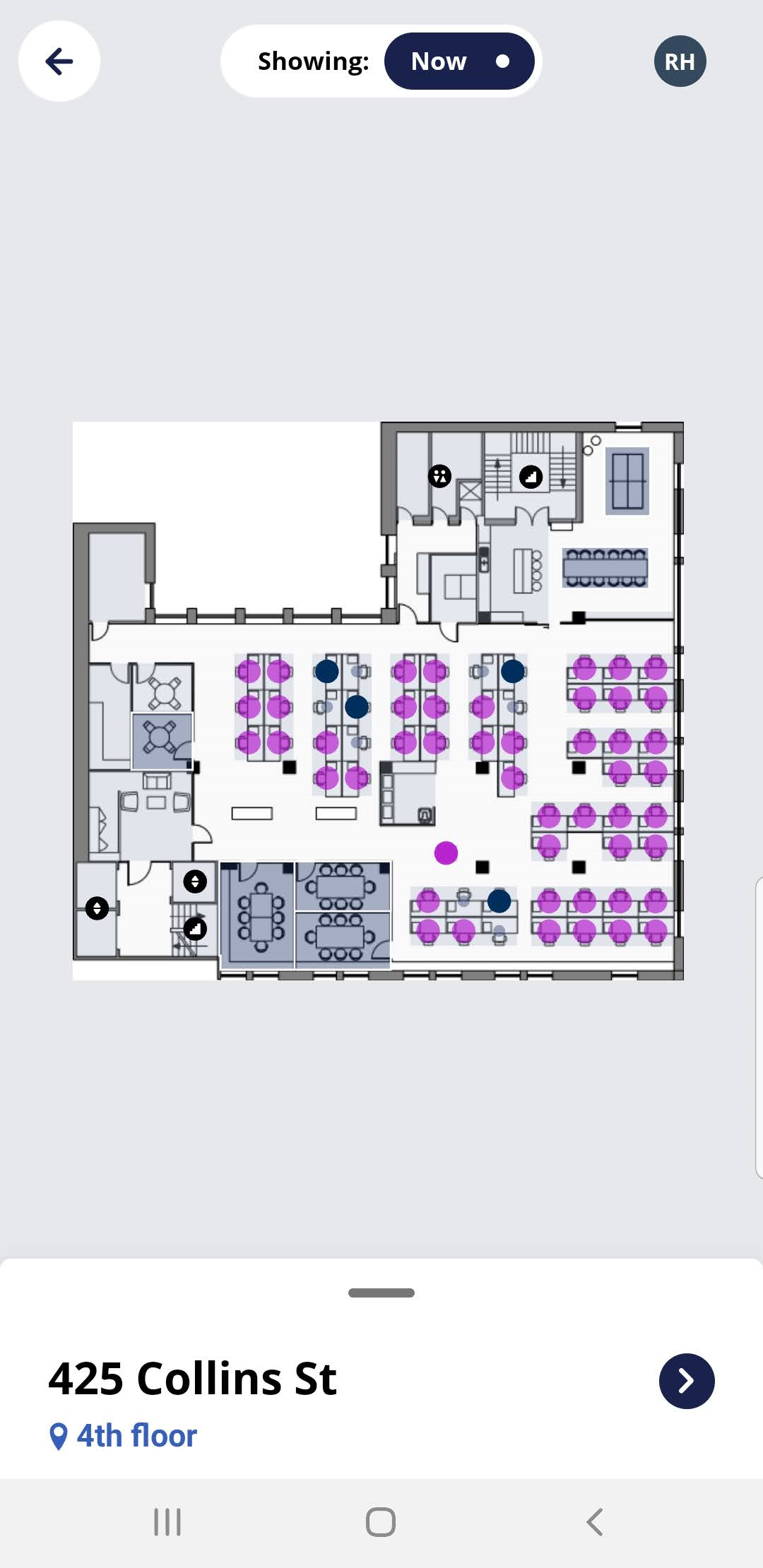
You can change the color of the available desks on the floor plan. |
|
Reserve a Desk
Reserve a Desk for yourself
|
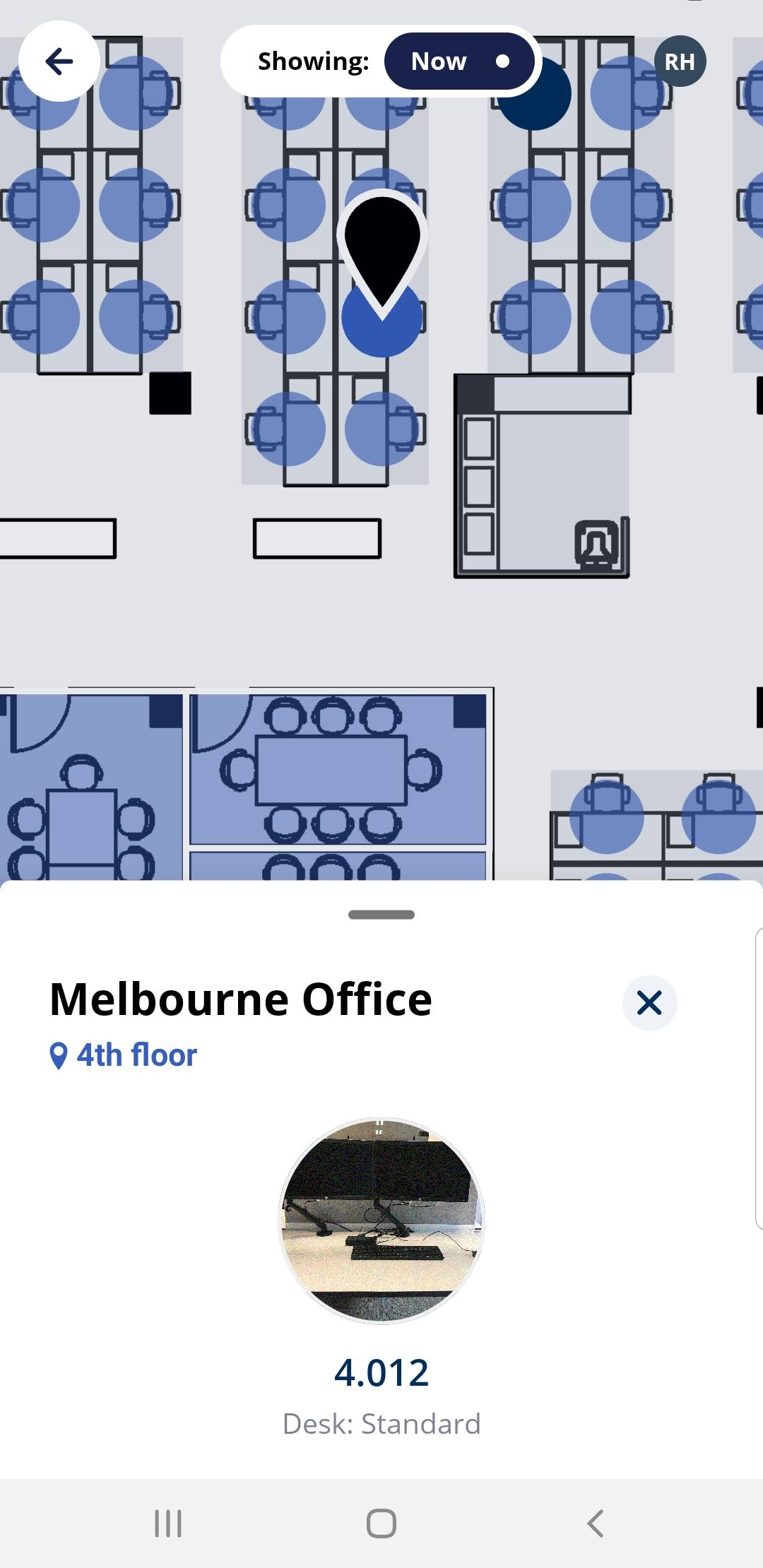
You can easily make all-day reservations. Watch Serraview-Engage in Action |
|
Reserve a Desk on behalf of another
|
If part of the job is to reserve desks on behalf of another then your System Administrator can give you permission to complete this. For details on the secured actions to set up, see Set up a Person to book on behalf of another. Watch Serraview-Engage in Action |
|
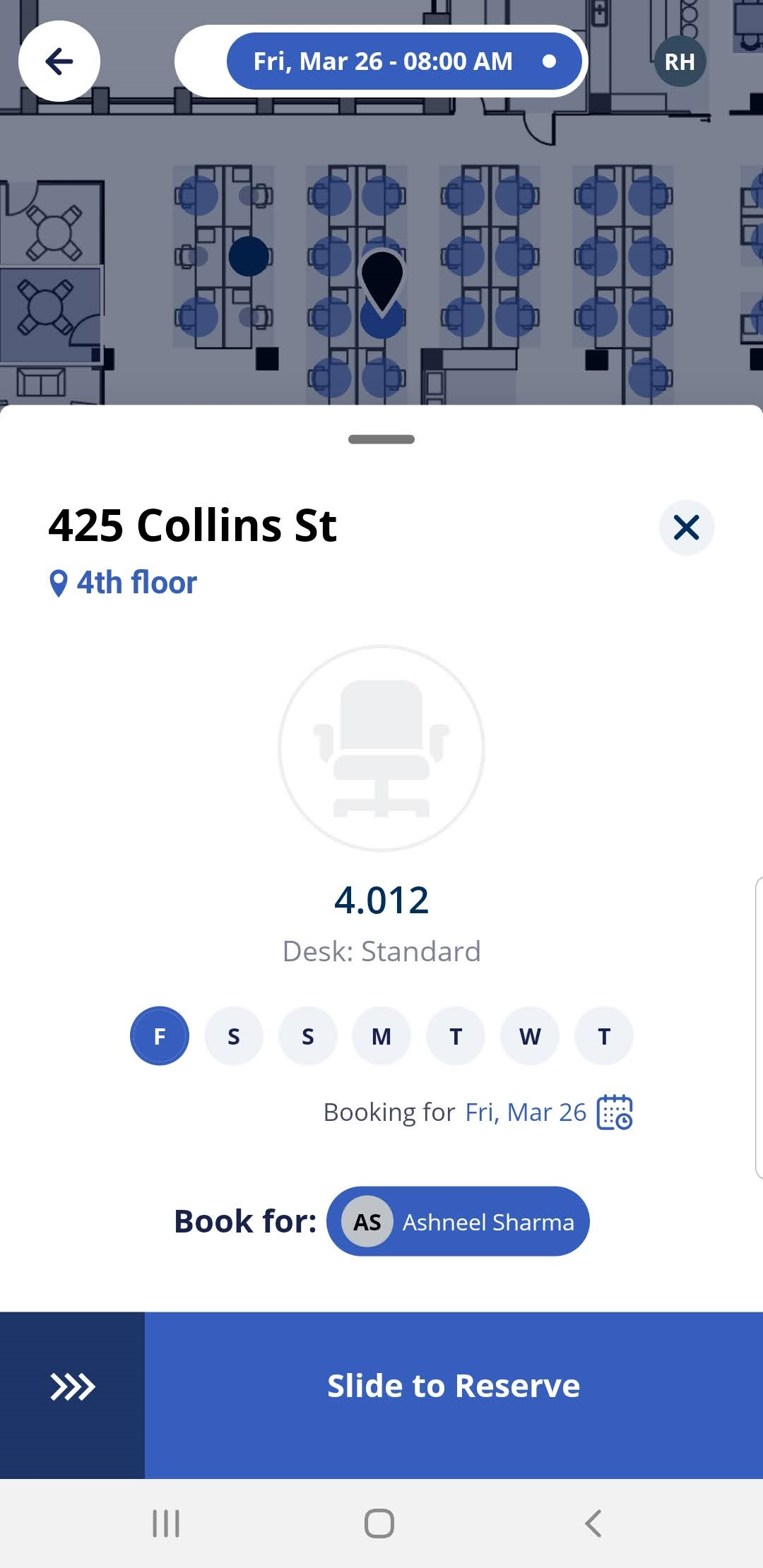
Desk Availability for a Specific Date
With Serraview-Engage, it is simple for an employee to see desk availability Now and in the Future on both the listing and floor plan.
Search by Type and Equipment to find a Space
Use the Filter to find a Space
|
Your employees will be able to filter for desks, such as, if they want a desk that has dual monitor and is a sit stand desk. Also, employees will be able to filter for spaces, such as, if they want a meeting room that has a conference phone. The Space Filter displays filter options, under the headings:
Learn how to set up the filters, see Configure Assets for Desks and Spaces. Watch Serraview-Engage in Action |
|

Space Reservations
Reserve a Space
|
Use Serraview-Engage to quickly reserve a space such as a meeting room. Serraview-Engage can integrate bi-directionally with your organization's Corporate Calendar (as long as it's Exchange/Outlook, Office365, or Google Calendar). With this integration turned on:
For more details, see Serraview-Engage Calendar Integration and if you have questions, then see Serraview-Engage Calendar Integration FAQ. If you don't want to use a Calendar Integration, Engage can be still used to make space reservations, refer to Set up Space Reservations without Calendar Integration. Watch Serraview-Engage in Action |
|
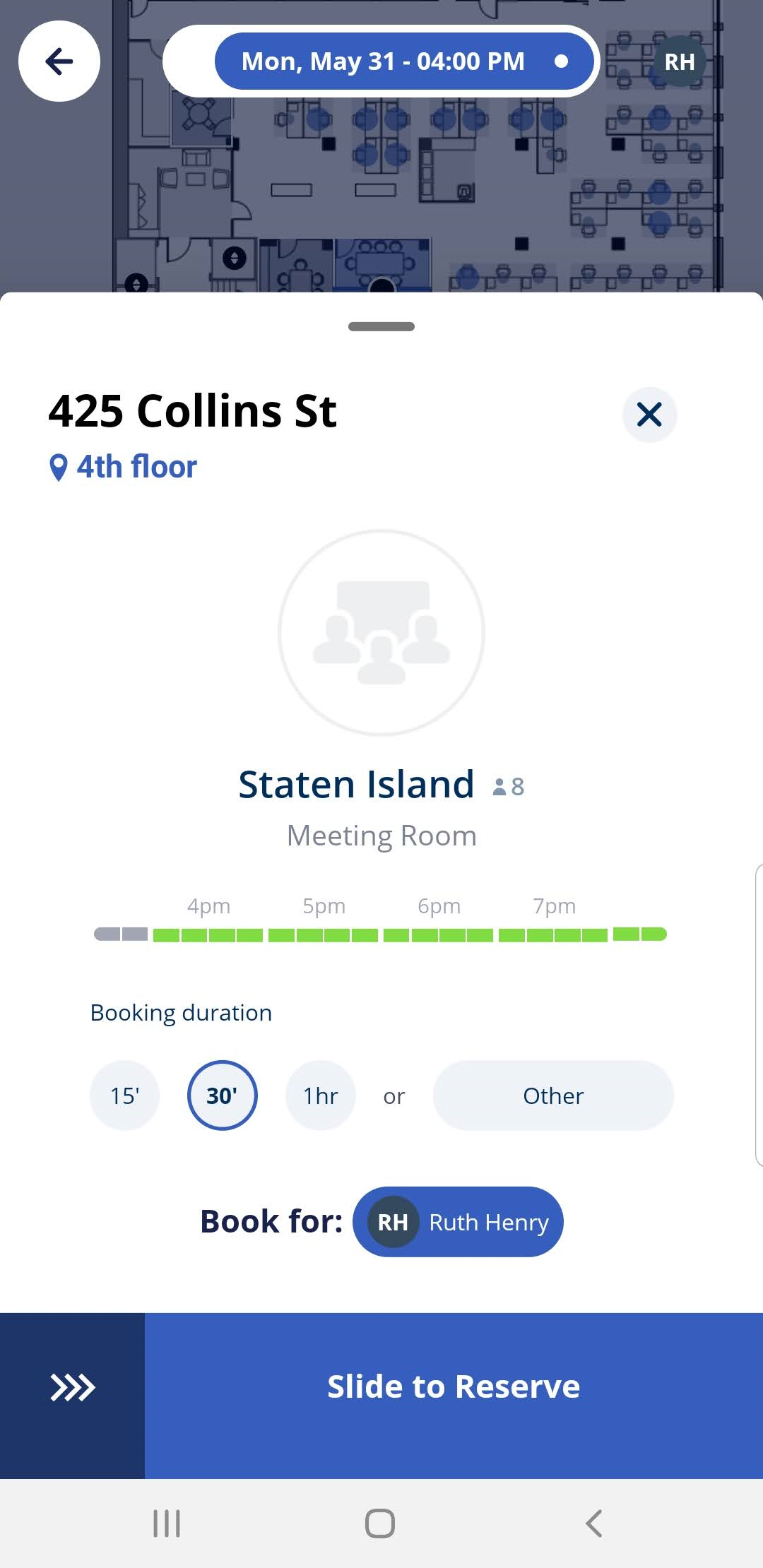
View Upcoming Bookings and Check-in Notifications
View my Upcoming Bookings
|
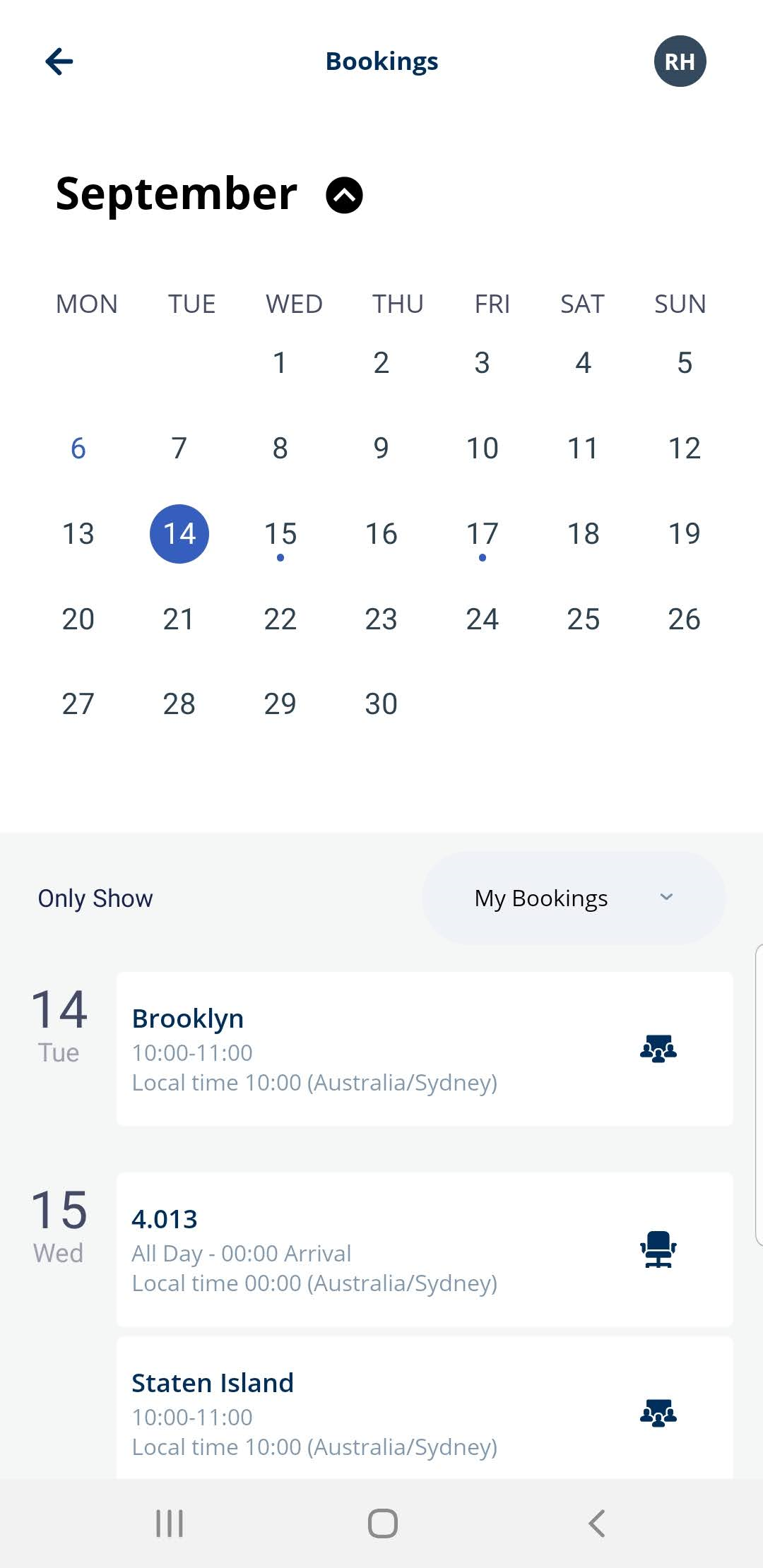
You can view your upcoming bookings for the current month. Watch Serraview-Engage in Action |
|
Cancel your Desk Booking
|
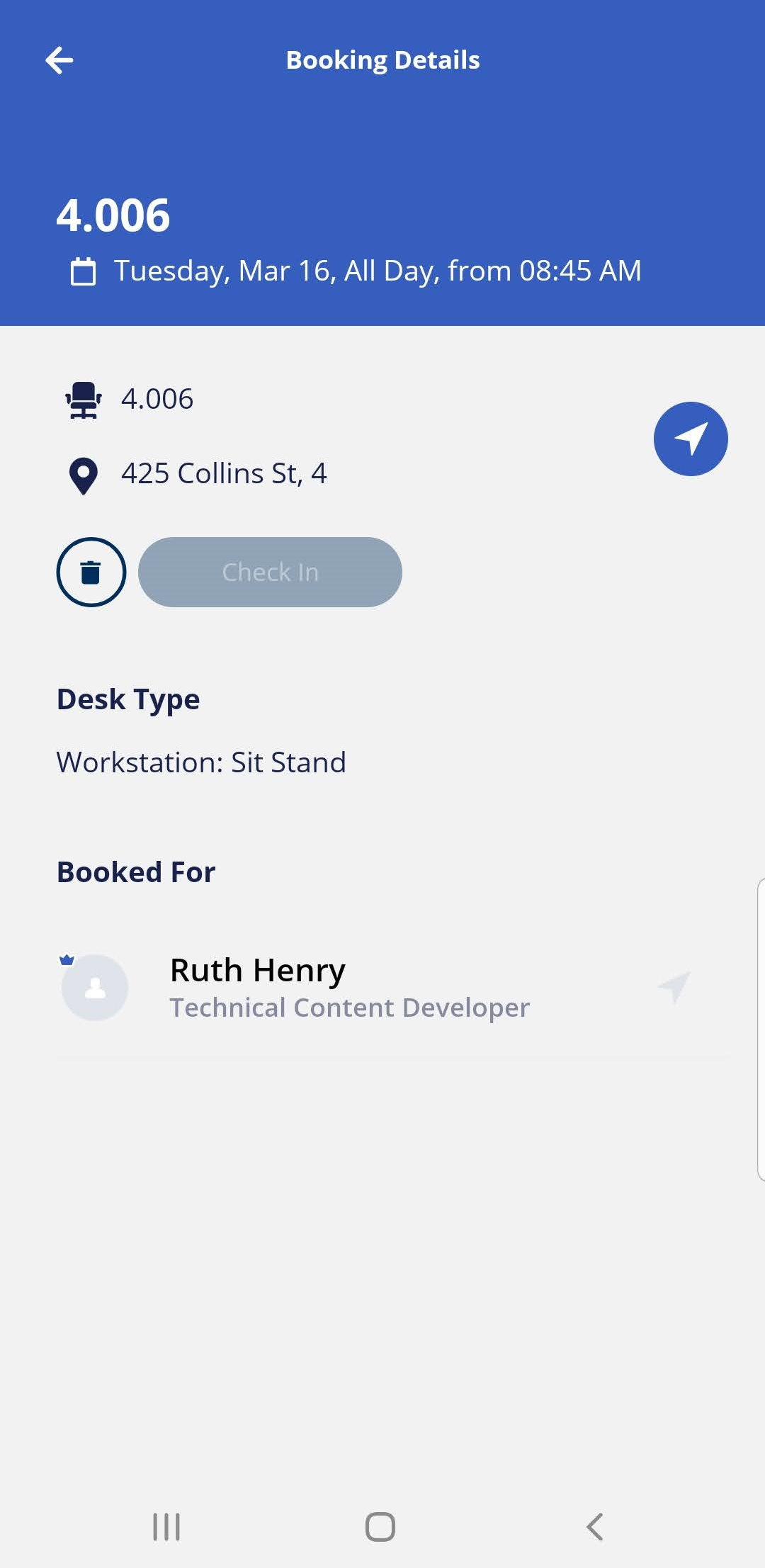
If something comes up and you need to cancel ... well you can do that too. A desk booking can be canceled (deleted) when:
Watch Serraview-Engage in ActionYour System Administrator can cancel a desk reservations. This can be useful when:
Learn more in, Cancel a desk reservations as an Admin. |
|
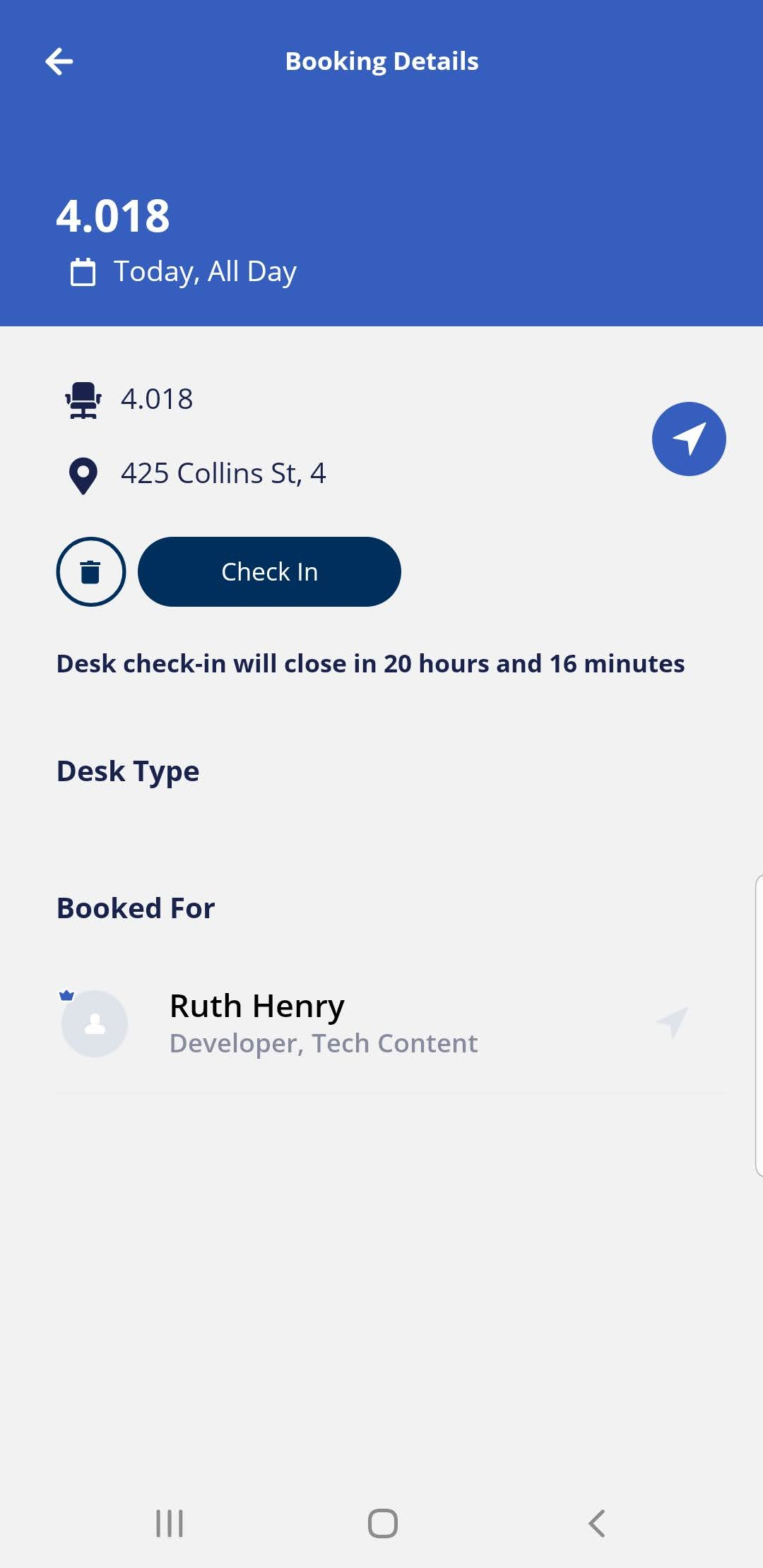
View my Check-in Notifications and Check-in to your Desk
|
Quickly navigate to your check-in notifications from the Notification icon in the top right-hand corner.
Then you can check-in to your desk from Serraview-Engage Web. Watch Serraview-Engage in Action
|
|

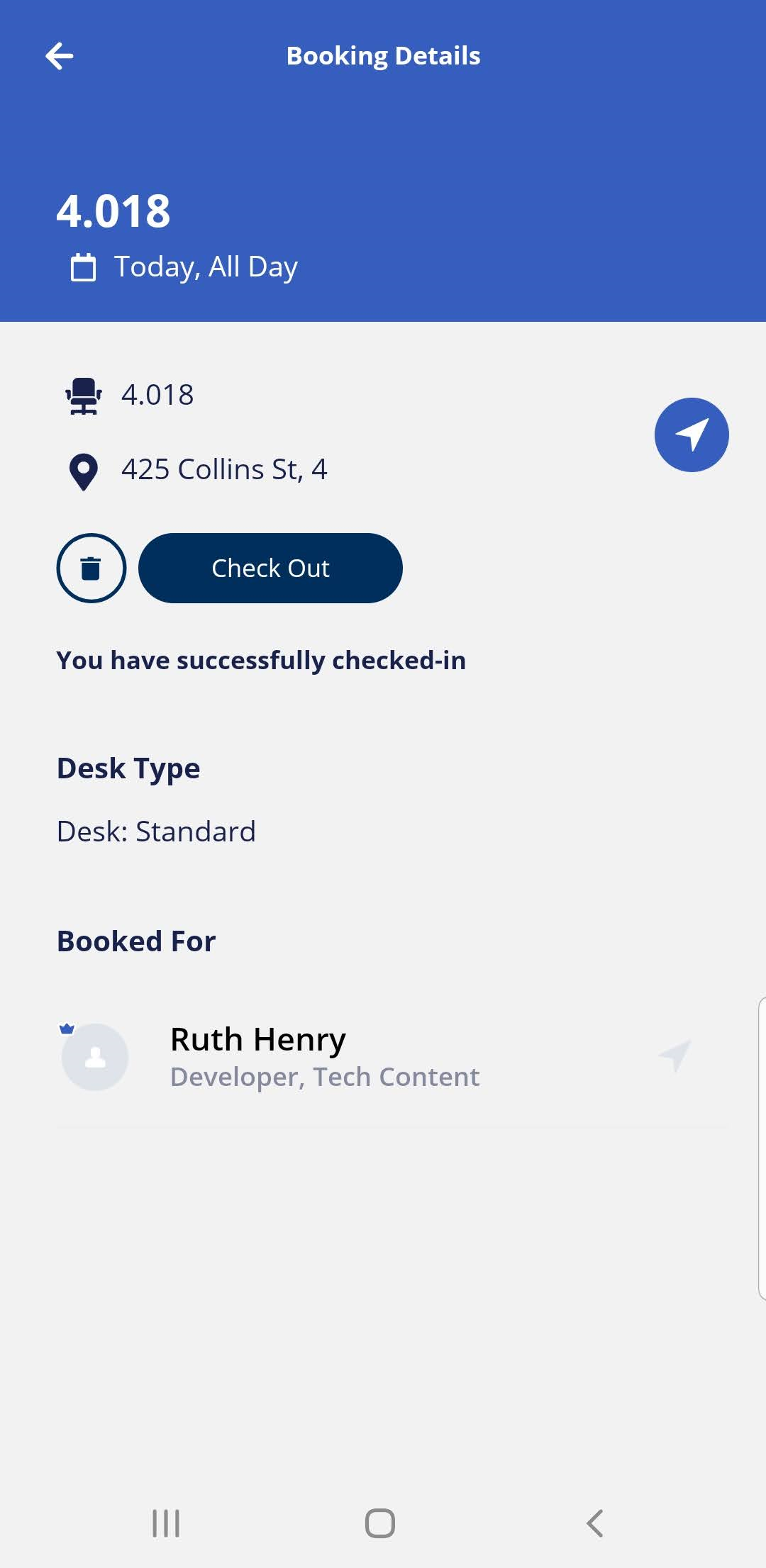
Check out of your Desk
|
When you have finished using a desk, you can check-out of the desk so that it becomes available for others to use. Watch Serraview-Engage in Action |
|
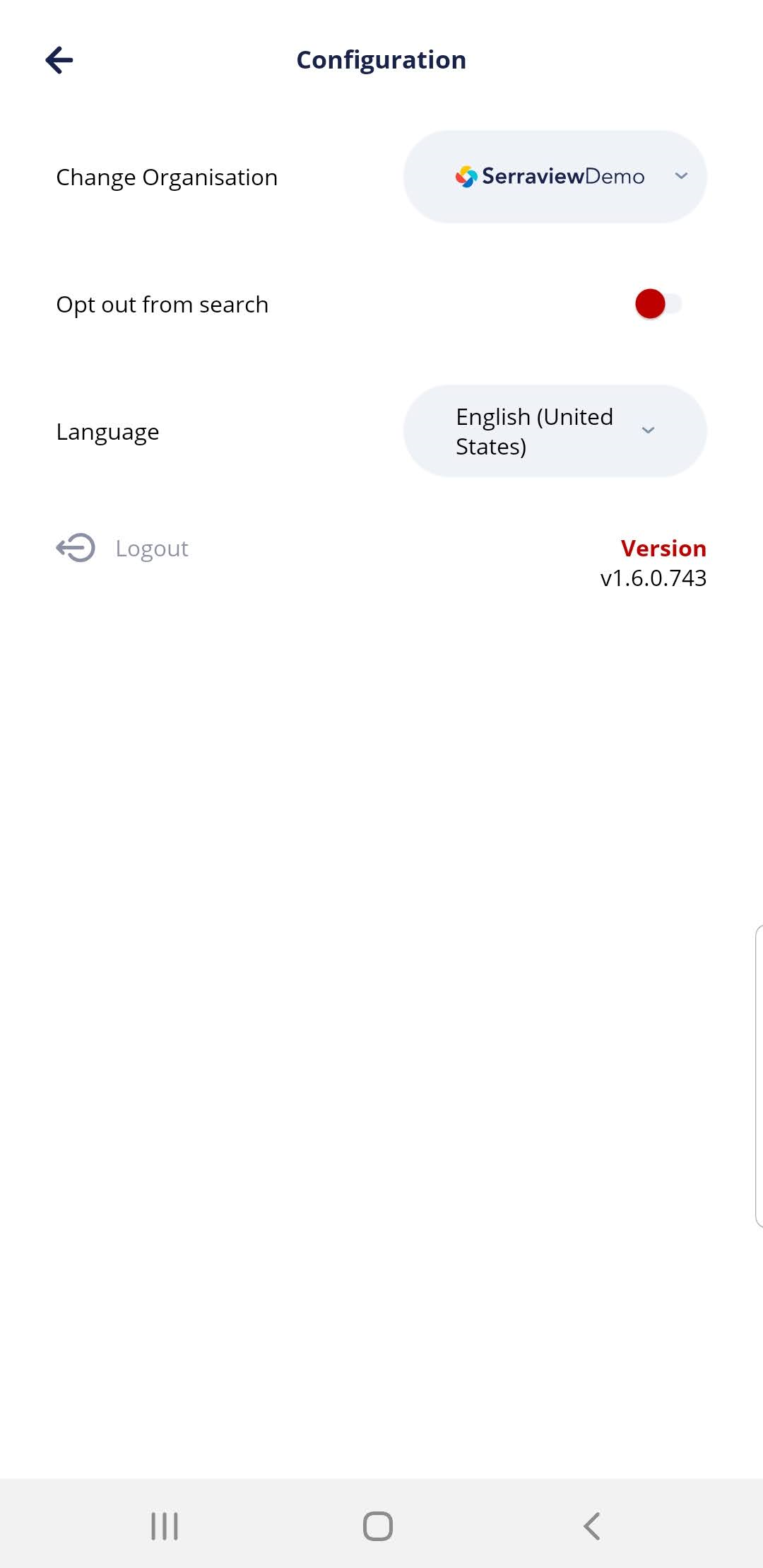
User Settings and Logout
|
From the Settings screen you will be able to:
|
|