
Assigning Assessment Items to an Assessor
Capital Projects / Condition Assessment / Assessment Manager
Sustainability & Risk / Sustainability Assessment / Assessment Manager
Assigning Assessment Items to an Assessor
Typically, an assessment manager generates assessment items and then assigns the generated items to a specific field assessor . The assessor then goes to the field and inspects these particular items and enters their observations on a mobile device, laptop, or tablet PC.
Note: Before you can assign assessment items to an assessor for inspection, an assessment manager must generate them. See Generating Assessment Records .
Procedure
- Load one of the following tasks and select the assessment project whose assessment items you wish to you wish to assign to a field assessor:
- Capital Projects / Condition Assessment / Assessment Manager / Manage Assessment Items
- Sustainability & Risk / Sustainability Assessment / Assessment Manager / Manage Assessment Items
- Select the Show button to see all assessment items for this project.
- The system shows as many generated assessment items for this project, as can display in the lower pane.
- If necessary, use the filter console to limit the list of assessment items. For example, you may wish to see items only for a particular floor or those of a particular classification.
- Review the assessment items in the lower pane, and select those you wish to assign to the same inspector by clicking on the items' check boxes.
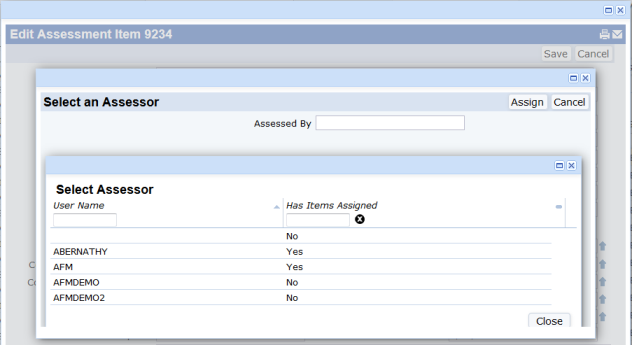
- Choose the Assign Items to Assessor button. The system displays a dialog with an Assessed By field.
-
For the Assessed By field, you can choose from a list of users who meet certain criteria. For information, see
field assessor
. Choose one from the generated list and click OK.
- If the field assessor will be using the Assessment mobile app to do the assessment, make sure that the field assessor you choose in this step is authorized to use the mobile app. See Configuring Archibus Mobile Apps - Archibus Administrator