
Set up your Notifications
Archibus OnSite
Your maintenance manager can decide if OnSite users can control their own notifications. They do this by running the System / Mobile Apps Manager / Manage Configurations for OnSite task and setting the "Allow users to modify their notification settings" option in the Notifications tab.
OnSite users who have permission can change the notification settings:
- Change your Notification settings
- Opting into Notifications when you install the OnSite app
Change your Notification settings
|
 |
Notification Options You can either tap a section and then select which notifications you want.
Turn Notifications Off Or you can tap Turn Notifications Off and all the notifications are disabled. Also, remember to go to your device's System Settings to turn off notifications for OnSite. |
 |
Note: If you need information about how OnSite will behave if you change a notification setting, click the "i" icon in the upper right corner of the screen for the notification. OnSite displays an explanation of the setting.

Opting into Notifications when you install the OnSite app
The device's System Settings controls whether or not you receive notifications. When you install and open OnSite for the first time, OnSite displays a permission screen similar to:
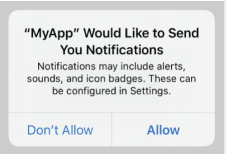
If you choose Don’t Allow, the phone's Push Notification system setting will be set to Off; you will not receive any notifications from the OnSite app.
If you choose Allow, the phone's Push Notification system setting be set to On with the following default options:
- Lock Screen/Notification Center/Banners: On
- Banner Style: Temporary
- Sounds/Badges: On
Note : If you uninstall the app and reinstall it again, you will not again be prompted to opt in to notifications. You make changes using the below procedure.