
Book a Workspace
Archibus Workplace
Locate available workspaces and book for today or the future.
- Open Workplace.

- Click the Book workspaces tile and you are prompted to choose if you want to book the recommended space or locate a different space.
AI-Powered Intelligent Booking
If you see Recommended by AI, then your organization is using the AI Single Desk Intelligent Bookings. This will recommend you a space to book and contains the same 'Book again for {date}' and 'Locate on the floorplan' buttons.

If you want to book this space, then click the Book again for (date) button and the Workspace is successfully booked displays. Click the Go to main button to return to the main menu.
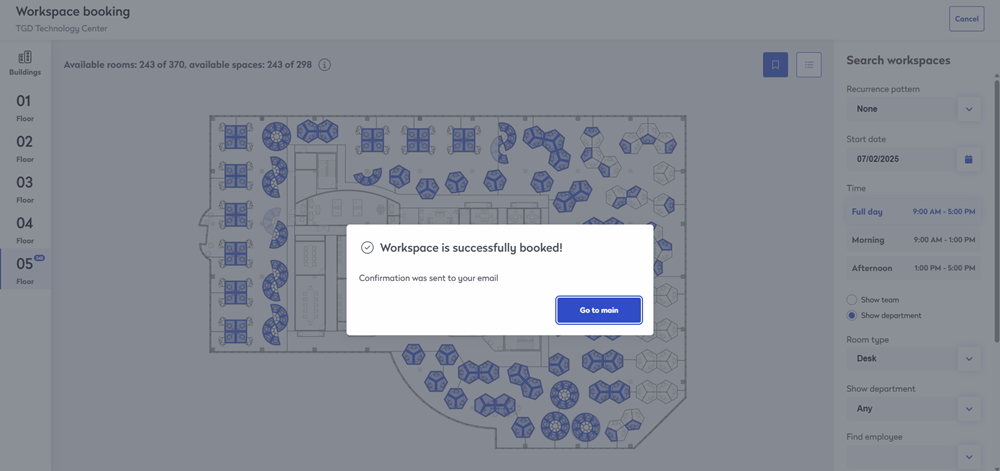
Or, if you want a different space, then click the Locate on floor plan button.
Understanding the floor plan
When you are searching for a workspace to book there are several filters that can be used.

You can use the following to find the space you want and as you make selections, the floor plan will automatically update to display the available spaces.
- (A) Navigate to another floor.
- (B) Zoom into the floor plan and pan around to find the space you want.
- (C) Help to explain the shortcut keys. You can use the following keys to:
- CTRL + ALT + - / + to zoom in and out
- CTRL + ALT + J / L / I / K to pan (left/right/up/down)
- (D) Switch to the 'room list view' and browse to the space you want.
- (E) If you want to set up a recurrence pattern as either None, Daily, Weekly, or Monthly.
- (F) Choose a start date and time.
- (G) Select other criteria to search on, such as:
Find employee - If you want to sit next to a particular employee, then you can search to find out where they are sitting.
- Click the Find employee drop-down and the Employees dialog displays.
- Next, you can search for the employee's name.
- Click their name to find where they are sitting.
Expand to see where the employee is located on the floor plan

Neighborhood - If you want to sit in a neighborhood.
- From the Neighborhood drop-down, select the neighborhood to highlight the workspaces on the floor plan.
- Select a workspace to book.
Expand to see the neighborhood on the floor plan.

Room type - If you want a particular room type, such as an office or desk. From the Room type drop-down, select the room type to highlight the workspace on the floor plan.
Highlight department - Select the toggle and then from the Highlight department drop-down select the department to highlight on the floor plan.
Expand to see the department on the floor plan

Highlight team - Select the toggle and then from the Highlight team drop-down select the team to highlight on the floor plan.
Amenities - If you need a particular workstation with a 'sit stand desk' or a 'window view', check the Amenity check box to highlight the workspace on the floor plan.
Expand to see an amenity, such as a 'sit stand desk' are located on the floor plan
