
Services and Support
Services and Support
End User Support
If you need end-user support, then make sure you either:
- Contract your Internal Help Desk
- Contact your Partner
Contact Technical Support
Need help? Start a conversation with Support.
Hours of Operation:
24 X 7 (Severity 1/ Severity 2)
24 X 5 (Severity 3/ Severity 4)
 |
|
|
|
|
Submit a Technical Support Ticket |
Email us |
Give us a call AMER 1 678 919 2833 APAC 61 1300 895 060 EMEA 44 20 3936 2477 India 91 80 3724 4344 Option 4 for Technical Support and then option 1 for Archibus |


Partner Portal
Download software and keep informed of our latest announcements and events, go to: https://eptura.allbound.com/
Training
You can receive training from the worldwide network of partners who offer standardized Archibus training. For information, consult us or your business partner.
Eptura Customer Hub
Your Partner has access to the Eptura Customer Hub, where they can submit a new support case or review and manage an existing one.
Access the Eptura Customer Hub
- In a browser, open https://customer.eptura.com/
- Click the Log in button. The login screen displays.
- If you need to request access, then complete the access request form.
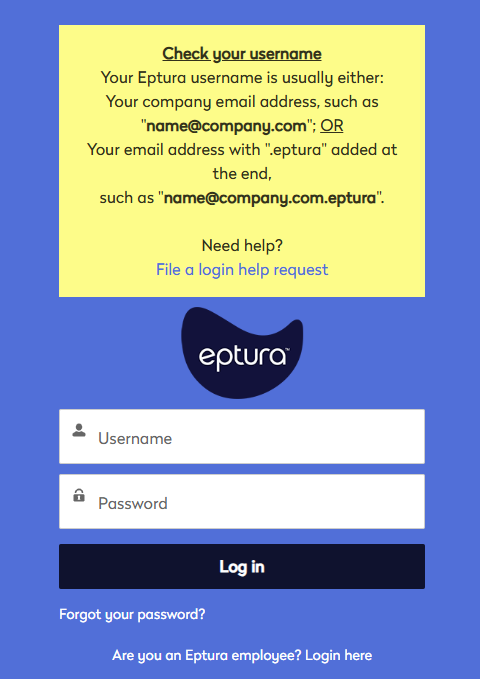
- In the Username field, enter in your Eptura username. This may be in the format of your
<email address>.epturaand.epturaadded to the end. For examplejohn.smith@company.com.eptura - In the Password field, enter in your password.
- Click the Log in button and the Eptura Customer Hub home screen displays.
View your existing Support Cases
You can quickly view and work on your support cases.
From the Eptura Customer Hub home screen:
- Click the My cases menu option.

- The My Cases screen displays.

- You can either search for the case or you can filter the cases lists.
- From the My Open Cases drop-down and then select either: All / My Cases, All / My Closed Cases, All / My Open Cases, Recently View, or Recently Viewed Cases.

- When you find the support case, then click the support case and the Case Details screen displays. This lets you interact with our Support team to provide more images about the issue or additional comments.
Remember when you are satisfied with the resolution of the case, we highly recommend that you close the case on your side.
Create a Support Case
To create a support case for our Support team, you can either use the form or email support (at the above mentioned email address). Let's see how you can create a support case in the Customer Hub.
From the Eptura Customer Hub home screen:
- Click the My cases menu option.

- Click the New Tech Support Case button and the Contact Technical Support screen displays.
- In the Subject field, enter a subject description and as you type, our Knowledge Center articles will display on the right-hand side.
- In the Description field, enter the description of the issue.
- From the Products drop-down, select either Archibus or Archibus for Government you want to submit a support case for.

- From the Product Version drop-down, select the Archibus product version.
- In the Customer Name field, enter the your customer name.
- In the Steps to reproduce field, enter the steps of what you were doing.
- From the Impact-Scope drop-down, select either:
- 1-2 users
- Few users
- Most users
- All users
- From the Impact-Function drop-down, select either:
- General question/need help
- Feature not working as documented, but we have a workaround
- System slow or performance issues
- Critical feature not working
- Can't access the system
- From the Urgency drop-down, select either:
- Not urgent
- Minimal import / info request
- Annoying but manageable
- Causing significant delay
- Blocking daily operations
- In the Environment/Instance field, enter the environment or instance's name.
- You have the option to include images or files to the support case. Either:
- Click the Upload Files button and upload the files.
- OR drag and drop the files onto the Or drop files button.
- Click the Submit Case button. The Support Case is submitted and the Case number displays on the screen and an email notification will be sent to your email address.