
Types of Questions for Checklists and Compliance Questionnaires
Archibus SaaS / Maintenance / Workflow / Define Maintenance Checklist
Maintenance / Corrective Maintenance / Business Manager / Define Maintenance Checklist
Maintenance / Preventive Maintenance / Maintenance Manager / Define Maintenance Checklist
Sustainability & Risk / Compliance / Contract Manager / Define Compliance Questionnaire
Sustainability & Risk / Compliance / Compliance Program Manager / Define Compliance Questionnaire
Types of Questions for Checklists and Compliance Questionnaires
The extended questionnaire system supports the following types of questions. The Question Type field of the Questions table determines the question and its behavior.

For the general procedure on entering questions, see Define Questions for a Questionnaire, which also covers the basic information you must specify for each question.
Yes/No
The Console adds the text Yes, No, N/A. If you add the question to a Yes/No section, the question displays as follows and the section displays the Yes/No options.

If you add the question to a section other than a Yes/No section, the question lists the Yes/No options in the same row as the question, such as this:

Pass/Fail
The Console adds the text Pass, Fail, N/A. If you add the question to a Pass/Fail section, the question displays as follows and the section displays the Pass/Fail options.

If you add the question to a section other than a Pass/Fail section, the question displays the Pass/Fail options in the same row as the question, such as this:

Single Choice
The user can choose only one response.
If you add the question to a Single Choice section, the question displays as follows and the section displays the answer options that you specify as part of the section
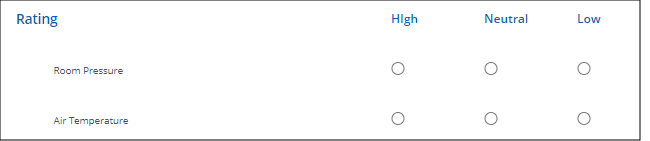
If you add the question to a section other than a Single Choice section, you specify the answer options as part defining the question. The question displays the answer options in the same row as the question, such as this:

Multiple Choice
Multiple choice questions enable the user to select one or more responses. They are indicated to the user with a square checkbox.
If you add the question to a Multiple Choice section, the question displays as follows. You specify the answer options as part of defining the section. .
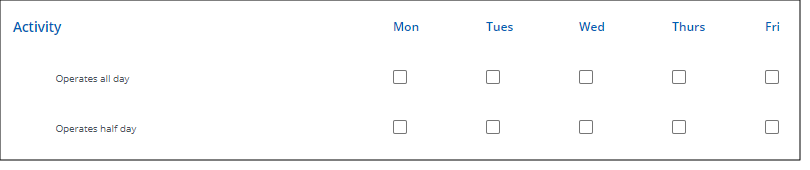
If you add the question to a section other than a Multiple Choice section, the question displays the answer options in the same row as the question. You specify the answer options as part of defining the question.

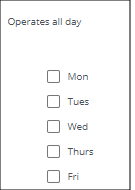
For multiple choice questions, you can also decide between short format ("Operates all day" example above) and Long Format as shown in the "Operates all day" questions, below. Set the format using the Display Format option when defining the question.
Text
A text fields presents a field in which the user may enter text to describe a situation or further elaborate on a previous question or clarify other responses.
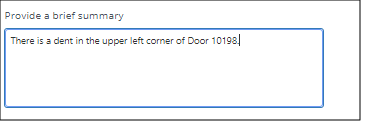
When defining a text field, you must specify the maximum size of the allowed entry:
| Option | Description |
|---|---|
| Free-form Width |
Enter the maximum number of characters that the user can enter in the field. You cannot specify a number larger than 1000. |
Date
Surveyors may need to inquire as to a date value from the field, such as the date of last inspected from a tag on an equipment asset, or the last recorded cleaning service in a kitchen or washroom. As a questionnaire designer, you do not specify any additional properties for date fields. Add a Date question to a section specified as "Other question type."
Questionnaire users can specify the date by selecting it from the pop-up calendar or typing it in the date field. If they do not enter the date in the appropriate format, the survey prompts them to correct their entry.

Count
The surveyor can enter a whole number in the field, either by typing it or clicking the triangle-shaped buttons on the right. As a questionnaire designer, you do not specify any properties for count fields. Add a Count question to an "Other Question Types" section.

Measurement
Measurement fields have two components: the value that was measured, and the default unit, which the surveyor can change.

When defining a measurement field, you must complete the following options. The values that you can choose for Measurement Type and Default Units are entered as part of the Define Measurement Units task.
| Option | Description |
|---|---|
| Measurement Type | Choose the type of measurement such as Area, Length, Mass, Pressure. |
| Default Units |
Choose the default units for this type of measurement. For example, if the measurement type is Length, you can set the default unit to Feet, and this will appear to the surveyor as per the above image. The surveyor can then change the unit of measure if needed. Questionnaire designers should choose a default unit of measure that corresponds with a) the anticipated scale of most inputs and b) with the anticipated scale of measurement needed for summary reporting. |
Document/Photo
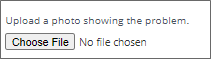
The surveyor may want to upload a photo documenting a condition or attach another type of document to the questionnaire.
| Option | Description |
|---|---|
| Max # of Responses | Enter the number of documents the surveyor can upload. When the surveyor reaches this number, the form displays a message stating that the surveyor cannot enter any further responses. |
Time (Compliance Surveys only)
The questionnaire can include a time field, as below. As a questionnaire designer, you do not specify any additional properties for time fields. Add a Time question to a section specified as "Other question type."
Questionnaire users can type the value, or click the clock icon to access a list of times to choose from. If they do not enter the time in the appropriate format, the survey prompts them to correct their entry.

Lookup (Compliance Surveys only)
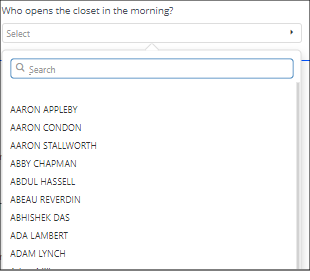
A surveyor might need to answer a question by choosing values from an Archibus table. In the below example, the surveyor can choose from existing employees in the Employees table. When the surveyor clicks on the triangle button, the questionnaire presents a popup searchable list of all records in the Employees table. The surveyor can search and scroll the list to choose a record; the questionnaire then displays the selection in the box.
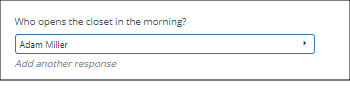
If you define the question to accept multiple entries (set the Max # of Responses to a value other than one), the survey includes the text "Add another response" so that the user can continue to add values from the lookup table. For example, if you specify a Max # of Responses as 3, the field appears as follows after the user selects the first employee:
When defining a lookup, you must complete these options.
| Option | Description |
|---|---|
| Lookup Table |
Choose a table from a list of tables in the schema. |
| Lookup Field | Choose the field from the above table that you want the user to complete. |
| Max # of Responses | Enter the number of responses the surveyor can enter. When the surveyor reaches this number, the form displays a message stating that the surveyor cannot enter any further responses. |
Note : If a respondent were to click the "Add another response" button more times than needed and leaves some of these fields blank, they can still submit the questionnaire with the extra response fields blank. The application will ignore those blank fields and, upon refreshing the form, the extra blanks will disappear from view.
Modeling Percent Questions
There is no question type for percentages, such that so that a question requests numeric responses between 0 and 100 and the questionnaire forms enforce consistent data entry.
Instead, you can do the following:
- Use a Count question to record integers, and instruct respondents to provide values between 0-100. Then review responses in summary reports or ad hoc reports on answer records to find any that fall outside the bounds.
- Use a Measurement question and define a unit type and unit of measurement for "percent" with a conversion factor of 1. This enables respondents to record precise decimal values, if needed.
- Define a multiple choice questions with answer options that provide selections among brackets of percent values, such as, 0-20%, 21-40%, 41-60%, and so on.