
Share your ideas
Web Central
Got an idea? Let us know!
Launch the Ideas Forum
As you use Archibus to manage your space and facilities, you might have ideas for new features and working methods. Additionally, you might wish to weigh in on proposed changes, and advocate for those that are high priority for you.
To provide your feedback on the current product and proposed changes submitted by other users, you use the Suggest a Feature command, located on the User menu. In order to use this command, you must register with the Eptura-Uservoice Forum.

Step 1. Register your Company Domain to the Uservoice Forum
The Eptura-Uservoice Forum is a private forum, restricted to Business Partners and customers. To sign up for the Eptura-Uservoice forum, ask your Business Partner to submit a request to Eptura Customer Support to register your company e-mail domain. This might have already occurred when your company placed an order .
Step 2. Assign FEEDBACK Security Group to the User Role
For Archibus users who want to access this feature, an administrator must assign the FEEDBACK security group to the user's user role.
Step 3. Sign up for the Eptura Uservoice Forum
After your Business Partner or the Customer Support team confirms that your company domain has been registered with Eptura-Uservoice, you are ready to sign up.
- Sign in to Archibus.
- Click on the User Profile icon in the top-right corner of the screen.
- Click the Suggest a Feature command. (See above image.)
- If you do not see the Suggest a Feature command, your user role does not have the FEEDBACK security group assigned. Contact your company's Archibus Administrator to enable it.
- Archibus directs you to the Sign Up/Sign-In page of the Eptura-Uservoice forum. If you are a new user, you must sign up and set a password.
- Enter your email address. Click Signup.
- You will receive an email with instructions for setting up a password.
- If you do not receive an email, go to Settings / Set Password in the upper right corner.

- In the subsequent screen, click "Create a password." You will receive an email with a password link.
- Use this link to set a password.
- After you set up a password, the forum will be enabled.
Search the Ideas
Before submitting a new idea, check if it already exists and add your support by voting for it. Ideas with more votes gain greater visibility, showing us they resonate with a wide group of customers.
You can browse submitted ideas via Categories on the left, via the 'Hot', 'Top Ideas' and 'New' filters, or search by entering your idea into the search box. You can also browse ideas by their status.

Filters and Status
Use the filters to browse existing ideas, and the status to see how ideas are progressing:
- Hot: Ideas that have seen lots of activity in a short amount of time - both votes and comments.
- Top Ideas: These are the ideas with the most votes.
- New: Browse the newest ideas.
- Status: Select the status to see how ideas are progressing.
If your idea exists, you can vote for it
 |
If you find an idea that might be helpful for you too, click the Vote button to show your support. |
 |
If you want to remove your vote, then click the Voted! button. |
If your idea exists, you can tell us how important this idea is
You can also tell us how important the idea is to you; select either 'Nice to have', 'Impactful', or 'Fundamental'.

If your idea exists, you can add a comment
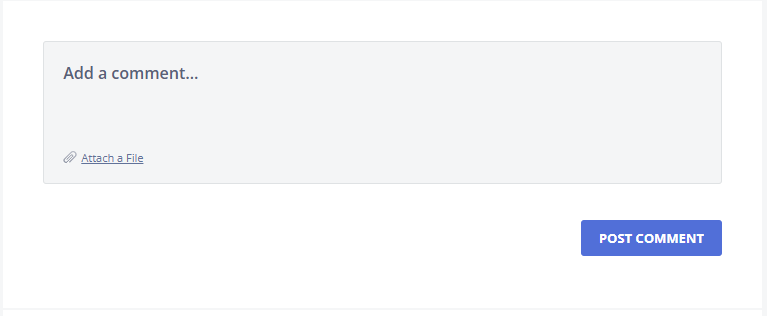
You can review an idea and add your own point of view in the comments. You can also attach a file if it helps to explain the idea. Remember that your comments are visible to everyone!
Submit an idea
When you've searched for an idea and it doesn't exist, you can submit it as a new idea.

- Click Post a New Idea. (This button is only visible after performing a search). The submission form opens with your idea automatically entered.
- Select a Category from the drop-down list.
- Provide more details about the idea in the Describe your idea... box.
- If useful, upload a screenshot or file to help us understand your idea.
- Click Post Idea to submit your idea to the team.
Tips to writing up an idea
- Start with the problem: Explain what issue or gap your idea addresses.
- Describe the goal and solution: A detailed description, especially with examples or supporting visuals like images or videos, can help us understand your request better.
- Highlight the benefits: Mention who benefits - end users, admins, or the business. Explain the benefits to the user experience or productivity, and the business impact.
Receive Email Notifications
To receive notifications about status updates or new comments, update your notification settings.

- In the header, click Settings (A) to show the email notifications options (B).
- Select the email notifications you want to receive for ideas that you've submitted or voted for:
- Status updates: Sends an email when an idea's status changes.
- New comments: Sends an email when a comment is added to an idea.
- Idea submission confirmation: Sends an email to confirm your idea submission.
The settings are automatically saved.