
Work with the BIM Viewer and Simple Revit models stored in Forge Buckets
System / CAD and BIM Manager / Catalog BIM Models
Technologies / Innovative Solutions / Forge Integration / Catalog BIM Models
Archibus SaaS / Maintenance / Corrective Maintenance / BIM Viewer
Maintenance / Corrective Maintenance / Supervisor / BIM Viewer
Assets / Assets / Asset Manager / BIM Viewer
Assets / Enterprise Assets / Facility Asset Manager / BIM Viewer
Prerequisites
-
One Revit model that has:
-
at least one level with some rooms
-
at least one phase - for example “New Construction”.
-
-
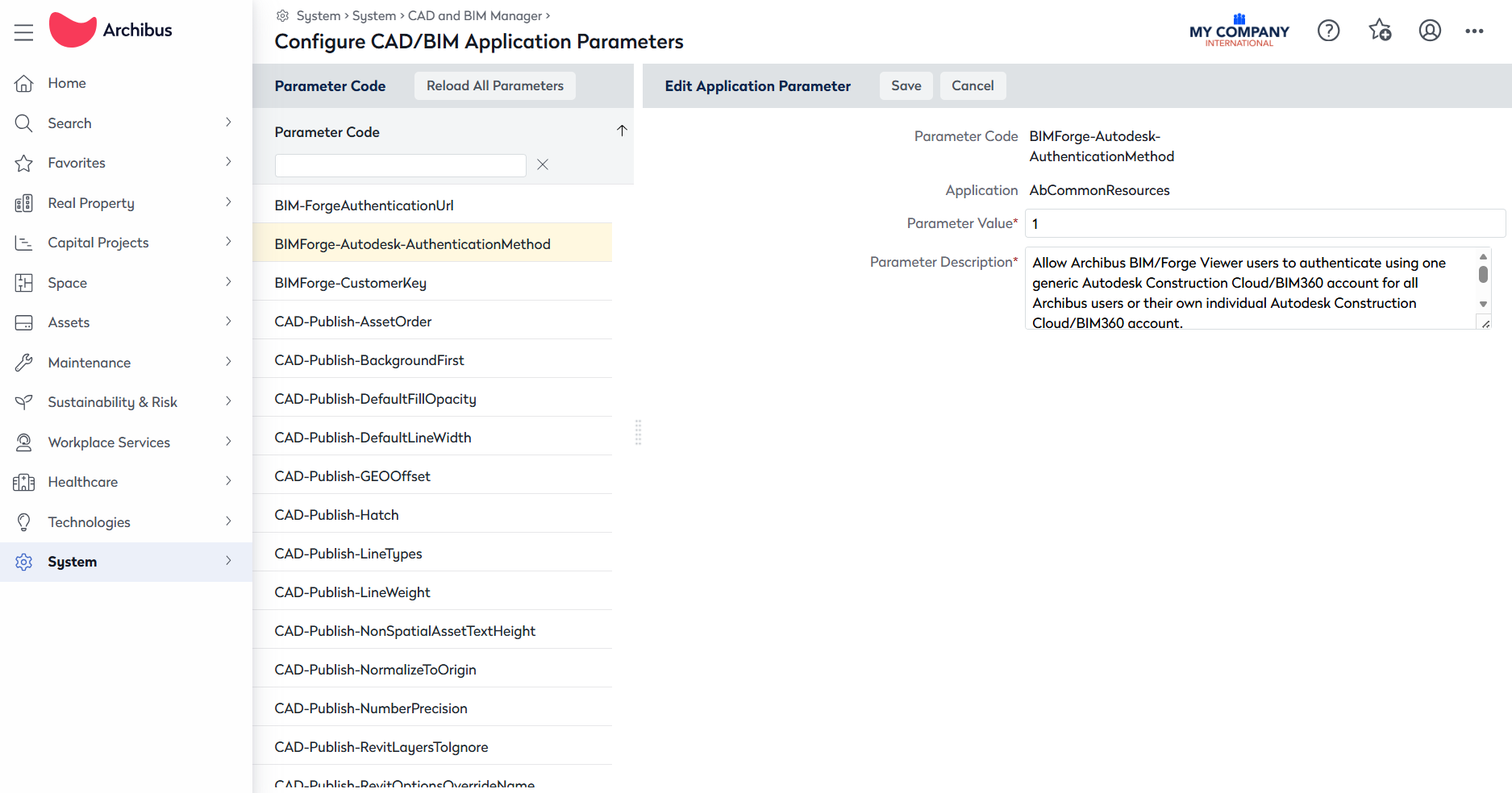
The activity parameter, BIMForge-Autodesk-AuthenticationMethod is set to 1 so that the Publish 3D button is visible in the SmartClient Extensions for Revit
-
Path: System/System/CAD and BIM Manager/Configure Application Parameters for CAD and BIM
-
-
The property <Forge Enabled="true" /> in the SmartClient.Common.dll.config file. This file is present in the folder where SmartClient application is installed on the user’s local machine.
-
Save the file and then close SmartClient and reopen it, so that the changes are picked up by the application.
-
Workflow
-
Use SmartClient Extensions for Revit.
-
Open the model in Autodesk Revit.
-
From Revit ribbon, go to the Archibus tab.

-
Click the Properties button to set the model properties.
-
Set the Building Code and Floor Codes.
-

-
Catalog rooms - Optionally catalog assets that are present in the model
-

-
Publish 3D and if you want you can Publish 2D this is optional.

-
Navigate to WebCentral > BIM Viewer
-
Path: Maintenance/Corrective Maintenance/Supervisor/BIM Viewer
-
-
Open the building in the BIM Viewer.

Results: The model can be used without issues in the BIM Viewer.
This means that the building model is visible and the Rooms and Asset details for the cataloged rooms are available in the Rooms panel and Assets panel of the BIM Viewer.
Pro-Tip: After cataloging the model, set the Site Code for the Building by going to the Define Locations view in Archibus WebCentral and add additional details for the building and floors, that may not exist in the Revit Model.