Working with the Explorer Panel
Archibus Smart Client
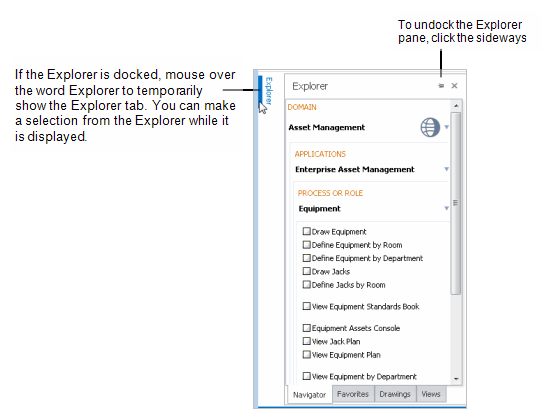
From the Explorer panell (see below image) you select tasks or drawings, or create new views. The Explorer panel has the following tabs:
| Tab | Description | Help Topic |
|---|---|---|
| Navigator | Presents the Navigator , a list of your assigned tasks by process. These tasks can include application commands, forms, and reports, presented as either grid views or Web views . When you select a task, it loads in the Details area.
The Navigator tab can also include drawing tasks. When you select a drawing task, you are presented with the Drawings list from which you select a drawing. |
Loading Views Using the Navigator |
| Favorites | Lists your frequently accessed views that have been added to your Favorites list. When you select a view, it loads in the Details panel. The Favorites tab includes a filter row to help you quickly locate the favorite view you want to access. | Working with Your Favorite Views |
| Drawings | Presents the Drawing List, a list of the drawings in the project. The Drawings tab includes a filter row to help you quickly locate the drawing you want to work on. If your license does not authorize you as a CAD user (that is, the
bim_license
field of the Archibus Users table is set to NO), then the system does not display the Drawings tab. |
Working with the Drawings List |
| Views |
Use the Views tab to:
For Archibus SaaS deployments , this tab is hidden by default but it can be activated as described in Creating New Grid Views . |
Resize the Explorer panel
You can resize the Explorer panel by mousing over its edge, and clicking and dragging the splitter
The following image shows the Explorer panell with the Navigator tab selected:

Hide or Dock the Explorer panel
You can dock the Explorer panel or hide it to increase your workspace.
To hide / show the Explorer panel:
- To hide the Explorer panel, click Navigator / Hide on the Ribbon.
- To show it, click Show. The Show command is available if the Explorer panel is hidden.
To dock / undock the Explorer panel:
Click the thumb tack in the Explorer title bar.

To undock the panel:
- Mouse over the word Explorer at the left of the screen to temporarily show the Explorer panel.
- To undock the panel, click the sideways thumb tack in the Explorer title bar.