
Create a New Work Request while at a Job
Archibus OnSite
Create a new Work Request
Now, you are ready to create the new request. From the My Work screen (or you can be in a work request) tap the More Actions  icon.
icon.


Tap the + Create request and the Create Work Request screen displays.
Note: If you created this request from inside a work request the Site, Building, Floor, Room, and Equipment will be populated.

Search for equipment
- If you want to search for the equipment, tap the Equipment field.
- In the search field, enter the equipment's code, standard, or description.
- Tap the equipment to select it.


Scan equipment barcode
- On the HVAC unit, scans the barcode (745361111234) to link the equipment to this new request.
Complete the Work Request Details
- After you have selected the equipment, then you can describe the specific location.
- Click the Next button.
- From the Problem Type drop-down, select the problem type.
- In the Description field, enter a short description of the problem.
- Click the Next button.
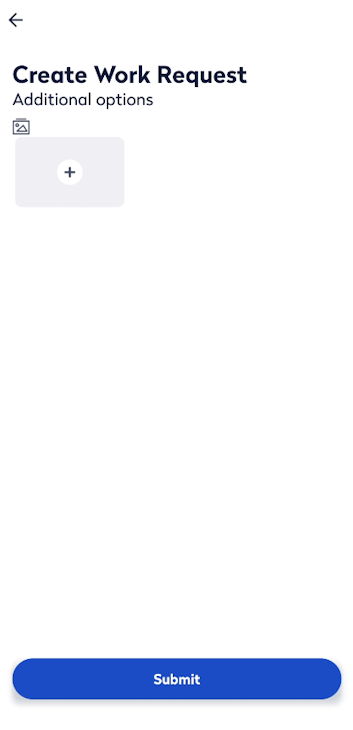
- You can add photos to the work request, tap the + icon and then select either Take Photo or Photo library.
- Tap the Submit button.


Self-Assign
Instead of relying on the underlying SLA to route the based on location and problem type, you (or Will) can choose the "Assign to yourself" option in the Additional Options screen. In this case, the system will still follow the underlying SLA but set the craftsperson assignment is to yourself. Now, you receives the request and you can start to work on it.
Configuration Note: An application parameter controls whether or not the self-assign is available .

Back : Tag an Employee
Next : Access Reference Documents