Working with the Forge Viewer and Simple Revit models stored in Autodesk Forma
System / CAD and BIM Manager / Catalog BIM Models
Technologies / Innovative Solutions / Forge Integration / Catalog BIM Models
Archibus SaaS / Maintenance / Corrective Maintenance / BIM Viewer
Maintenance / Corrective Maintenance / Supervisor / BIM Viewer
Assets / Assets / Asset Manager / BIM Viewer
Assets / Enterprise Assets / Facility Asset Manager / BIM Viewer
Prerequisites
- one simple Revit model
- BIMForge-Autodesk-AuthenticationMethod is set to 1 or 2
Options available for uploading the model to Autodesk Forma
Option 1: Open Autodesk Forma and upload the Revit model.
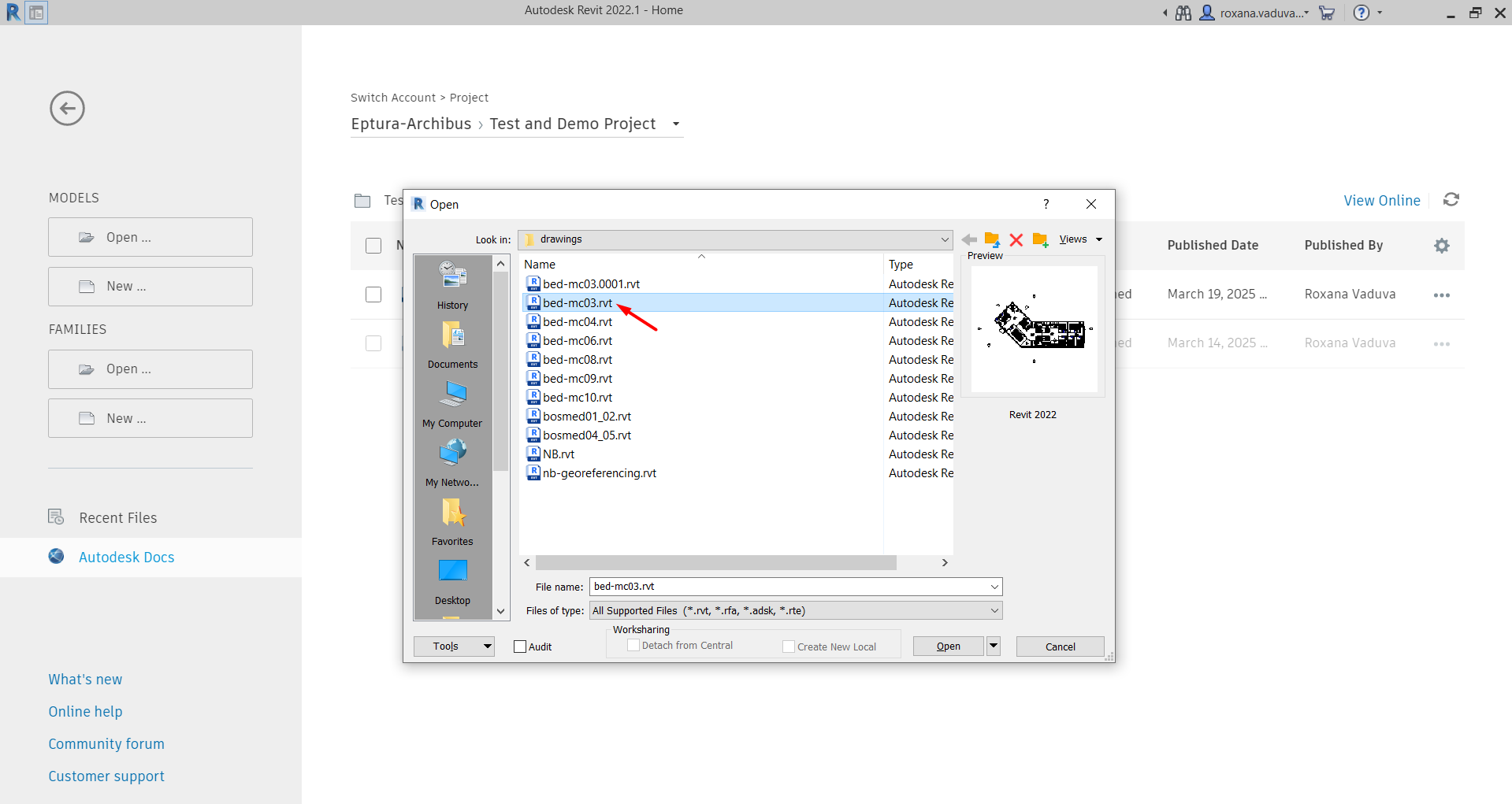
Option 2: Upload the model from Revit:
- Open Revit.
- Open the model.
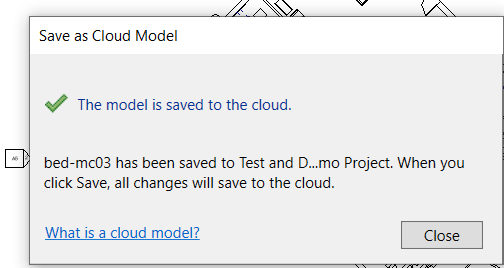
- Go to File > Save As > Cloud Model.
- Save the model in Autodesk Forma.
Options for opening the model in Revit
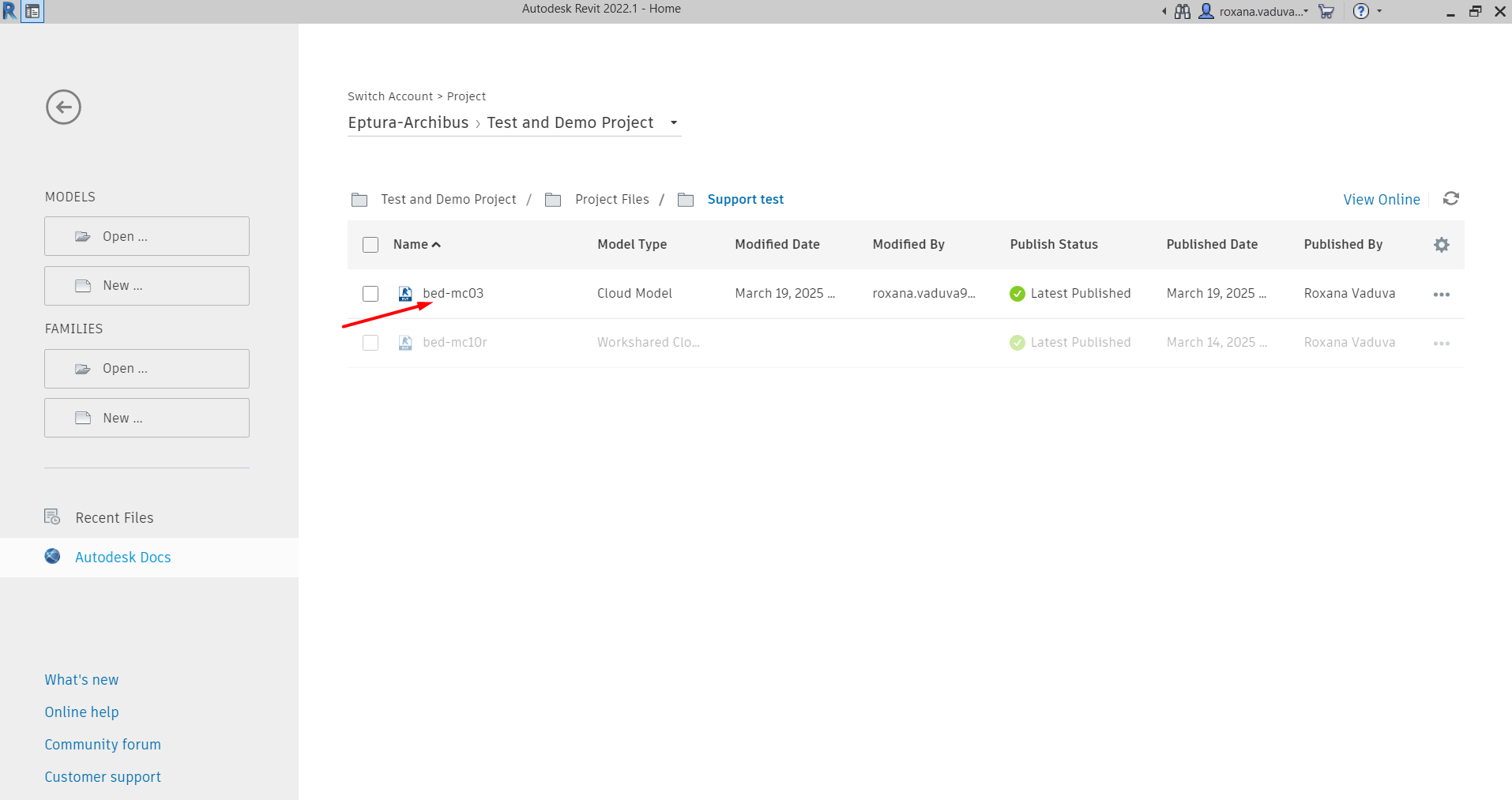
Option 1: In Revit, go to Autodesk Docs, navigate to the location of the model, and open it
Use case 1: Use the SCE for Revit to set the Properties and Catalog assets
- Upload the model to Autodesk Forma using one of the above options.
- Open the SCE for Revit.
- Open the model.
- Set the Properties.
- Catalog the rooms and assets
- Publish 2D (optional).
- Open the BIM Viewer.
Results: The model can be used without issues in the BIM Viewer.
Option 2: Use the Open option and navigate to the location of the model on your local machine
Use case 1: Use the SCE for Revit to set the Properties and Catalog assets
- Upload the model to Autodesk Forma using one of the above options.
- Open the SCE for Revit.
- Open the model.
- Set the Properties.
- Catalog the rooms and assets
- Publish 2D (optional).
- Open the BIM Viewer.
Results: The model can be used without issues in the BIM Viewer