
Add an asset
Archibus OnSite
You can register an asset manually, and it lets you scan a barcode to quickly identify the asset.
After you sign in, tap Asset and Equipment Registration and then tap Add an asset and the Add an asset form displays.
|
You can populate the Equipment Code field using either the Barcode Scanner or the Equipment Code Random Generator. Tap the Equipment Code Random Generator |
 |
|
Tap the Barcode Scanning Hover over the barcode and the scanner will read the barcode and then populate the Equipment code with the number. |
 |
| In the Asset survey comments field, enter any notes about this asset for the survey team to see. |
 icon and it populates the Equipment code with a number.
 icon.
icon.Equipment
| Tap the Equipment expand icon to see the fields. |  |
| Tap the Equipment Standard drop-down and then the Select Equipment Standard displays. This lets you search or browse for the equipment standard that you want. |  |
| Either enter in the Serial Number or tap the Barcode Scanner icon and use the scanner to populate the field. | |
| Tap the Equipment status field and the status displays. Select the status that you want. |  |
Location and Organization
| Tap the Location and organization expand icon to see the fields. |  |
| Tap the Site code drop-down and select the site you want. | 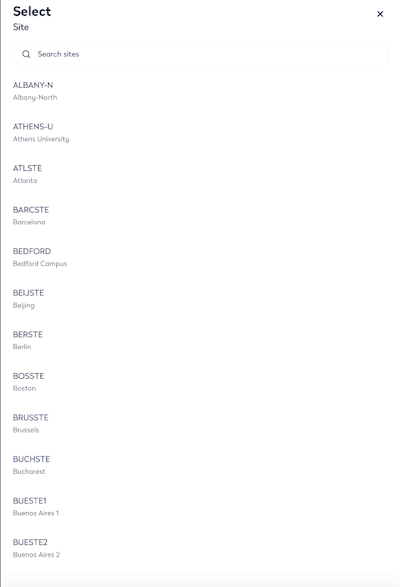 |
|
Tap the Building code drop-down and select the building you want. |
 |
| Tap the Floor code drop-down and select the floor you want. |  |
| Tap the Room code drop-down and select the room you want. | 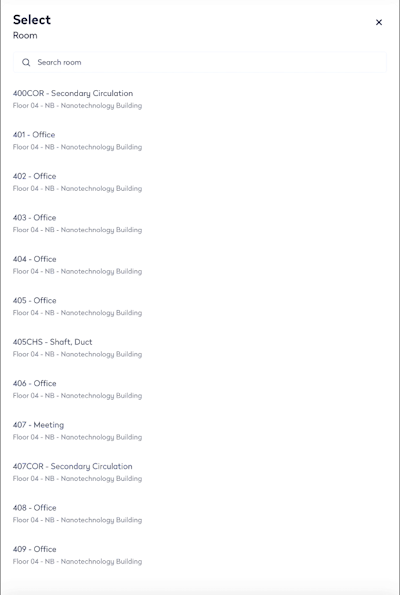 |
| Tap the Division code drop-down and select the division you want. |  |
|
Tap the Department code drop-down and select the department you want. |
 |
|
Tap the Employee name drop-down and select the employee you want. |
 |
When you have finished, tap the Save button and the asset review screen displays.