
Review the Request Calendar
Use the Request Calendar to see a calendar view of the scheduled move requests.
-
Navigate Move > Request Calendar.
The Request Calendar displays and shows all currently scheduled move requests. The current day is highlighted.
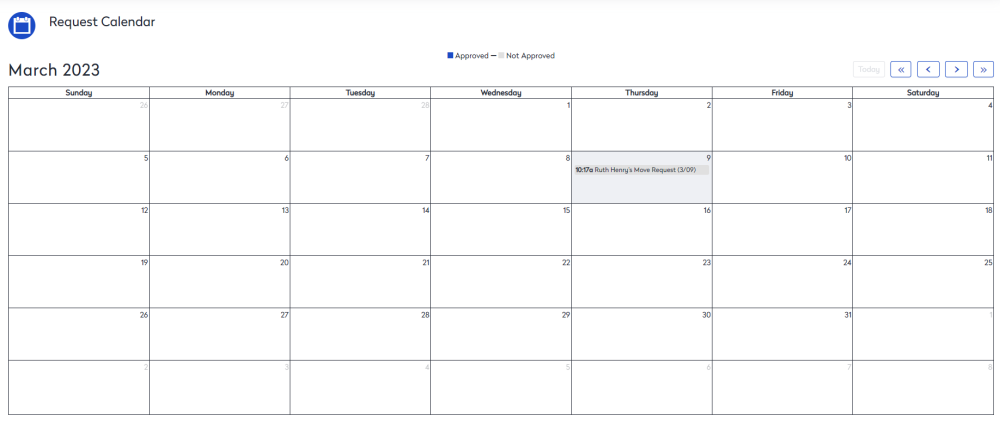
-
Use the
 buttons to navigate to other months. If you need to return to the current day, click the Today button.
 -
Click a particular request to open it.
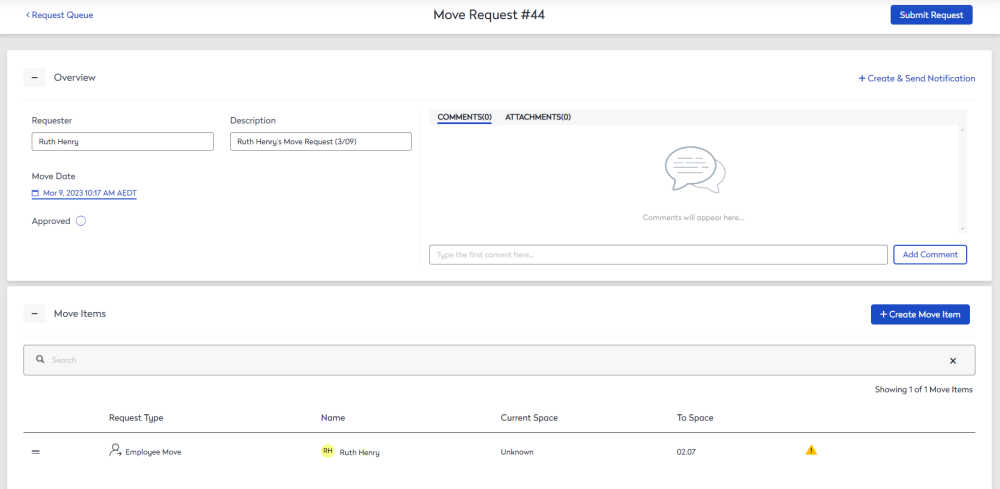
- To add a request, scroll to the end of the Move Request and click the Link Ticket button. The Link Ticket dialog displays.
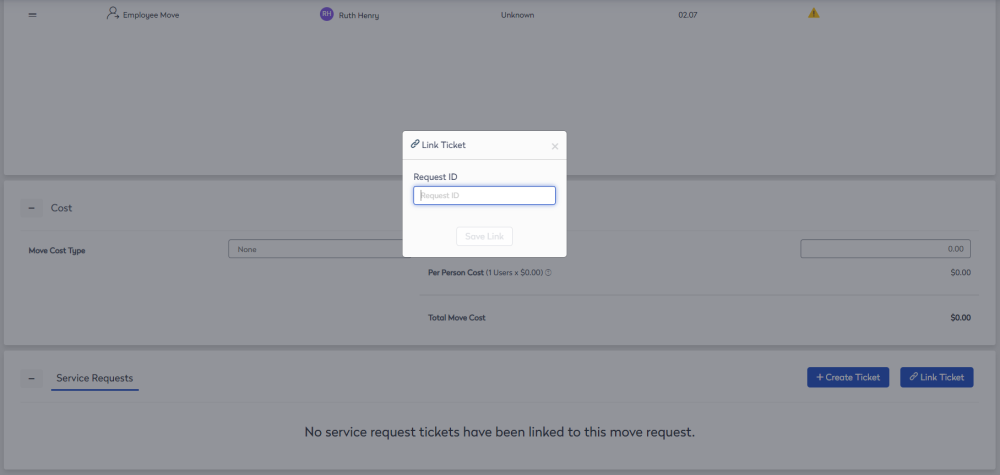
- In the Request ID, enter the ticket number.
- Click the Save Link.