
Set up the Move Ticket Automation
Level: Administrator
 |
Eptura platform services If your organization is using Eptura's platform services, your locations are centrally managed from Eptura Home:
Learn more
|
Administrators can opt-in to automatic Move Ticket creation and routing when SCIM is used, and they can set up the batch behavior and routing rules. After this is set up the SCIM events will automatically create the Move Tickets with the 'description pattern' and these tickets will be found in the Move Queue.
- Navigate to Admin > Move > Move Ticket Automation.

- Check the New Hire check box.
- From the Request type drop-down, select Person Move.
- For the Description Pattern drop-down, select either:
- FullName - RequestType
- LastName, FirstName - RequestType
- RequestType - RequestType
- FirstName, LastName - RequestType
- Email - RequestType
- Username - RequestType
- FullName (Email)
- RequestType - FullName
- Check the Offboarding check box.
- From the Request type drop-down, select Person Move.
- For the Description Pattern drop-down, select either:
- FullName - RequestType
- LastName, FirstName - RequestType
- RequestType - RequestType
- FirstName, LastName - RequestType
- Email - RequestType
- Username - RequestType
- FullName (Email)
- RequestType - FullName
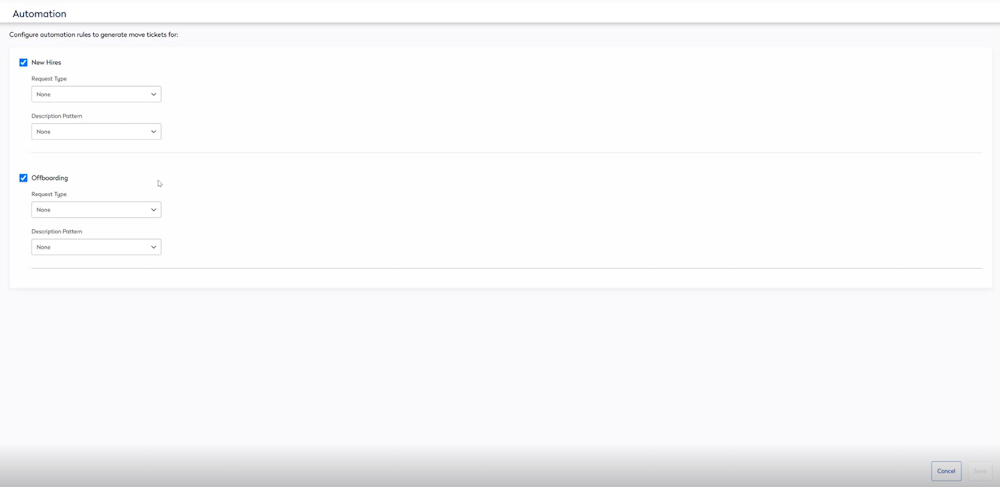
- Click the Save button.