Eptura Knowledge Center

Navigate the Mail Home

Eptura Mail app

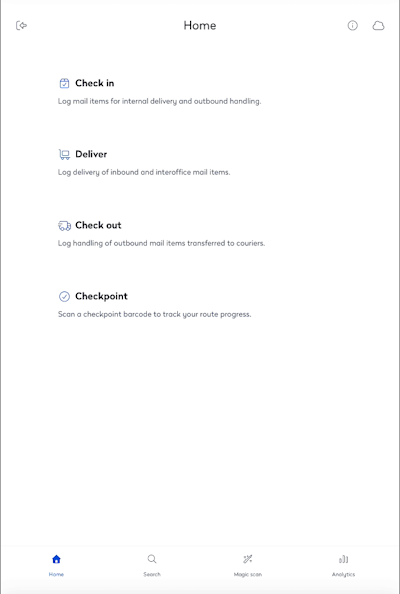
When you open the Eptura Mail app, you will see the Home screen.
clipboard_1e964374-ddc5-478c-84f3-77b8cf70e64d.png

The Home screen contains the following:

clipboard_d4993ebf-6df7-4099-a8ba-81eedbcfcb8e.png

Tap the Logout icon to log out of the app.

clipboard_8e5d810b-e82a-4047-b888-2784d2d9207f.png

Tap the Information icon to display the About Eptura Mail dialog that contains the version number, privacy policy, and open source attribution.

clipboard_b96c720d-0801-4a9d-9fd3-b38513828dec.png

clipboard_7c0e6ab2-7cc3-4343-a278-7b0eb34e4c87.png

Tap the Sync icon to synchronize your data.

clipboard_6e3881eb-8720-47c5-8e8e-9a9dceac3d1d.png

Menu

From the menu, tap either:

  • Check in - Log mail items for internal delivery and outbound handing.
  • Deliver - Log delivery of inbound interoffice mail items.
  • Check out - Log handling of outbound mail items transferred to couriers.
  • Checkpoint - Scan a checkpoint to track your route progress.

clipboard_fd85897d-b3cd-45e3-95c8-c0a3daa0c6a6.png

Tap the Home icon to display the home screen.

clipboard_d7617f10-ade7-4759-853d-b25abd338c35.png

Tap the Search icon to display the Search screen where you can search for recipients.

clipboard_e418b08d-c328-4801-8118-0f7cdcc46199.png

Tap the Magic scan icon to activate the magic scan.

clipboard_533e2268-5add-49da-95c6-b87584dfe3fb.png

Tap the Analytics icon to display the Analytics screen for the route duration, items delivered, and age of pending queues.