Small Move Workflow
When you have a small move that needs to happen then you can use the Move module to complete this. A small move can be for new starters, a few employees moving, or an employee off-boarding from your organization. The workflow below describes the flow, procedures, and the email notifications that are sent out.
Watch the Video
Audio: Sound Video Length: 3:01 minutes
Watch the video in ...
French (FR)
Spanish (ES)
Disclaimer: These videos are translated from English using an AI tool; you might notice the speech is slightly out of sync with the recording.
Learn more
Day 1 - Submit
Expand
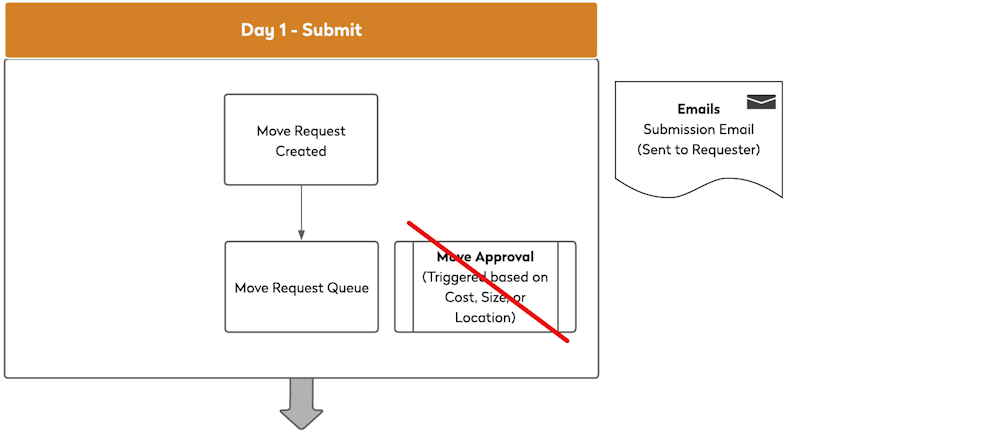
After a move request is created it is submitted into the Move Request Queue and the "Submission Email" is sent out to the Requester.
As this is a small move it won't trigger the Move Approval. Learn more about approvals in Set up Move Approvals.
Day 2 - Review
Expand
The users who can action the move request, open the Move Queue and review the submitted move requests. Learn more in Using the Move Request Queue and Review the Request Calendar.

Day 3 - Get Ready
Expand
When the move request is ready to be actioned the move request can be updated and the following can be actioned:
- When a move request is updated you can send out a an "Update Email" to the Requester and Movee. Learn more in Create and Send Move Notifications.
- If needed service requests can be created or linked for tasks that relate to the move.
- You can add comments and/or attachments, such as a floor plan.
- If the move request is cancelled then the "Cancellation Email" is sent out.
Learn more in Working on a Move Request.

Day 4 - Moving
Expand
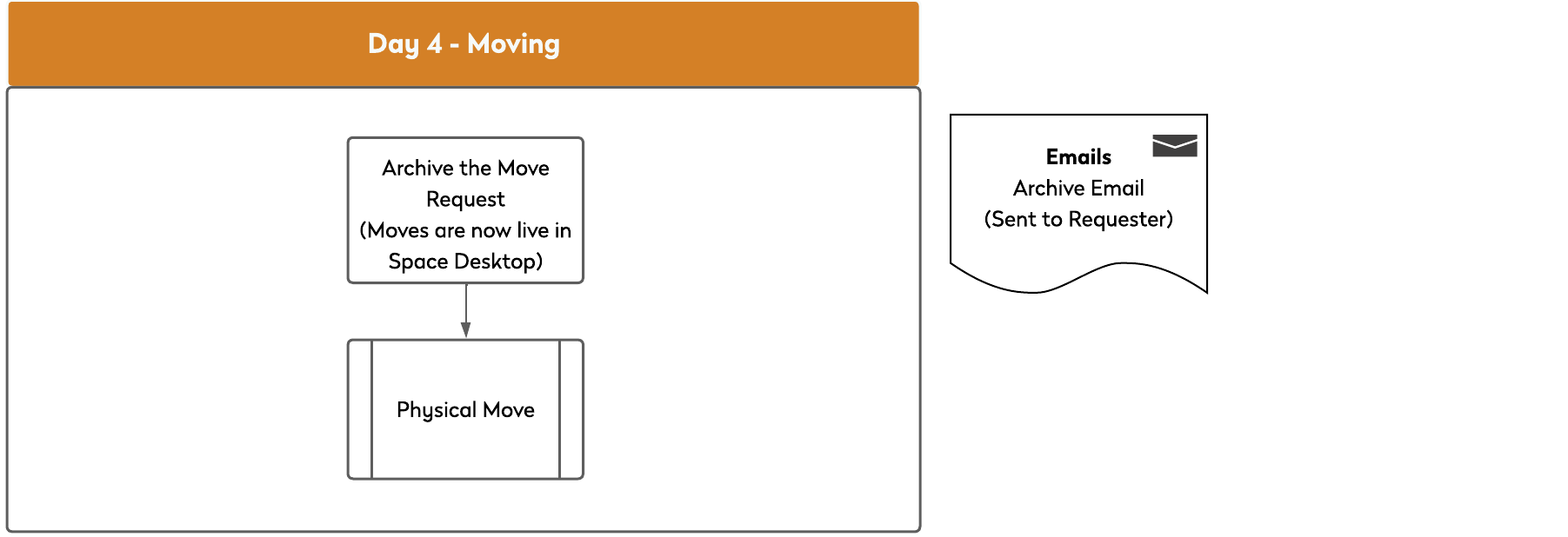
On the moving day the user will complete the physical move and the Move Team will archive the move request to make the change live into the Space Desktop. The "Archive Email" is sent out to the Requester so they know the move is complete. Learn more in Archive the Move Request.