
Preferences - Move Request
Level: Administrator
A variety of settings allows you to customize the end users’ and employees’ interaction with your Move module.
- Navigate to Admin > Move > Preferences to see all the settings a more in-depth explanation of each section is listed below.
- If you have multiple centers then from the All Center drop-down, select a center.
Contents
Remember, after you complete the setting, it is important to click the Save button!
Email Alerts
The Email Alerts section allows you to customize all email alerts with your Move module.
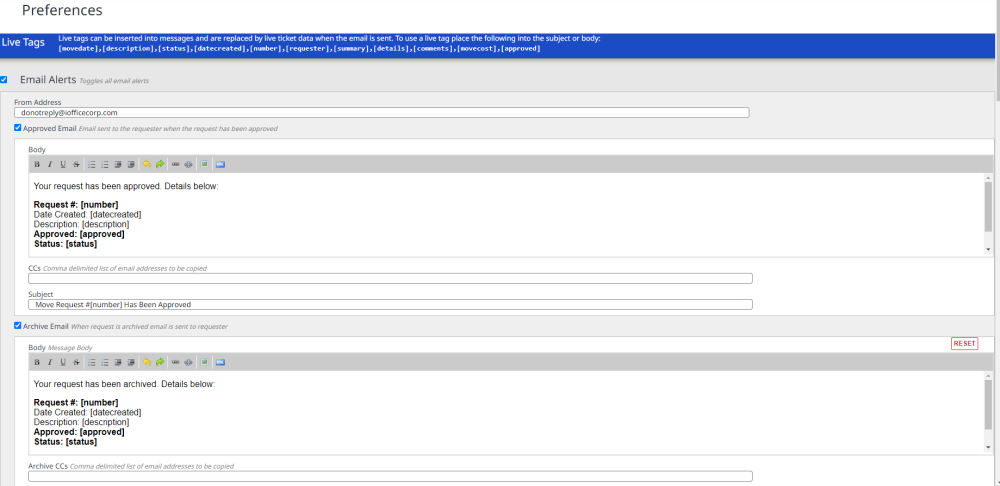
From Address
- Enter the from address email that your company will use.
Approved Email
Email sent to the requester when the request has been approved.
| Field | Description |
|---|---|
| Body |
Your request has been approved. Details below: Request #: [number] Request Summary |
| CC |
Enter the email address for people you want to receive these emails. (Email addresses must be separated by commas.) |
| Subject | Move Request #[number] Has Been Approved |
After you have made edits and you want to return to the original copy then click the Reset button.
Archive Email
When request is archived email is sent to the requester.
| Field | Description |
|---|---|
| Body |
Your request has been archived. Details below: Request #: [number] Request Summary |
| CC |
Enter the email address for people you want to receive these emails. (Email addresses must be separated by commas.) |
| Subject | Move Request #[number] Has Been Archived |
After you have made edits and you want to return to the original copy then click the Reset button.
Cancellation Email
When a request is removed an email is sent to the requestor.
| Field | Description |
|---|---|
| Body |
Your request has been cancelled. Details below: Request #: [number] Request Summary |
| CC |
Enter the email address for people you want to receive these emails. (Email addresses must be separated by commas.) |
| Subject | Move Request #[number] Has Been Cancelled |
After you have made edits and you want to return to the original copy then click the Reset button.
Movee Email on Approval
Send an email to the employees being moved. Note: Emails are not sent for terminates or new hires.
| Field | Description |
|---|---|
| Body |
Your request has been approved. Details below: Request #: [number] Request Summary |
| CC |
Enter the email address for people you want to receive these emails. (Email addresses must be separated by commas.) |
| Subject | [number] - You are scheduled to be moved on [date] |
After you have made edits and you want to return to the original copy then click the Reset button.
Rejection Email
Wehn a reques is rejected an eamil is ent to the requester.
| Field | Description |
|---|---|
| Body |
Your request has been rejected. Details below: Request #: [number] Request Summary |
| CC |
Enter the email address for people you want to receive these emails. (Email addresses must be separated by commas.) |
| Subject | Move Request #[number] Has Been Rejected |
After you have made edits and you want to return to the original copy then click the Reset button.
Submission Email
When a request is submitted the requestor will be sent a confirmation email.
| Field | Description |
|---|---|
| Body |
Your request has been submitted. Details below: Request #: [number] |
| CC |
Enter the email address for people you want to receive these emails. (Email addresses must be separated by commas.) |
| Subject | Move Request #[number] Has Been Submitted |
After you have made edits and you want to return to the original copy then click the Reset button.
Update Email
Give option on Move Request to send updates to Requestors and Movees.
| Field | Description |
|---|---|
| Body |
Your request has been updated. Details below: Request #: [number] Request Summary |
| CC |
Enter the email address for people you want to receive these emails. (Email addresses must be separated by commas.) |
| Auto-send Updates | Check this to automatically send the update email when the request is saved. |
| Subject | Move Request #[number] Has Been Updated |
After you have made edits and you want to return to the original copy then click the Reset button.
New Hire Permissions
The New Hire Permissions section allows you to give new hire permissions to centers.
- Check the New Hire Permisson check box and the following settings display.
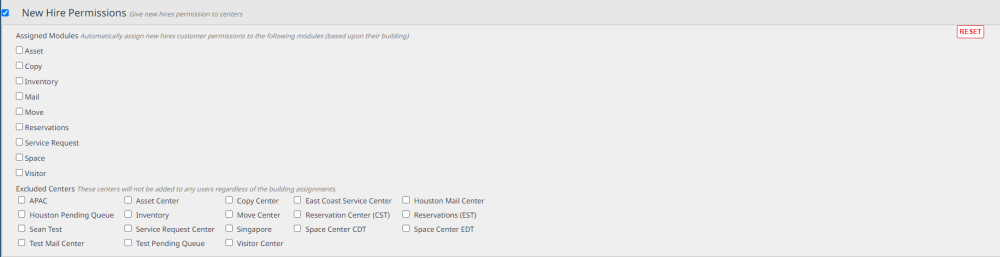
- Complete the check boxes the following.
|
Options |
Description |
|---|---|
|
Assigned Modules |
Selecting any of the modules in this section automatically assigns new hires customer permissions. The available modules include:
|
|
Excluded Centers |
These centers will not be added to any users regardless of the building assignments. |
Each section can be reset back to the default settings.
Request Types
The Request Types section allows you to specify request type options.

The settings are:
|
Option |
Description |
|---|---|
|
User Move |
Select the default User Move request type, either:
|
|
Asset Move |
Select the default Asset Move request type, either:
|
|
Parking Space Move |
This field is the default parking space move request type. |
Move Status
The Move Status section allows you to specify the statuses to use when certain events occur.
These statuses are set up by the Administrator, see Set up Move Request Statuses.

The following table provides additional information on the available selectable options.
| Field | Description |
|---|---|
|
Approval Status |
Select the the approval status. |
|
Completed (Archived) Status |
Select the Completed (Archived) Status. |
|
Pending Approval Status |
Select the Pending Approval Status. |
|
Rejected Status |
Select the Rejected Status. |
|
Removed Status |
Select the the Removed Status. |
After you have made edits and you want to return to the original settings then click the Reset button.
Enable Request Approval (Role Based - Request Approval)
If you want to understand more about Move Approvals, see Set up Move Approvals.
The Enable Request Approval section allows you to specify whether or not you want to require the requestor to select an approval contact.
- Check the Enable Request Approval check box to enable the requestor to select an approval contact.
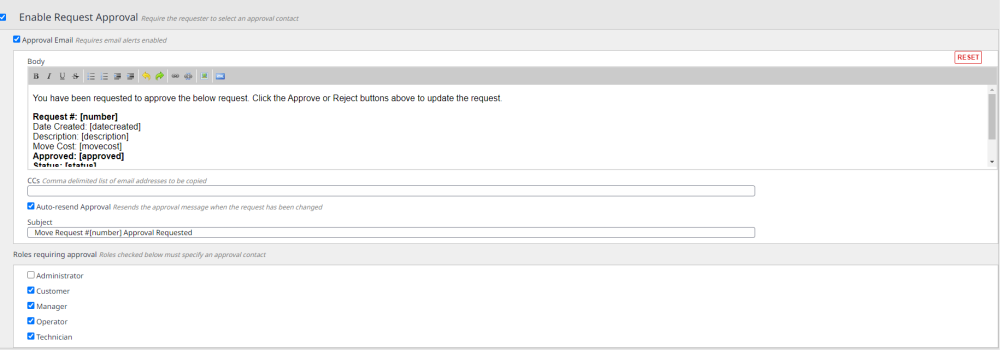
- Check the Approval Email check box to set up the email.
- Complete the following settings.
| Field | Description |
|---|---|
|
Body |
You can customize the content of the confirmation email that is sent. Default Copy You have been requested to approve the below request. Click the Approve or Reject buttons above to update the request. Request #: [number] Request Summary |
|
CCs |
This is a list of email addresses to be copied on the email (email addresses separated by commas). |
|
Auto-resend Approval |
Check this to resend the approval message when the request has been changed. |
|
Subject |
The subject line of the confirmation email. Default Copy Move Request #[number] Approval Requested |
- For the Roles requiring approval section, check the roles that must specify an approval contact:
- Administator
- Customer
- Manager
- Operator
- Click the Save button to save your changes.
After you have made edits and you want to return to the original settings then click the Reset button.
Activate Advanced Move Approvals
If you want to understand more about Move Approvals, see Set up Move Approvals.
When this is enabled you can create targeted workflows and approval sequences for your move projects.
- Check the Activate Advanced Move Approvals check box.
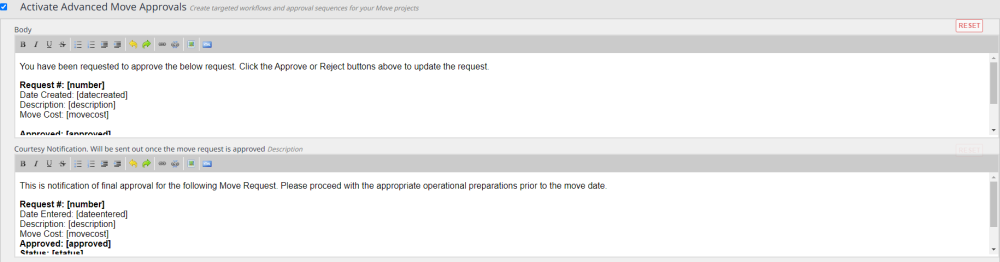
- Complete the email body for the Approver Notification and the Courtesy Notification.
- Click the Save button to save your changes.
- After you have set up the emails, see Set up the Move Approvals to learn how to create the Approval Templates.
Activate Move Cost Tracking
Enable the ability to track cost of move requests.
Learn more about cost tracking in Set up the Move Costs.
