Color by in Spaces
Eptura Workplace and Eptura platform services
Level: Administrator
Color By provides a way to quickly visualize information through the use of coloring options available in the Spaces Floor Plan Viewer.
- Access the Spaces Floor Plan Viewer and then you will see the floor plan.
- In the lower left, click the color by.
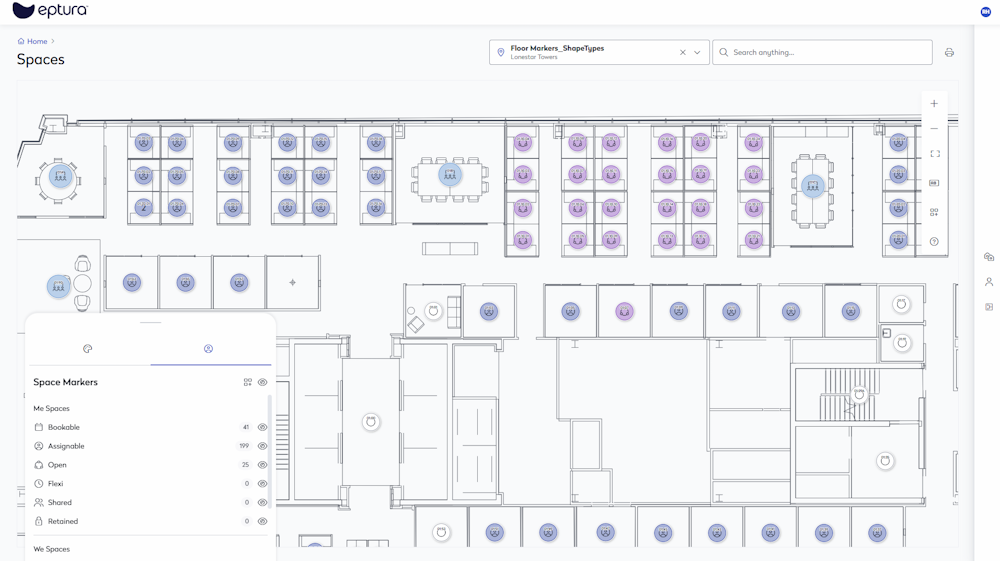
This example is a shaped-based floor plan.

The Color by legend and selector displays, this lets you change the Color By to:
- Org Unit
- Space Function
- Occupancy
- Usage
- Classification
- Subclassification
- Space Type
- Neighborhoods
- None
If you have a marker-based floor plan, you will see the Space Markers legend too (see below for details).
Org Unit
The Org Unit Color By displays the organization units on the floor plan.

Hide or Show Org Units
- Click the eye
 icon to hide the org unit colors.
 - Click the closed eye
 icon to show the org unit color.
Change Org Unit Levels
- From the Level drop-down, select the org unit level, such as Level 0, Level 1, Level 2.
Expand to see the Org Unit Color By with Level 1 selected

Space Function
When the Space Function is selected, then you can see the functions either:
- Assignable
- Bookable
- Open
- Retained
- Shared
- Flexi

Occupancy
When Occupancy is selected, then you can see the color by:
- Over Capacity
- At Capacity
- Under Capacity

Usage
When Usage is selected, then you can see the color by:
- Me space
- We space
- Common space
- None

Classification
When classification is selected, then you can see the color by the different classifications. Learn more about Classifications ↗️

Subclassification
When Subclassification is selected, then you can see the color by the different subclassifications. Learn more about Classifications ↗️

Space Type
When Space Type is selected, then you can see the color by the different space type. Learn more in Space Types Overview ↗️

Neighborhoods
When Space Type is selected, then you can see the color by the different neighborhoods.

None
When you select None, all the colors are hidden.

Space Markers
When you have a marker-based floor plan, then the Space Markers legend displays.
Space Makers
This lists the Me Spaces, We Spaces, Common Space, and Other Space with their space functions.
Additionally, there is an Add Space Markers  icon, that lets you quickly add space markers.
Hide or Show
This lets you quickly identify the spaces on the floor plan.
- Click the eye icon to hide the space function.
- Click the closed eye icon to show the space function.