
Create and Send Move Notifications
You can send email notifications to the requester or others.
- Click the + Create & Send Notifications link and the Send Notification dialog.
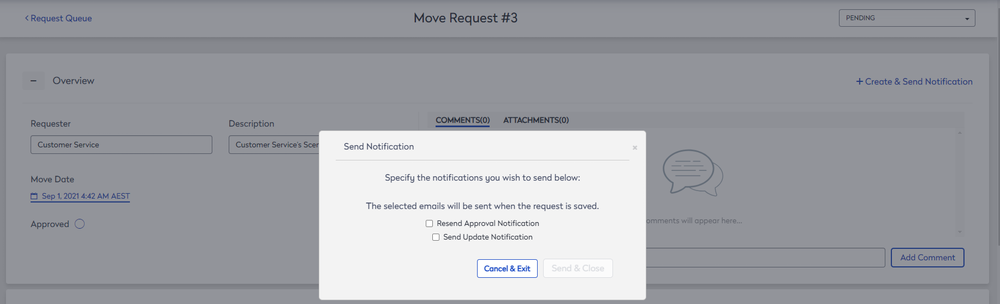
Resend the Approval Notification
- Check the Resend Approval Notification check box.
- Click the Send & Close button.
Send Update Notification
- Check the Send Update Notification check box.
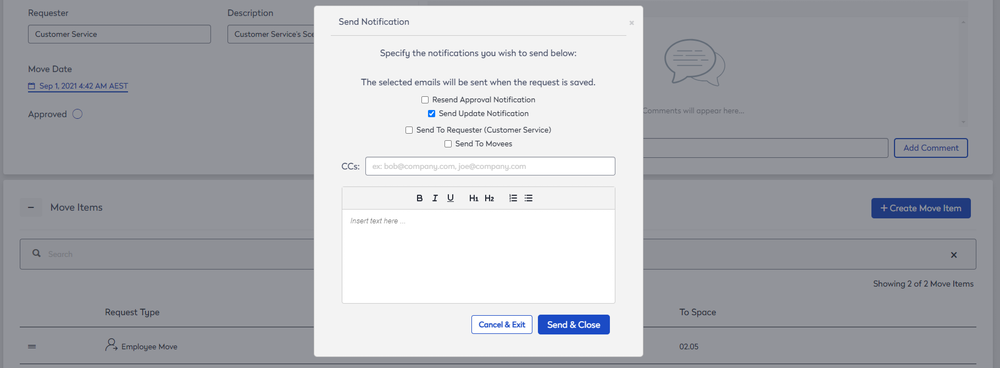
- Check the Send to Requester (Customer Service) check box.
- Check the Send to Movees check box.
- You can copy in other employees; enter in their email addresses.
- In the Body field, enter in the email's content.
- Click the Send & Close button.