Duplicate, Inactivate, or Activate a Maintenance Plan
You can quick duplicate Maintenance Plans, or you an make a Maintenance Plan inactive or active; or you can remove it.
Duplicate a Maintenance Plan
- Click the Settings icon on the side ribbon.
- Under Libraries section, click the Maintenance Plans button.
- Open the Maintenance Plan you want to edit.
- Hover over the Maintance Plan.
- Click the More Actions icon.
- Click the Duplicate option.
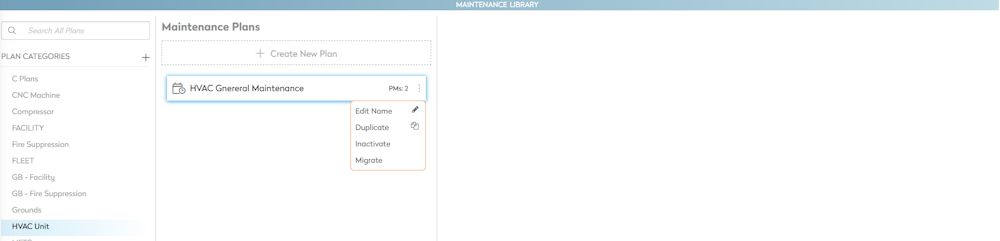
The Maintenance Plan is duplicated.

Inactivate or Remove a Maintenance Plan
- Click the Settings icon on the side ribbon.
- Under Libraries section, click the Maintenance Plans button.
- Open the Maintenance Plan you want to edit.
- Hover over the Maintenance Plan.
- Click the More Actions icon.
- Click the Inactivate option an the message display "Do you want to remove this plan from associated assets?"
- Either:
- Click the Yes button and this removes the Maintenance Plan.
- Click Just Inactivate button and this make the Maintenance Plan inactivate.
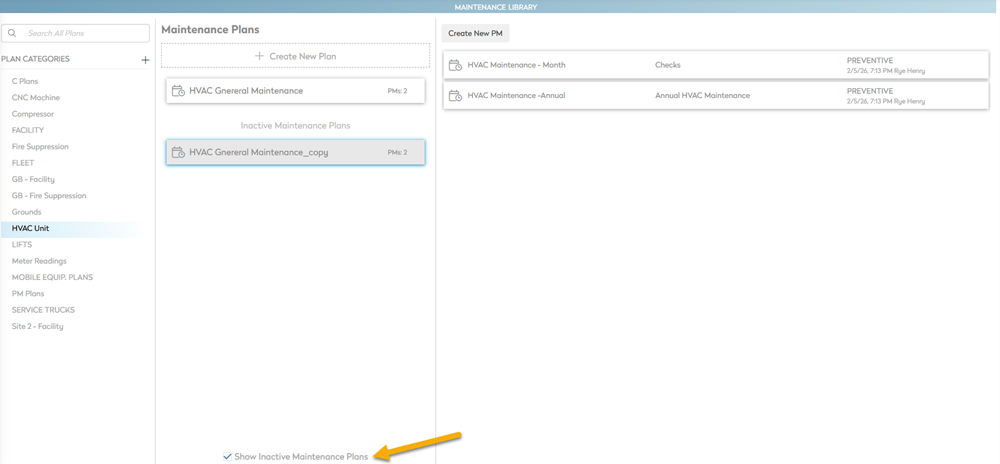
If you want to see the inactive plans, then click the Show Inactive Maintenance Plans check box. When you show the Maintenance Plans then the More Actions icon has the Activate option if you want to use this plan again.