
Customize the Cycle Count View
The list view is where you can see the full list of your Cycle Counts and their status. You can arrange the layout of grid according to your own needs.
Watch the Video
Audio: Sound Length: 02:37 mins
Watch the video in ...
Spanish (ES)
French (FR)
Japanese (JA)
Disclaimer: This video is translated from English using an AI tool; you may notice that the length of the speech may be slightly out-of-sync with the user interface recording.
Learn more
The columns are:
- Cycle Count ID
- Created By
- Status
- Date Created
- Assigned To
- Purpose
- Tentative Next Schedule Date
The list view is where you can find your cycle counts and adjust your view to suit your needs.
- Search
- Column Search
- Column Sort
- Column Filter
- Filter by Warehouse
- Filter for Closed and Open Cycle Counts
- Saved View - Filter a Column Example
- Display your Saved View
Search
Search allows you to find any field within the cycle list.
- In the Search field, enter the search term and the search results automatically populate. The example below shows results populated for Cycle Count ID 30.

Column Search
When you search for requests, it will display only those request for the search criteria. Each column contains the search, and this will let you focus on the items you want.

Column Sort
- Click the column heading to sort ascending or descending.

Column Filter
When you click the Filter  icon, a menu will appear showing you the items you can select.

Filter by Warehouse
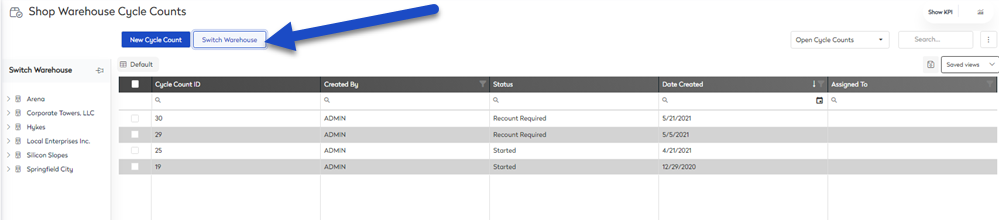
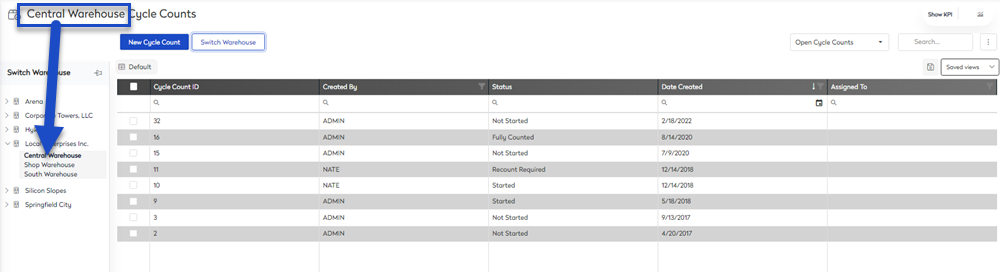
Switch Warehouse helps you view cycle counts by Warehouse organization.
Warehouses have been set up by your admin, see set up a site for more information.
- Click the Switch Warehouse button. The Switch Warehouse panel displays.
- Select a Warehouse to filter by. The Cycle Count list is filtered.
Filter for Closed and Open Cycle Counts
The Open Cycle Counts drop-down allows you to filter the cycle counts by open or closed status.
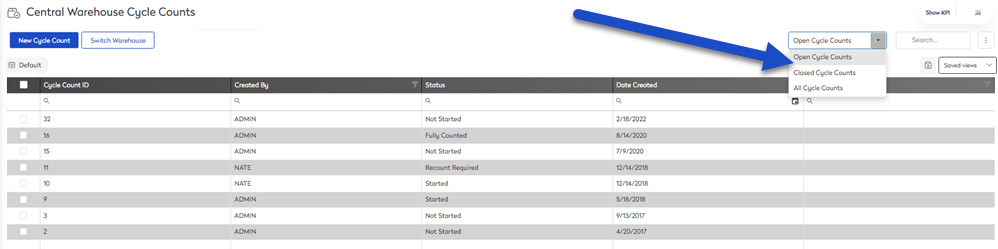
- Click the Open Cycle Counts drop-down.
- Select one of the following:
- Open Cycle Counts
- Closed Cycle Counts
- All Cycle Counts
- The cycle count list is automatically filtered.
Saved View - Filter a Column Example
When viewing the Inventory list, you may want to change the cycle count columns and sort order. The Save View let's you set up the Cycle Count listing and then save it for next time.
This is best explained using an example. I want to create a saved list view for cycle counts that need a recount.
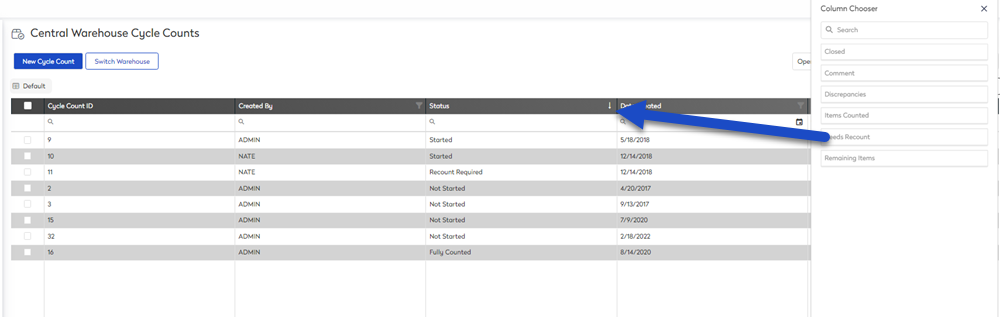
Step 1. Add a column from the Column Chooser
- Click the more actions
 icon.
icon. - Select Column Chooser. The column chooser displays.
- Drag and drop the Needs Recount column to the Cycle Count column headings. The Needs Recount column displays on the Cycle Count list.
Step 2. Save your View
- Click the save
 icon. The create new view dialog displays.
 - In the View Name field, enter the name of the saved view.
- Select a who can access this view option, either:
- Private- Don't share this view with anyone.
- Everyone - Share this view with everyone.
- Security Roles - Share this view with specific roles in your organization.
- Teams - Share this view with specific teams in your organization.
- Click the Save View button.
Display your Saved View
The next time you want to use the saved view you can display it.
- Click the Saved views drop-down. The saved views pop-up displays.
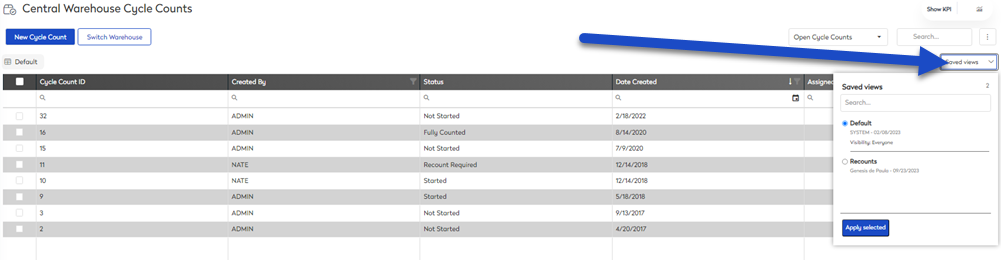
From this you can see a list of saved views, and the default view.
- Select a saved view.
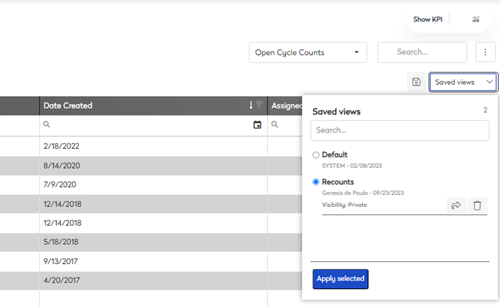
Remember, you can share a view that is private to you. Click the share  icon
icon
- Click on apply selected. The saved view displays.