
Link a Work Order to a Purchase Order
When ordering parts for a job, you can link the related Work Orders to your Purchase Order. This allows for easy navigation between them to track their progress.
Watch the Video
Audio: Sound Length: 2:06 minutes
Learn more
- Navigate to Purchase Orders.
- From the list, click a purchase order to edit and the purchase order details screen displays.
- Click the Link Work Orders
 icon and the Linked Work Order form displays.

You can either create a new Work Order or link to an existing Work Order.
Link to an existing Work Order
- Click the Link to Existing Work Order + icon and the form displays.
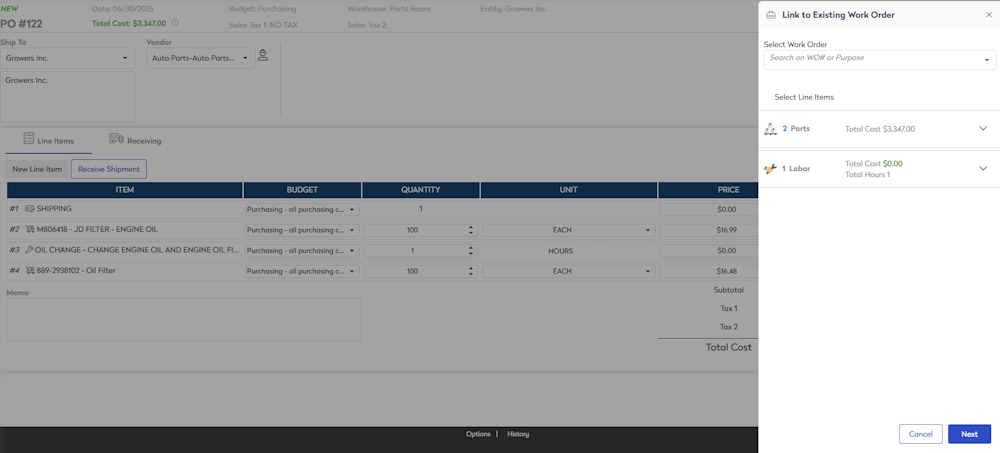
- In the Select Work Order number, enter either work order number or purchase to search for the work order. When you find it, select the work order.
- Click the Line Items drop-down to un-check a line item you don't want to include on the purchase order.

- Click the Next button and the line items are added to the work order. The work order details screen displays.
- Click the Save button.
The work order is linked to the purchase order.
Create a new Work Order
- Click the Create New Work Order + icon and the form displays

- Click the Next button and the New Work Order form displays.

- Complete the work order fields.
- Either the click the following:
- Create Work Order button; this creates the work order and you can then update the work order later.
- Create & Open button, and this opens the work order where you can make further edits. Learn more in Edit Work Order.
- Click the Save button.