
Print an Inspection QR Code for the Operator Companion App
Level: Administrator
When you have an Inspection QR code on your asset, then your Technicians' can start an inspection using the Operator Companion app.
- From the menu, click Settings.
- Under the Libraries section, click Inspection Templates.
- Locate and select the Inspection Template to open it.
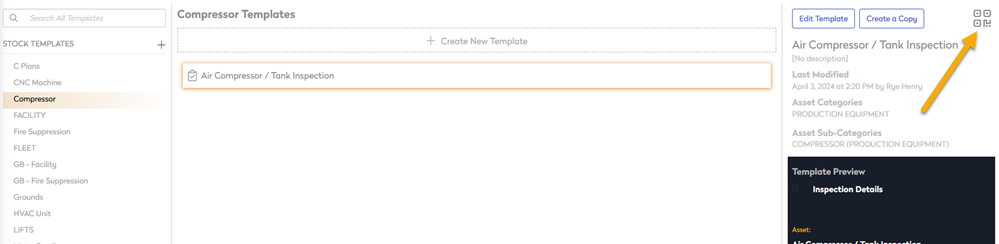
- Select the QR code
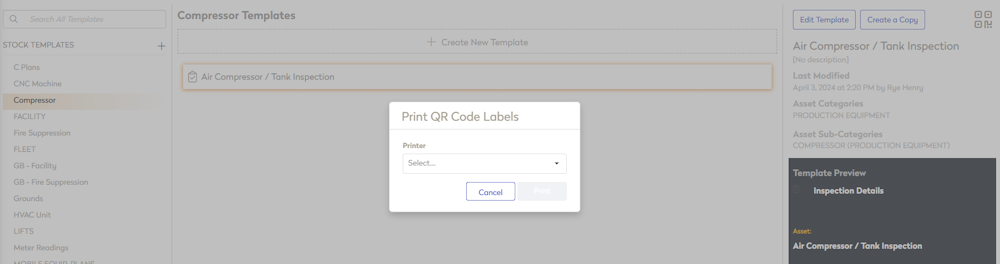
 icon and the Print QR Code Labels dialog displays.
 - From the Printer drop-down, select which printer to send the QR code to.
- The QR Code displays and you can select the number of copies.
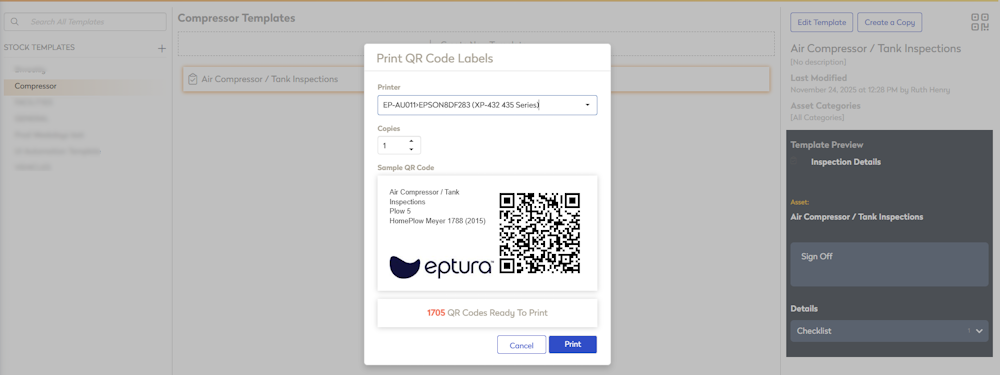
- Click the Print button and the label is sent to the printer.
- Next, you can add the Inspection QR Code label to the asset.
Watch the Operator Companion in Action
Now, that you have the Inspection QR code label on the asset, here is what your technician will experience.