
Audit
Administrator
This is a centralized Audit interface lets Managers and Senior-level users see visibility into employee actions across the system.
You can query audit records across the following module groups:
- Assets (Inclucing Logs, Manufacturers, Schedules)
- Budgets
- Work Orders
- Customers
- Vendors
- Employees
- Inventory (Including Cycle Count and Transfers)
- Certifications
- Purchase Orders
- Work Requests
- Inspections
Known Limitations
- Date range queries are capped at 120 days.
- Maximum search results returned are 500 rows per query.
Access Audit Records
- From the menu, click Settings.
- Under the Tools and Support section, click Audit.
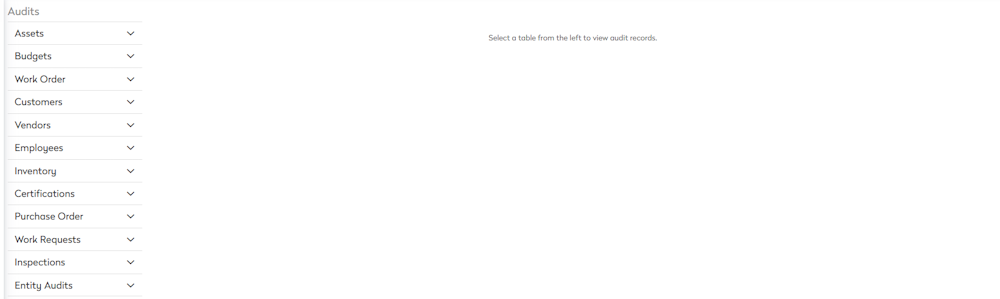
You need the configuration rights for the corresponding modules that you are auditing. If you click on a module that you don't have rights to, the system will display a message stating you don't have permission to the module. Learn more about Module Access, in Security Roles and Roles Management.
- From the Audits menu, select a module.
- Select an item.

In this example, we will look up the address changed for a vendor.
- From the contact drop-down, select the contact.
- Optional - From the Modify Type, select either Deleted, Inserted, or Updated. Note that All is the default selection.
- Optional - From the Modified by, select the username.
- Optional - From the Max results drop-down, select either 50, 100, 250, or 500.
- From the Start Date and the End Date calendar picker, select the dates you want to search between. Note that the data range is capped at 120 days.

- Click the Fetch records button.

Filter Records
Similar to customizing the grid, the records grid lets you search, sort, and filter.
Column Search
When you search for records, it will display only those records for the search criteria. Each column contains the search, and this will let you focus on the items you want.

Column Sort
Click the column heading to sort ascending or descending.

Column Filter
When you click the Filter  icon, a menu will appear showing you the items you can select.

Export Records
If needed, you can quickly download the audit records.
- Click the Export all data
 icon and the AuditRecords.xlsx downloads.
 - Open the spreadsheet to see the records.