
Move an Asset
You are able to move an asset to another group and/or to another site.
- Move a Single Asset
- Move Multiple Assets
Before an asset can be moved, any attached work orders must be completed first.
Move a Single Asset
You can move a single assets to another site and/or group.
- Navigate to the Assets module. The Asset Management screen displays.
- From the Asset list, click an existing asset.
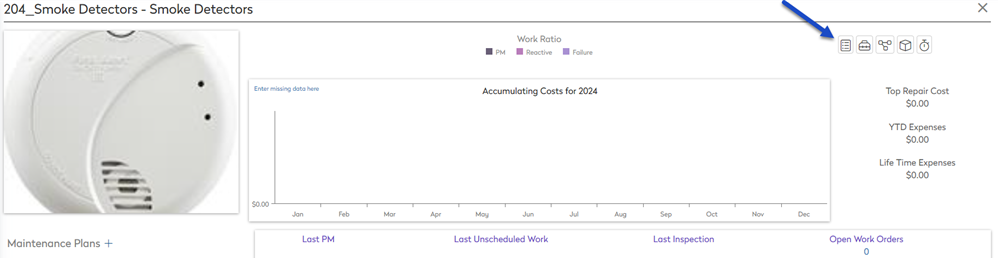
- Click on the View Asset Details
 icon and the Asset Details form displays.
>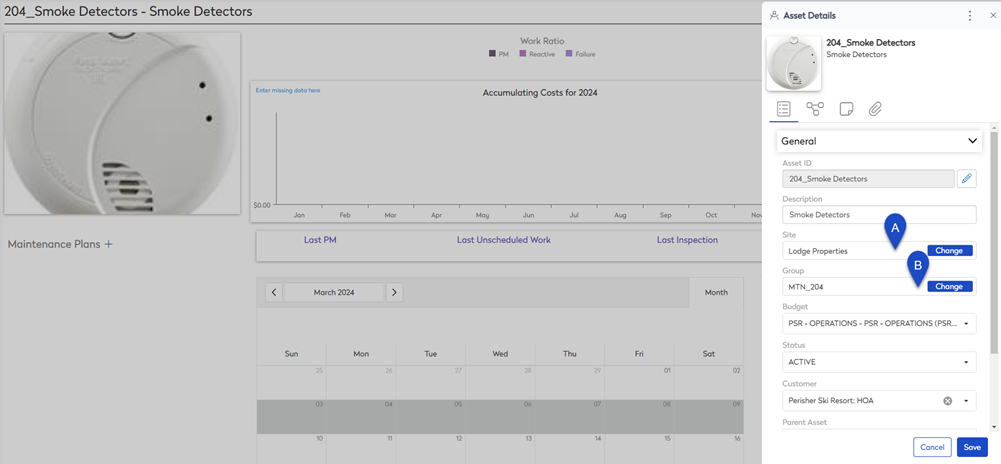
- Either click on:
- (A) Change Site's Change button to move the asset to another site.
- (b) Change Group's Change button icon to be able to another group.
The Move Assets to Group dialog displays.
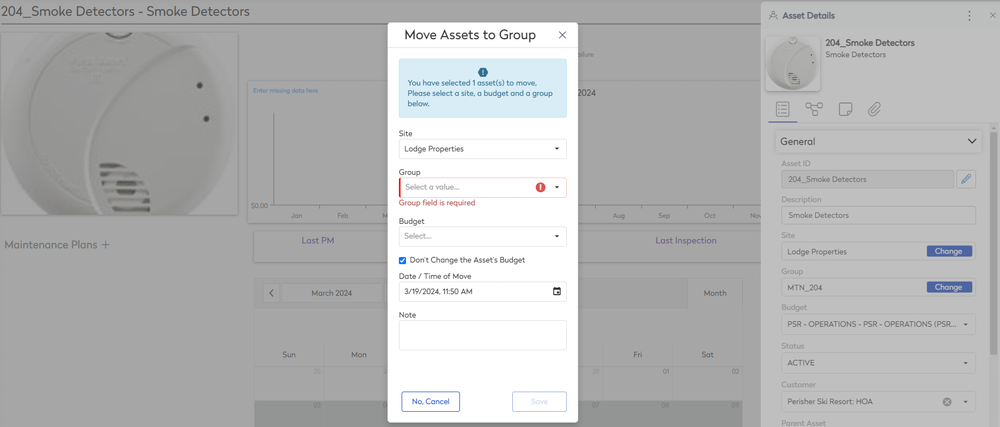
- If you want to move the asset to another site, then from the Site drop-down, select the site.
- From the Group drop-down, select the group.
- If you need to change the budget, then uncheck the Don't Change the Asset's Budget check box. Then from the Budget drop-down, select the Budget.
- From the Date / Time of Move calender picker, select the date and time.
- In the Note field, enter any note.
- Click the Save button and the confirmation dialog displays.
- Click the Yes, Confirm button.
The asset is moved.
Move Multiple Assets
You can move multiple assets to another site and/or group.
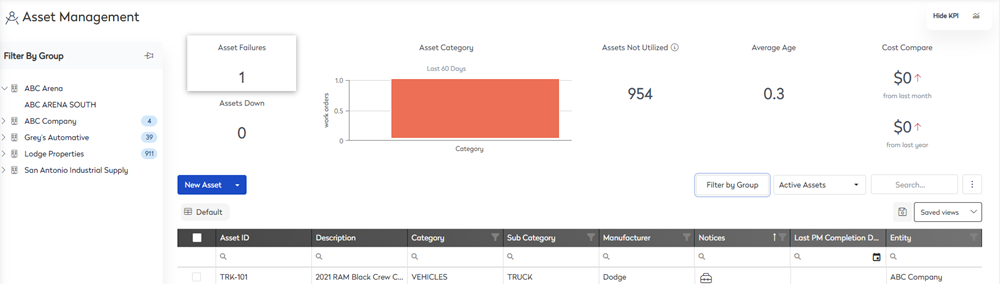
- Navigate to the Assets module. The Asset Management screen displays.
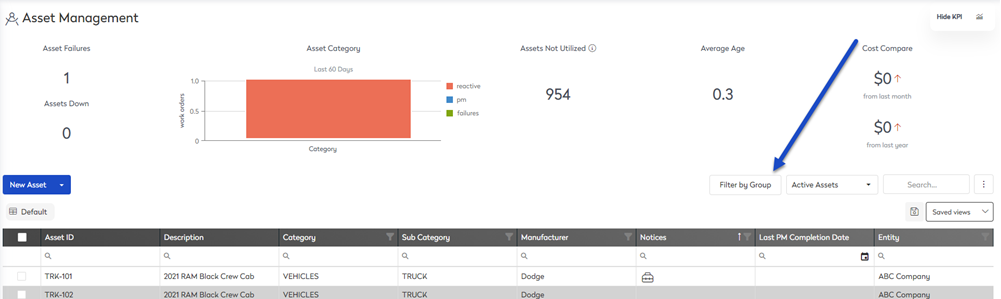
- Click the Filter by Group button and the Filter By Group panel displays.
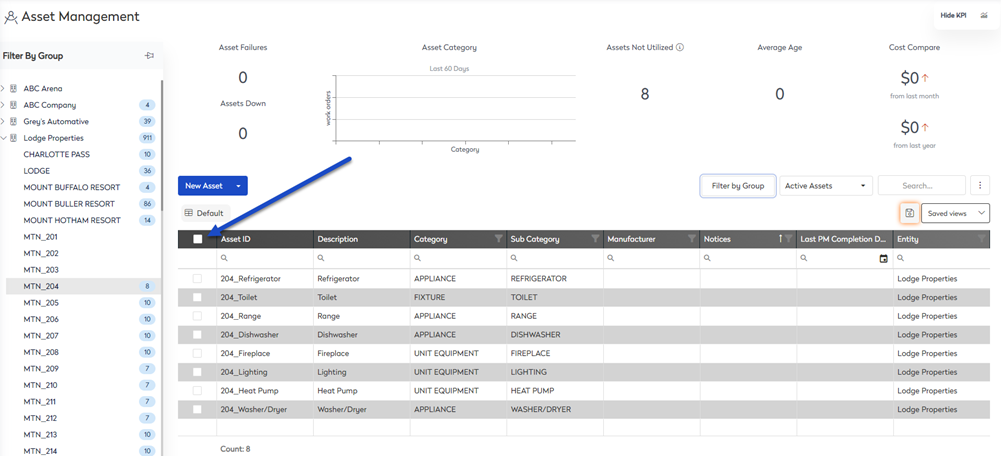
- Navigate to where the assets are and click the group's name. The list will be filtered by the group. In this example, the assets are in MTN_204 and we will move these to PERISHER SKI RESORT.
- Click the Select All icon.
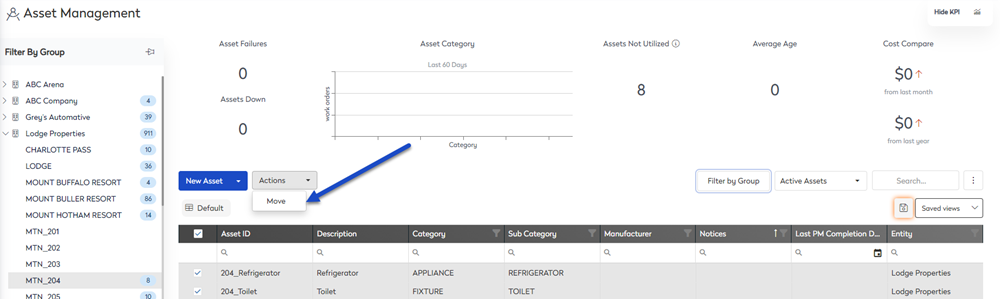
- From the Actions drop-down, click Move.
The Move Assets to Group dialog displays.
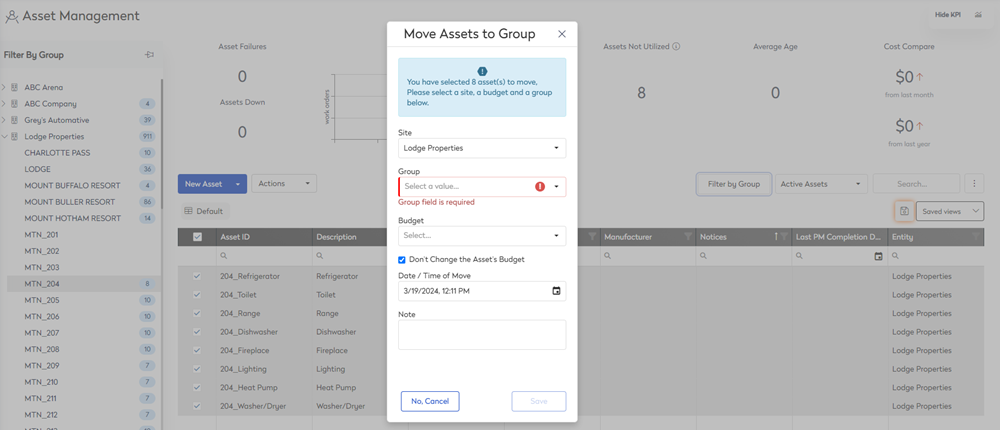
- If you want to move the asset to another site, then from the Site drop-down, select the site.
- From the Group drop-down, select the group.
- If you need to change the budget, then uncheck the Don't Change the Asset's Budget check box. Then from the Budget drop-down, select the Budget.
- From the Date / Time of Move calender picker, select the date and time.
- In the Note field, enter any note.
- Click the Save button and the confirmation dialog displays.
- Click the Yes, Confirm button.
The assets are moved.