
Download the Work Companion App
Work Companion is called Eptura Asset Companion in the App Stores and below are the quick links.
Download from the Apple Store
Quick link to the store:
| Eptura Asset Companion |  |
Complete the following steps to get the app you need set up on your device.
- Tap the App Store icon on your mobile device to access the iTunes App Store.
- In the upper-right corner, you'll see a Search field. Enter the name of the mobile app you want to download and tap Search. For example, search for the m+ work companion.
- Locate the appropriate app in the search results and tap +Get.
- Tap the Install button to download the app.
Download from the Google Play Store
Quick link to the store:
| Eptura Asset Companion | 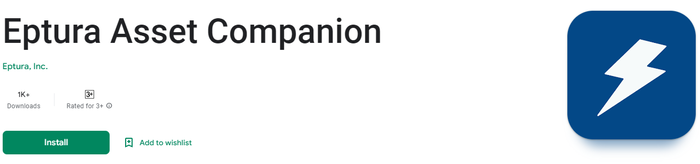 |
Complete the following steps to get the App you need, set up on your device.
- Tap the Play Store icon on your mobile device to access the Google Play Store.
- At the top of the screen, you'll see a Search field. Enter the name of the mobile app you want to download and tap the Search icon. For example, search for the eptura asset companion.
- Locate the appropriate app in the search results and tap the app. The App Overview screen displays.
- Tap the Install button to download the App. For Android versions prior to 6.0, a permissions window displays. Proceed to step 5. For Android 6.0 or newer, the App is downloaded.
- Tap the Accept button on the permissions window that displays. The app is downloaded.