
Update Vendor's Contact Site
A vendor is selected as a contact for Assets, Purchase Orders, or Work Orders when they are active, assigned to the same site, and have the right to be assigned.
A vendor can't be both: a Global Vendor and a Site Vendor.
Assign a Vendor as Global Vendor or to a specific Site(s)
- Navigate to Vendors.
- Click on the vendor you want to edit.
- Click the Sites tab and here you can either make the vendor a global vendor or site specific vendor.
Global Vendor@
If the vendor supplies to all your sites, you can make them a global vendor.
- Check the Make A Global Vendor check box.
Site Vendor
If you want to control which sites a vendor can be used on then assign the vendor to a site(s).
- If you want to add a site, click the Add Site +.
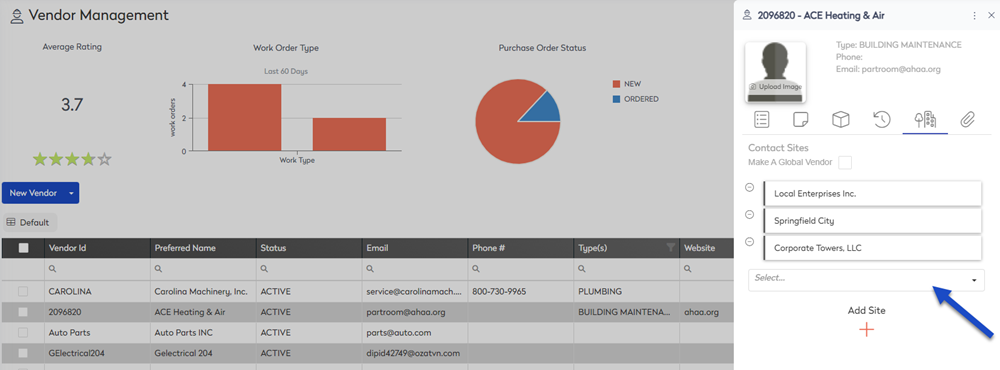
- From the Select drop-down, select the site and it is added.
When the site is added this displays the labor codes and the Add + icon lets you add more labor codes. If you want to learn more about this, see Configure Labor Codes.
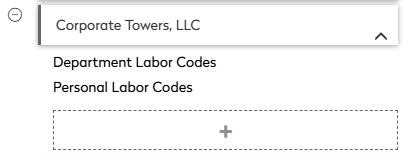
Click the Remove  icon, next to the site's name and the site will be removed from the vendor.