
Find bookings for meeting spaces
Admins can use Find Bookings from the Meeting Spaces menu to find a specific booking or bookings, regardless of booking status or type.
Admins can only search for bookings managed by the resource groups they administer.
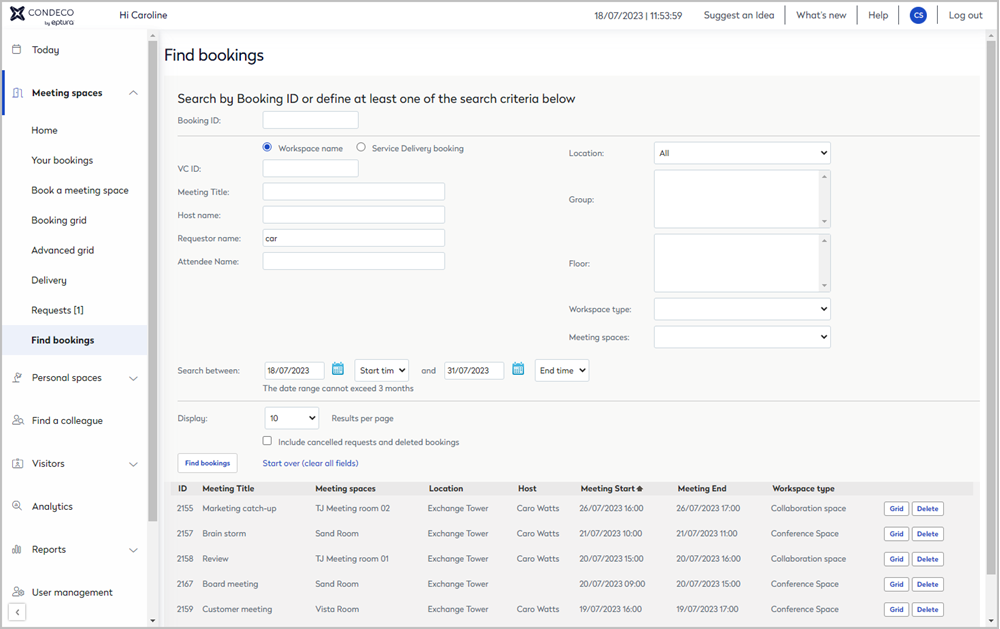
When searching for bookings, enter a valid Booking ID or at least one of the following criteria: VC ID, Meeting title, Host name, Requestor name, or Attendee name.
Don't know the booking details? Use the booking grid to scroll through bookings in a booking group, on a daily, weekly, or monthly calendar. Learn more: Booking grids for meeting spaces
Search by Booking ID
From the Meeting space menu, click Find bookings to open the Find bookings page.
To quickly find a specific booking, enter the Booking ID and click Find Bookings.
Search by criteria and filters
- From the Meeting space menu, click Find bookings to open the Find bookings page.
- Select either Workspace name or Service Delivery bookings.
- In any of the search fields, enter at least the first three characters of the item to search. You can search for:
- VC ID
- Meeting title
- Host name
- Requestor name
- Attendee name
- Optionally, you can filter the search by:
- Location
- Group(s)
- Floor
- Workspace type (only possible when a location is selected).
- Meeting space (only possible when a location is selected).
- Select a date range to search. The search results can list three months of bookings, with a maximum of 30 days in the past.
- Optionally, adjust the number of results per page. The default is 10.
- Tick Include canceled requests and deleted bookings to include rejected, deleted, and canceled bookings in the search results.
- Click Find Bookings to start the search.
If you want to change the search criteria, we recommend clicking Start over (clear all fields) to clear all fields before starting a new search.
Search results
The search results are displayed at the bottom of the window. Click the column headings to change the sort order.
Columns |
Description |
|---|---|
| ID | The booking ID. Booking IDs are automatically applied and are visible on the booking summary. |
|
Meeting title
|
Click the meeting title to open the booking form and view or edit the booking. Learn more: Meeting space booking form Historical bookings: Bookings that occurred over 30 days ago cannot be edited. These bookings display a summary page. |
| Meeting space | Click the meeting space to view more details about the space, including seating style, food, and equipment, services, etc. |
| Location | The location of the meeting space. |
| Host | The meeting's host. |
| Meeting Start | The meeting's start time. By default, results are listed in the start time order. |
| Meeting End | The meeting's end time. |
| Workspace type | The workspace type. |
| Buttons | Description |
| Grid | Click to view and manage the booking from the booking grid. |
| Delete | Click to delete the booking. |