
Eptura Engage and Eptura platform services
 |
Eptura platform services If your organization is using Eptura's platform services, your locations, workspace types, resources, and users are centrally managed from Eptura Home:
Other settings are also affected, such as floor plans, zones, advanced setup, and global settings. Learn more about Eptura platform services: https://eptura.com/our-platform/ |
| This page provides a detailed overview of the Eptura Engage features, fields, and values that are affected when Eptura platform services are enabled. It is primarily intended for existing customers familiar with the traditional Eptura Engage configuration experience, but can also serve as a useful reference for new customers to understand how platform services influence feature behavior and configuration. | |
About Eptura platform services and Eptura Home
Eptura platform services allow Eptura products to be accessed and managed from a central Eptura home page. Launch Eptura Home to access all your Eptura products and the tools that manage the components common to all Eptura products. Learn more: Eptura Home: Sign in to Eptura ↗️ ️

Eptura Home
The Eptura Home tools that centrally manage the common components for Eptura Engage are:
- Directory: User and user group management.
- Portfolio Manager: Create and manage your locations, floors, and spaces (resources).
- Space Types: Define space usage and function; each space (resource) is assigned to a Space Type. Space Types are pulled into Eptura Engage as Workspace types.
- Device Hub: Manage screens and devices.
Learn more about Eptura platform services and Eptura Home in the Eptura Home Knowledge Center ↗️
Contents
- About Eptura Engage and Eptura platform services
- Eptura Engage Locations and the Portfolio Manager
- Eptura Engage 'Workspace types' and 'Space types'
- Eptura Engage 'Resources' and Portfolio Manager 'Spaces'
- Eptura Engage Groups for resources and booking rules
- Floors and Floor plans
- Eptura Engage Users and the Directory
- About the Device Hub and Eptura platform services
Appendices
About Eptura Engage and Eptura platform services
If your organization is using Eptura's platform services, your locations, workspace types, space resources, and users are centrally managed from Eptura Home:
- Eptura Engage Locations: Manage regions, countries, locations, and floors (and resources) from the Eptura Home Portfolio Manager tool.
- Eptura Engage Workspace types: Manage workspace types from the Eptura Home Space Types tool.
- Eptura Engage Resources: Manage meeting space and personal space resources from the Eptura Home Portfolio Manager tool. (Delivery points are created and managed in Eptura Engage).
- Eptura Engage Users: Manage users from the Eptura Home Directory tool.
Other elements of Eptura Engage might also be configured differently when Eptura platform services are implemented.
Eptura Engage Locations and the Portfolio Manager
In Eptura Engage, the 'Location' hierarchy is made up of 3 parts - a Country, Region, and Location. These components are named differently in the Eptura Home Portfolio Manager tool, but the functionality in Eptura Engage has not changed.
The table compares the hierarchy of the Portfolio Manager and Eptura Engage:
Eptura Portfolio Manager |
Eptura Engage |
Portfolio Hierarchy setup |
|
Region |
Not used |
Create Regions in the Portfolio Manager. A 'region' is the parent level in the Portfolio Manager hierarchy. |
| Subregions | Not used | Subregions are not used in Eptura Engage |
|
Site |
Region |
Sites are added to Regions (or subregions) in the Portfolio Manager. A 'site' is shown as a 'region' in Eptura Engage. |
|
Country 'Country' is set in Site > Location settings |
Country |
The Country is selected from the 'Country' drop-down list in Portfolio Manager > Site > Location - Country field Note: In the Eptura Portfolio Manager, you can also set a country for a 'Building', however, this value is not used by Eptura Engage. |
|
Building |
Location |
Buildings are added to Sites in the Portfolio Manager. A 'building' is shown as a 'location' in Eptura Engage. Note: The 'Country' set for a 'Building' is not used by Eptura Engage; Engage uses the 'Country' set for a 'Site'. |
|
Floor |
Floor |
Floors are added to Buildings in the Portfolio Manager. |
|
Space (Me | We) |
Resource (personal space | meeting space) |
Spaces are added to Floors in the Portfolio Manager. |
Learn more: For a detailed comparison of Eptura Portfolio Manager and Eptura Engage fields and values, see Appendix A: Eptura Engage and Eptura Home settings and values
Compare hierarchy naming structures
The different hierarchy naming structures of Eptura Engage and the Portfolio Manager are shown below, using the example of an organization that has several buildings in multiple locations in the US:
|
Eptura Engage hierarchy
|
Portfolio Manager hierarchy
|
Learn more
- Eptura Home: Portfolio Manager ↗️
- Eptura Engage: Locations ↗️
Eptura Engage 'Workspace types' and 'Space types'
The equivalent of Eptura Engage Workspace Types for Eptura Home are 'Space Types'.
As with Eptura Engage Workspace types, spaces created in the Eptura Portfolio Manager are linked to a 'Space Type' that defines their function.
Space Types are configured with a 'usage' and a 'default space function' and both these settings control the type of Workspace type that is created in Eptura Engage.
Usage
A Space Type usage is set to either Me, We, Common, or None:
- Me: for single-occupancy spaces, such as desks, offices, lockers, or other personal spaces.
- We: for shared spaces, such as a meeting rooms, conference spaces, or other meeting spaces.
- Common: Not used by Eptura Engage
- None: Not used by Eptura Engage
Only 'Me' and 'We' Space Types are available as Eptura Engage Workspace Types. Space Types set as 'Common' or set to 'None' are not available in Eptura Engage.
- Eptura Engage shows Workspace types where the Space Type > Usage = Me or We
- Me: Available as both 'hourly' and 'all-day' workspace types. See below: Booking options for Workspace types
- We: Available as 'hourly' workspace types only.
- Eptura Engage does not show: Space Types > Usage = Common or None
Space Function
A Space Type default space function is set to either Assignable, Bookable, Flexi, or Open.
Spaces inherit the 'space function' from their assigned Space Type by default. (Note that inheriting space function from the Space Type can be overridden for individual spaces).
Eptura Engage shows Workspace Types where the Default Space Function set for the Space Type is Assignable, Bookable, Flexi, or Open*.
The following space functions control the Eptura Engage booking type:
- Bookable: Eptura Engage bookable personal spaces and meeting spaces.
- Assignable: Eptura Engage fixed personal spaces. A fixed personal space is assigned to a user; the user does not need to book or check in to the space.
- Flexi: Eptura Engage flexi personal spaces. A flexi personal space is assigned to a user; the user does not need to book it, but if they do not check in, then the space is automatically made available for others to book.
Learn more: Eptura Engage booking types for personal spaces ↗️
The Space Function set for a 'We' Space Type does not affect the booking behavior of meeting spaces. The Eptura Engage group that meeting spaces belong to defines whether they are managed (request-based) or self-managed (book directly) meeting spaces.
Learn more: Book or request an Eptura Engage meeting space ↗️
*Open Space Types: Space Types with the Default Space Function set to Open are also shown as Workspace Types in Eptura Engage, but associated Spaces are only pulled into Eptura Engage if the Open space function is changed to either Bookable, Assignable, or Flexi, for either the linked Space Type or individually for the Space.
Booking options for Workspace types
Eptura Engage categorizes Workspace types as either 'Hourly' booking spaces (for hourly personal spaces and meeting spaces) or 'All-day' booking spaces (for personal spaces only); these are shown in different tabs on the Engage Workspace type setup page. When an eligible Space Type is created, the associated Workspace type is created in both of these categories.
For example, a new Space Type (Me / Bookable) called 'Bike Hanger', is available as both an All-day booking space and an Hourly booking space Workspace types category.

Workspace Types settings configured in Eptura Engage
When Eptura platform services are implemented, the following settings for Workspace types are configured in Eptura Engage:
- This is a workspace: Turn off (or on) the option to set an all-day workspace type as a 'workspace' (a space to work). This setting is on by default.
- Sets user as in-office: Set an all-day workspace type to 'set the user as in-office' (when the space is booked). This setting is off by default.
- Attributes: Adding attributes to workspace types. Attributes are configured and managed in Eptura Engage.
Learn more: Configure Eptura Engage workspace types ↗️
Eptura Engage Attributes for Workspace Types and Resources
Attributes are configured and managed in Eptura Engage.
Learn more: Configure Eptura Engage attributes ↗️
Learn more
- Eptura Home: Space Types ↗️
- Eptura Engage: Workspace Types ↗️
Eptura Engage 'Resources' and Portfolio Manager 'Spaces'
There are four resource types in Eptura Engage, three of which are managed in the Eptura Home Portfolio Manager as either 'We' or 'Me' spaces, and the other (delivery points) are managed in Eptura Engage:
- Eptura Engage Meeting spaces are We spaces in the Portfolio Manager.
- Eptura Engage All-day personal spaces are Me spaces in the Portfolio Manager.
- Eptura Engage Hourly personal spaces are Me spaces in the Portfolio Manager
- Eptura Engage Delivery points are created and managed in Eptura Engage.
Resources (spaces) are created in the Portfolio Manager, and only spaces configured as 'We' or 'Me' space types are visible in Eptura Engage.
Both 'all-day' and 'hourly' personal spaces are set as 'Me' spaces in the Portfolio Manager and then added to an 'all-day' or 'hourly' personal space group in Eptura Engage, respectively. See below: Eptura Engage Groups for resources and booking rules
Resources can only be edited in Eptura Engage when they belong to an Eptura Engage Group. Some settings can only be edited in the Portfolio Manager.
Eptura Engage resources inherit field values from Eptura Home Portfolio Manager spaces as follows:
Eptura Portfolio Manager Spaces |
Eptura Engage Resources |
Notes |
| Space name | Name (unless a 'Common name' is set) | The Portfolio Manager 'Space name' is used by Eptura Engage as the resource name, unless a 'Common name' is set for the space, in which case, that name is used instead. |
| Common name | Name (if a 'Common name' is set) | If a 'Common name' is set for a space, then this name is used for the resource name in Eptura Engage. If not, then the Space name is used. |
| Space type | Workspace type | Learn more: Eptura Engage workspace types ↗️ |
| Default capacity | Default capacity |
Different capacities can be set for selected seating styles from Eptura Engage Resource admin. Learn more: Eptura Engage resource admin for meeting spaces ↗️ |
| Usage (Me | We) | Resource type (Personal space | Meeting space) |
Me = Eptura Engage Resource types: All-day personal spaces / Hourly personal spaces. We = Eptura Engage Resource type: Meeting spaces. Learn more: Eptura Engage booking periods ↗️ |
|
Space function:
|
Booking type:
|
Bookable = Eptura Engage bookable all-day and hourly personal spaces, and meeting spaces. Assignable = Eptura Engage fixed personal spaces. The assigned user is set in the Eptura Directory. Flexi = Eptura Engage flexi personal spaces. The assigned user is set in the Eptura Directory. Open spaces are not pulled into Eptura Engage. Learn more: |
|
Space function:
|
n/a |
The Space function is normally inherited from the associated Space Type, however, It is possible to toggle the inherit option off for individual spaces. When inheriting the Space function is toggled off, 2 additional space functions are available to select for the space - Retained and Shared. It is important to note that neither Retained or Shared space functions are supported by Eptura Engage, and the associated Eptura Engage resource will be removed from Eptura Engage. |
Resource settings configured in Eptura Engage
When Eptura platform services are implemented, the following resource settings are configured in Eptura Engage.
Status
The 'Status' shows whether a resource is open or closed. You can open or close resources from Eptura Engage Resource Admin.
Learn more: Close and open resources in Eptura Engage ↗️
Group
When Eptura platform services are implemented, resources are added to groups from the resource list in Resource Admin. When a resource is assigned to a group, the group can be managed from the individual resource settings for each resource.
We do not recommend changing the assigned group when bookings exist for the resource.
See below: Eptura Engage Groups for resources and booking rules
Capacity
The default capacity for a meeting space is inherited from the 'We' space settings in the Portfolio Manager, and by default, the seating style is set to 'Conference'. The default seating style can be changed to the preferred seating style for the space in Eptura Engage Resource admin.
Learn more: Resource admin for meeting spaces ↗️
Vendors
Eptura Engage vendors are assigned to resources from Eptura Engage Resource admin. Vendors can be assigned to multiple personal space resources individually or in bulk, but can only be assigned to meeting space resources individually.
Learn more:
Delivery points
Eptura Engage delivery points are created and managed in Eptura Engage. Learn more: Delivery points ↗️
Learn more
- Eptura Home: Add or Edit Space ↗️
- Eptura Engage: Resources ↗️
Eptura Engage Groups for resources and booking rules
Eptura Engage groups, which manage the booking rules for personal ('Me') and meeting ('We') space resources, are created and managed in Eptura Engage. When Eptura platform services are implemented, resources are added to groups from Eptura Engage > Application setup > Resources.
The following steps explain how to assign 'Me' and 'We' spaces to Eptura Engage groups; the groups must already exist in Eptura Engage. Learn more: Groups ↗️
Hourly personal spaces
All 'Me' spaces that are not yet assigned to an Eptura Engage group are listed as 'all-day personal spaces' resource types in Resource Admin.
A 'Me' space is set as a shift or hourly personal space by adding it to an hourly group (configured for either shift or hourly bookings). This is done by first finding the space in the list of 'all-day' resource types and then assigning it to an hourly group.
Only when spaces belong to an hourly group, are they listed as 'hourly personal spaces' resource types, in Resource Admin.
Managed and Self-managed meeting spaces
'We' spaces can be set to any space function; the Eptura Engage group they belong to defines whether they are managed (request-based) or self-managed (book directly) meeting spaces. Learn more: Book or request an Eptura Engage meeting space ↗️
- Sign in to Eptura Engage and go to Application setup > Resources.
- Select either 'All-day personal spaces' or 'Meeting spaces' as the Resource type from the drop-down list, then select the Country and Location to show the list of 'Me' or 'We' spaces available from the Portfolio Manager. You can further filter the list by floor and workspace type if required, or search for a specific space(s) by entering at least 3 characters of the space name in the Search box.
- If spaces exist that are not assigned to a group, a hyperlinked message is displayed at the top showing the number of spaces that do not belong to a group. Click the hyperlink or select Group > Unassigned, to show only the unassigned spaces in the list. Note that all unassigned 'Me' spaces are displayed under the 'All-day personal spaces' resource type and not the 'Hourly personal spaces' resource type.

- From the list of unassigned spaces, select individual spaces by ticking their check boxes, or use the check box at the top to select all. When at least one space is selected, the 'Assign group' button is displayed. Click Assign group.

- Select the group from the drop-down list and click Assign group. If viewing 'All-day personal spaces' resource types, you can select either an 'all-day' or 'hourly' group to assign the spaces to.

The selected spaces are now assigned to the group. 'Me' spaces assigned to an 'hourly' group are now shown in the list of 'hourly personal spaces' resource types.
Learn more
- Eptura Engage: Groups ↗️
Floors and Floor plans
Floors are added to Buildings in the Portfolio Manager.
Floor plans can be uploaded via Eptura Engage or via Eptura platform services. When a floor plan is uploaded via platform services, the Eptura Engage floor plan setup is disabled for that particular floor.
Learn more
- Platform services: Floor plan publishing ↗️
- Eptura Engage: Setting up floor plans ↗️
Eptura Engage Users and the Eptura Directory
When Eptura platform services are enabled, users are created and managed in the Eptura Directory, but many settings are also managed from Eptura Engage User Management and the user profile. User settings and options are compared in Appendix C: Eptura Engage User Management settings and the Eptura Directory
User options set in the Eptura Directory
The following options and settings are configured in the Eptura Directory and pulled into Eptura Engage:
Fixed and flexi assignments
Eptura 'Me' (personal) spaces with an 'Assignable' (fixed) or 'Flexi' space function are assigned to users from the Directory.
To assign a fixed or flexi space to a user, follow the steps from the Eptura Directory (the fixed or flexi space must already exist):
- Launch the Directory and find the user to assign to the fixed or flexi desk.
- From the list of users, click the Location icon to the right.
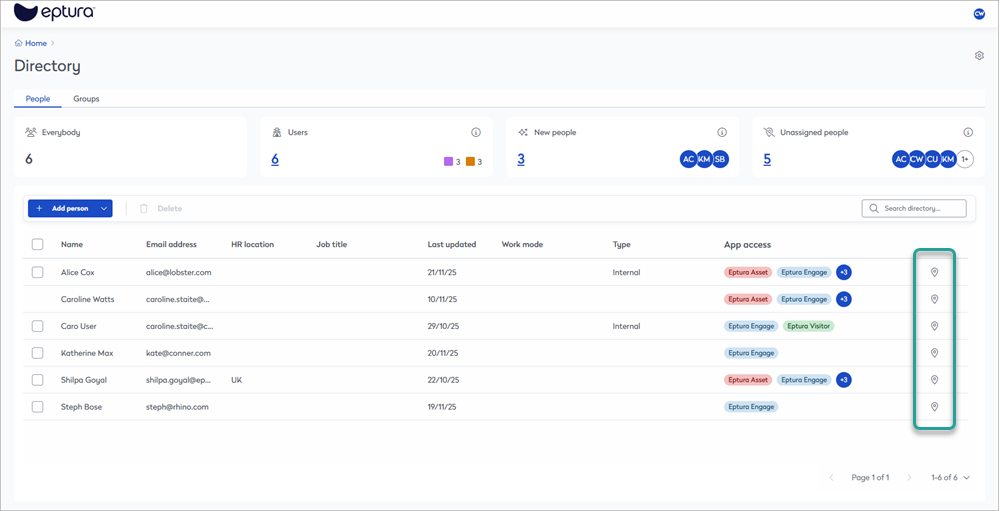
- Navigate through the location hierarchy and select the floor where the fixed or flexi space is located. Select the space to assign and click Select [space name].

- If you select an unassignable space (bookable or open), an error is displayed. Otherwise, your selected space assignment is confirmed.
Note: You can assign multiple users to the same space from the Eptura Directory; however, Eptura Engage will only recognize the most recently assigned user for that space.
Eptura Engage Resource admin for the fixed and flexi spaces displays the name of the assigned user, but any changes to the assignment must be made from the Eptura Directory, as described above.
User and Global admin levels
By default, users created in the Eptura Directory who are granted access to the Eptura Engage app, are assigned as standard users in Eptura Engage. Users granted Admin access to Eptura products from the Directory are set as 'Global Admins' in Eptura Engage. The admin level can be changed to Country, Location, Group, or Video admin from Eptura Engage.
When an Eptura Engage Global Admin is granted a different admin level in Engage, you can no longer disable the Admin access for that user from the Directory.
Default location
If a user's default location is set in the Eptura Directory, then the default location for personal spaces is locked in Eptura Engage and cannot be changed by the user. The user's default location for meeting spaces can still be edited in Eptura Engage.
User management options set in Eptura Engage
The following options and settings are configured in Eptura Engage:
Eptura Engage Group permissions
Eptura Engage groups manage the booking rules for resources, and group permissions and group settings are entirely managed in Eptura Engage.
Learn more:
Administrator levels
Users granted Admin access to Eptura products from the Directory are set as 'Global Admins' in Eptura Engage. The admin level can be changed to Country, Location, Group, or Video admin from Eptura Engage.
Learn more: Administrator admin levels ↗️
Workweeks and Workweek assignment
Workweeks and workweek assignments are entirely created and managed in Eptura Engage.
Learn more: Workweeks and Workweek Assignment ↗️
User profile settings
For details about Eptura Engage user profile settings - where they are set and which are disabled when platform services are enabled - see Appendix C: Eptura Engage User Management settings and the Eptura Directory
Learn more
- Platform services: Eptura Directory ↗️
- Eptura Engage: User management and permissions ↗️
About the Device Hub and Eptura platform services
When Eptura platform services are enabled, the Eptura Device Hub is launched from Eptura Tools:

Locations and users are centrally managed from Eptura Home:
- Device Hub Locations: Manage regions, countries, locations, and floors (and resources) from the Eptura Home Portfolio Manager tool.
- Device Hub Users: Manage users from the Eptura Home Directory tool.
The Device Hub with platform services provides the following additional functionality:
- Change a room's calendar service. Learn more: Changing calendar services ↗️
Other differences when platform services are enabled:
- The Settings Profile and Screen Theme cannot be selected when viewing/editing a room. These are set from the room list. Learn more: Meeting room screens ↗️
Learn more
- Eptura Home: Portfolio Manager ↗️
- Device Hub: Eptura Device Hub ↗️
Appendices
Appendix A: Eptura Engage and Eptura Home settings and values
Appendix A
Eptura Engage and Eptura Home settings and values
This table provides a high-level overview of where Eptura Engage field values (and other settings) are configured, either in Eptura Engage or Eptura Home, and indicates which Portfolio Manager or Space Type values and options are used - or not used - when Eptura platform services are implemented.
Eptura Engage |
Eptura Home |
|
Region Engage gets the Region name value from the Site Name associated with the Site that belongs to the parent Region (or Subregion) in Portfolio Manager.
|
Region or Subregion Engage does not use any Portfolio Manager > Region or Subregion values:
|
|
Country Engage gets the Country name value from the Country selected for the Location of the Site in Portfolio Manager.
Country values set in Engage Set the following Country values in Engage > Locations > Country:
|
Site The Engage Country name value is retrieved from the Country selected for the Site, not the Country selected for the Building. Note: The Country selected for the Building is not used by Engage. Site field values used by Engage:
|
|
Location Engage gets the following Location values from the Portfolio Manager:
Location values set in Engage Set the following Location values in Engage > Location:
The Engage Location > 'All Floors on grid' setting (which enables 'All' floors to be selected on the meeting spaces booking grid), is hidden and enabled by default. |
Building Building field values used by Engage:
|
|
Floor No floor settings are configured in Engage. The Engage Location > 'All Floors on grid' setting (which enables 'All' floors to be selected on the meeting spaces booking grid), is hidden and enabled by default. |
Floor Floor field values used by Engage:
|
|
Floor plans Floor plans can be uploaded via Engage > Application setup > Floor plans. However, this option is disabled if floor plans are uploaded via the platform services.. |
Floor plans AutoCAD and Revit floor plans are supported.
|
|
Workspace types Engage gets the following Workspace Type values from Space Types:
*Note: 'We' Usage = 'Meeting spaces' Resource Type; and 'Me' Usage = 'Hourly personal spaces' and 'All-day personal spaces' Resource Type. Workspace type values set in Engage Set the following Workspace type values and options in Engage:
|
Space Types
*Usage notes:
|
|
Resource Engage gets the following Resource values from the Portfolio Manager Space:
Resource values set in Engage Set the following Resource values and options in Engage:
|
Space
*Default Space Function notes:
|
|
Groups (resource) Groups that manage the booking rules for selected resources are configured entirely in Engage. |
n/a |
Appendix B: Eptura Engage modules and settings behavior with platform services enabled
Appendix B
Eptura Engage modules and settings behavior with platform services enabled
The table provides a high-level overview of the behavior changes for Eptura Engage modules and settings when Eptura platform services is enabled.
Table sections:
Eptura Engage Modules
Eptura Engage Module |
Navigation |
Behavior with platform services enabled |
| Today | No change | |
| Meeting spaces | No change | |
| Personal spaces | No change | |
| Your team | No change | |
| Visitors | No change | |
| Reports | No change | |
| User management | See Appendix C: Eptura Engage User Management settings and the Eptura the Eptura Directory | |
|
User management user profile settings |
User management > User profile
|
Deactivate user [Hidden] Delete user [Hidden] |
|
User management > Profile > Overview
|
Name:
Contact details:
Attributes:
|
|
| User management > Profile > Permissions | No change | |
| User management > Profile > Preferred attributes | No change | |
| User management > Profile > Location & Language | No change | |
| User management > Profile > Additional properties | No change | |
| User management > Profile > Video conference | Hidden | |
| User management > Profile > Roles | No change | |
| User management > Profile > In-office schedule | No change |
Application setup
Eptura Engage User Profile primary settings
Eptura Engage User Profile main settings |
Eptura Directory |
Behavior with platform services enabled |
| Username | Email address | Eptura Engage gets the username from the user's email address set in the Eptura Directory |
| PIN | n/a | No change |
| Access Level | User or Admin | Users granted Admin access to Eptura products from the Directory are set as 'Global Admins' in Eptura Engage. The admin level can be changed to Country, Location, Group, or Video admin from Eptura Engage. |
| Outlook calendar | n/a | No change |
| Reset PIN | n/a | No change |
| Transfer bookings | n/a | No change |
| View history | n/a | No change |
| Contact report | n/a | No change |
| Activate/Deactivate user | n/a | Hidden |
| Delete user | Hidden |
Eptura Engage User Profile tabs
Eptura Engage User Profile tab settings |
Eptura Directory |
Behavior with platform services enabled |
Overview tab: |
||
| Title | n/a | Hidden |
| First name | Preferred name or First name | Eptura Engage uses the Directory Preferred name as the First name. If a Preferred name is not set, the First name is used instead. |
| Last name | Last name | |
| Email address | Email address | |
| Telephone | Hidden | |
| Ext. | Hidden | |
| Mobile | No change | |
| Department | Job > Department | Eptura Engage > Meta admin > Departments field is disabled. |
| Function | n/a | Eptura Engage > Meta admin > Function field is disabled. |
| Business category | n/a | Eptura Engage > Meta admin > Business category field is disabled. |
Permissions tab: |
||
| Access | Users granted Admin access to Eptura products from the Directory are set as 'Global Admins' in Eptura Engage. | No change |
| Personal user permissions | n/a | No change |
Preferred attributes tab: |
||
| Preferred attributes | n/a | No change |
| Slots per week | n/a | No change |
Location and Language tab: |
||
|
Meeting spaces default location Personal spaces default location |
n/a |
No change Default locations for meeting space and personal space bookings are set in Eptura Engage. |
| Language | No change | |
Additional properties tab: |
||
|
Additional properties:
|
n/a |
No change |
Video conference tab |
n/a | Hidden |
Roles tab |
n/a | No change |
In-office schedule tab |
n/a | No change |
Advanced setup
Advanced setup |
Navigation |
Behavior with platform services enabled |
| Advanced setup | Advanced setup > About | No change |
| Advanced setup > AD mapping | No change | |
| Advanced setup > Clear cache | No change | |
|
Advanced setup > Global setup |
Some settings are hidden and default values might be stored. See below: Global setup |
|
| Advanced setup > License | Hidden | |
| Advanced setup > Merchants | Hidden | |
| Advanced setup > Screen admin | No change | |
| Advanced setup > Tag headings |
Hidden |
Advanced setup > Global setup
Global setup |
Navigation |
Behavior with platform services enabled |
|
Advanced setup > Global setup |
Advanced setup > Global setup > Application |
Application tab No change:
Hidden:
|
| Advanced setup > Global setup > Advanced grid | Hidden | |
|
Advanced setup > Global setup > Email |
Email tab No change:
|
|
|
Advanced setup > Global setup > Meeting spaces |
Meeting spaces tab No change:
Hidden:
|
|
|
Advanced setup > Global setup > Outlook |
Outlook tab No change: Microsoft 365 add-in
Hidden: COM+ add-in
|
|
| Advanced setup > Global setup > Payment | Hidden | |
|
Advanced setup > Global setup > Personal spaces |
Personal spaces tab No change:
Hidden:
|
|
| Advanced setup > Global setup > Reports | Hidden | |
|
Advanced setup > Global setup > Vendors |
Vendors tab No change:
Hidden:
|
|
| Advanced setup > Global setup > Video Conference | Hidden | |
| Advanced setup > Global setup > Visitors | Hidden |
Appendix C: Eptura Engage User Management settings and the Eptura Directory
Eptura Engage User Management settings and the Eptura Directory
The following tables compare Eptura Engage user management settings with the Eptura Directory.
Eptura Engage User Management home page:
Eptura Engage User Management |
Eptura Directory |
Behavior with platform services enabled |
| Group permissions | n/a | No change |
|
Administrators > Select admin type |
n/a |
No change. Good to know:
|
| Workweeks | n/a | No change |
| Workweek Assignments | n/a | No change |
Eptura Engage User Profile primary settings
Eptura Engage User Profile main settings |
Eptura Directory |
Behavior with platform services enabled |
| Username | Email address | Eptura Engage gets the username from the user's email address set in the Eptura Directory |
| PIN | n/a | No change |
| Access Level | User or Admin | Users granted Admin access to Eptura products from the Directory are set as 'Global Admins' in Eptura Engage. The admin level can be changed to Country, Location, Group, or Video admin from Eptura Engage. |
| Outlook calendar | n/a | No change |
| Reset PIN | n/a | No change |
| Transfer bookings | n/a | No change |
| View history | n/a | No change |
| Contact report | n/a | No change |
| Activate/Deactivate user | n/a | Hidden |
| Delete user | Hidden |
Eptura Engage User Profile tabs
Eptura Engage User Profile tab settings |
Eptura Directory |
Behavior with platform services enabled |
Overview tab: |
||
| Title | n/a | Hidden |
| First name | Preferred name or First name | Eptura Engage uses the Directory Preferred name as the First name. If a Preferred name is not set, the First name is used instead. |
| Last name | Last name | |
| Email address | Email address | |
| Telephone | Hidden | |
| Ext. | Hidden | |
| Mobile | No change | |
| Department | Job > Department | Eptura Engage > Meta admin > Departments field is disabled. |
| Function | n/a | Eptura Engage > Meta admin > Function field is disabled. |
| Business category | n/a | Eptura Engage > Meta admin > Business category field is disabled. |
Permissions tab: |
||
| Access | Users granted Admin access to Eptura products from the Directory are set as 'Global Admins' in Eptura Engage. | No change |
| Personal user permissions | n/a | No change |
Preferred attributes tab: |
||
| Preferred attributes | n/a | No change |
| Slots per week | n/a | No change |
Location and Language tab: |
||
|
Meeting spaces default location Personal spaces default location |
n/a |
No change Default locations for meeting space and personal space bookings are set in Eptura Engage. |
| Language | No change | |
Additional properties tab: |
||
|
Additional properties:
|
n/a |
No change |
Video conference tab |
n/a | Hidden |
Roles tab |
n/a | No change |
In-office schedule tab |
n/a | No change |