
Activate the room screen
Eptura Room Screen App - Setup Guide
Before you start
Before activating a room screen, check the prerequisites have been completed on the Eptura Device Hub. Learn more: Eptura Device Hub and room screens
Before starting the setup, the screen must be connected to an active network connection with access to the internet.
Process overview
When a device is started up and a successful network connection is established, the app checks for and installs any available updates. When the configuration and software update are complete, the screen can be activated.
Activate a room screen
Unless the screen is already mounted to the wall, the following is best done in front of a computer as you will be interacting with the Device Hub as well as the screen.
- Power up the screen the same way it will be powered when in its final position.

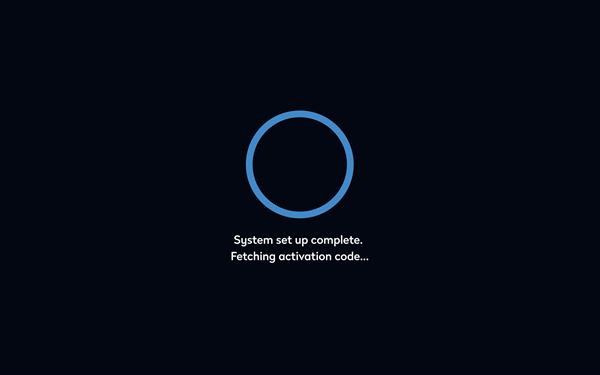
- The screen retrieves the activation code for the Device Hub.
- The screen displays a QR code and an activation code. The code is valid for 5 minutes. If it expires, click Refresh code to generate a new code. Optionally, before scanning the code, you can click Privacy Policy to view the Eptura SaaS Privacy Policy. Learn more: SaaS Privacy Policy
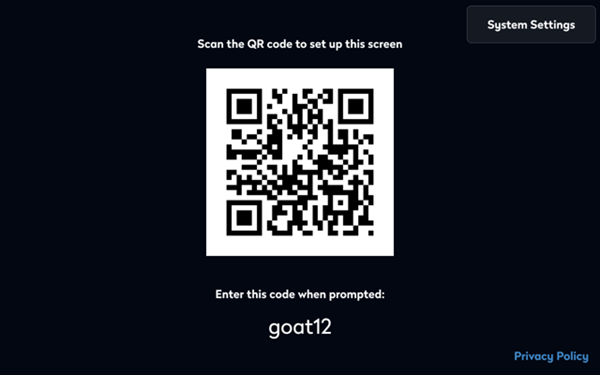
Scanning the QR code with the camera on your mobile device displays the activation code on the device. Additional QR code functionality is coming soon.
- Now pair the room screen with the room resource in the Eptura Device Hub:
- Sign in to the Eptura Device Hub - https://westeurope.condecoconnect.com/
- Navigate to Rooms & Screens from the menu on the left.
- Find the room resource to pair with the room screen and click the light-blue Activate button on the right.

- Enter the activation code from the room screen and click Activate.

- The screen waits for the calendar settings and confirms when successfully activated. Tap OK.
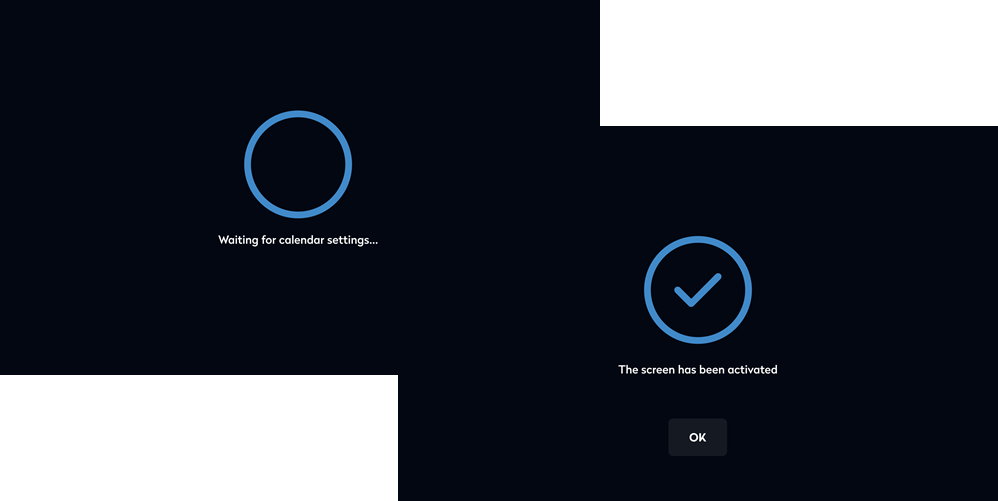
Congratulations! Your room screen is now activated and ready for use.