
Manage bookings on the Advanced Booking Grid
Users can make changes to bookings from the Advanced Booking Grid and administrators can perform additional functions such as confirming booking requests, putting bookings on a waitlist, marking bookings as ‘Don’t Move’, etc.
Open a booking
Click a booking on the Advanced Booking Grid to open the booking form. Alternatively, right-click the booking and click Open.
Move or copy bookings
Move: Click the booking and drag to another meeting space and/or time slot.
Copy: Right-click the booking and click Copy. A duplicate booking appears on the grid. Drag the duplicate booking to another room and/or time slot.
Only single meeting space bookings can be moved or copied, not conferences.
Bookings can only be moved or copied to other slots on the same day.
Extend a Booking
To extend a booking, hover the mouse over the right edge of the meeting until the double arrow appears, then click and drag the edge to the right. Meetings in progress can also be extended.
Only non-video conference bookings can be extended.
Meeting status
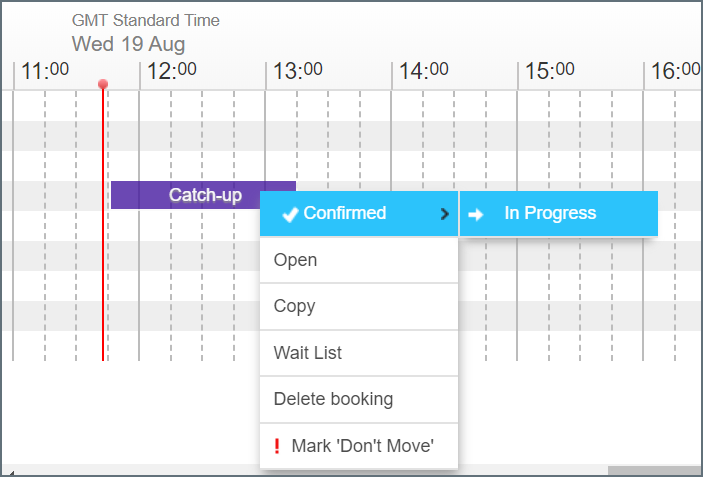
When a meeting time approaches it can be manually marked as In Progress.
Right-click the meeting then hover the mouse over Confirmed and click In Progress.
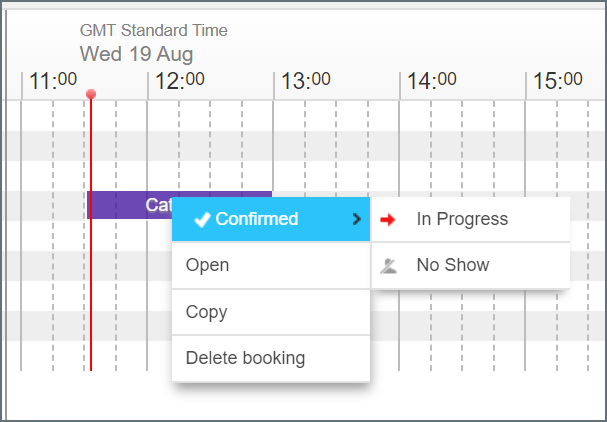
When the meeting status is In Progress, administrators can release the meeting space by changing the status to No Show.
Right-click the meeting then hover the mouse over Confirmed and click No Show.
Waitlist
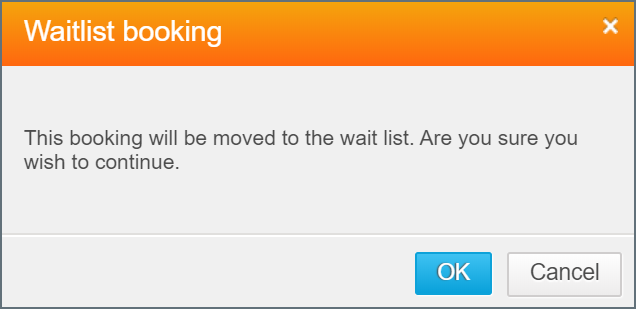
Booking requests for managed rooms can be held in the Waitlist so they do not block the time slot or meeting space why the request is pending. Bookings on the Waitlist do not appear on the grid allowing other bookings to be requested in the same slot. Administrators and approvers manage the Waitlist from the Requests page.
Right-click the booking and select Waitlist. Click OK to confirm.
Only bookings in Managed Rooms can be put on the Waitlist.
Delete a booking
To delete a future booking, right-click the booking and select Delete Booking.
You cannot delete bookings that are in progress or bookings that occurred in the past.
Mark as ‘Don’t Move’
Administrators can mark a booking as Don’t Move. This applies a red border around the meeting indicating to other administrators that the booking should not be moved.
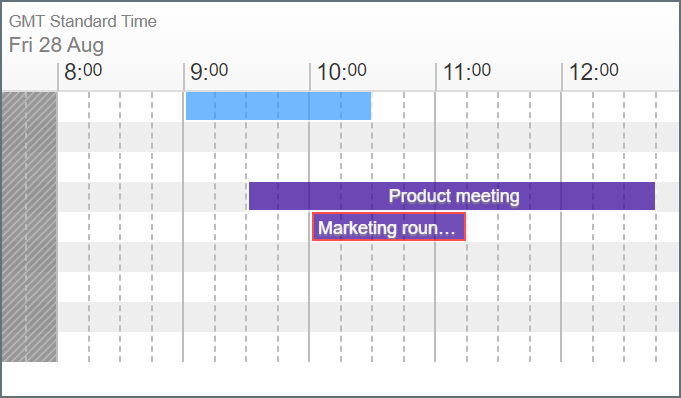
The ‘Don’t Move’ function is an indicator only, it does not prevent the booking from being moved.
Start a booking
To start a booking from the booking grid, click the booking to open the booking form and click Start meeting. Learn more about the meeting space booking form