
User access and permissions
The Permissions tab in the user profile is where the user's access level to Eptura Engage is selected - either a User or an Administrator role - and where you can view and edit any personal user permissions that are set for resource groups.
By default, users have access to all open resource groups and are denied access to restricted resource groups. Adding resource groups to the Permissions tab in the user profile allows you to override the default access settings for resource groups and apply explicit access for the user - it does not prevent access to other resource groups.
Access
Select the required user or admin role from the Access Level drop-down list:
- User
- Group admin
- Location admin
- Country admin
- Video admin
- Global admin
Learn more: Administrator access levels
Personal user permissions
To override the default access settings for a resource group, you can apply access exceptions for the user from Personal user permissions - either granting booking access or denying booking access.
Any access exceptions that apply to the user - whether added via Group permissions in User management, or inherited from a user group - are shown at the bottom. Learn more: Managing access to resources
To apply access exceptions for a resource group, first select the Country, then the Location, and then select the Group. Available Countries and Locations appear in the boxes on the left - when selected, they move to the boxes on the right (or below if your browser window is narrow).
- Select Country - Double-click a Country to add it to the list on the right (or click the single arrow), or click All >> to add all countries. The 'Select Location' box is now propagated with the locations from the selected countries.
- Select Location - Double-click a Location to add it to the list on the right (or click the single arrow), or click All >> to add all locations. The 'Select Group' box is now propagated with the groups from the selected locations.

- Select Group - Double-click the resource group (or groups) that you want to apply access exceptions to (or select the group(s) and click Add to the list). The group(s) are displayed below, where you can enable the required access - if the group manages both meeting space and personal space resources, each are displayed on a separate tab.
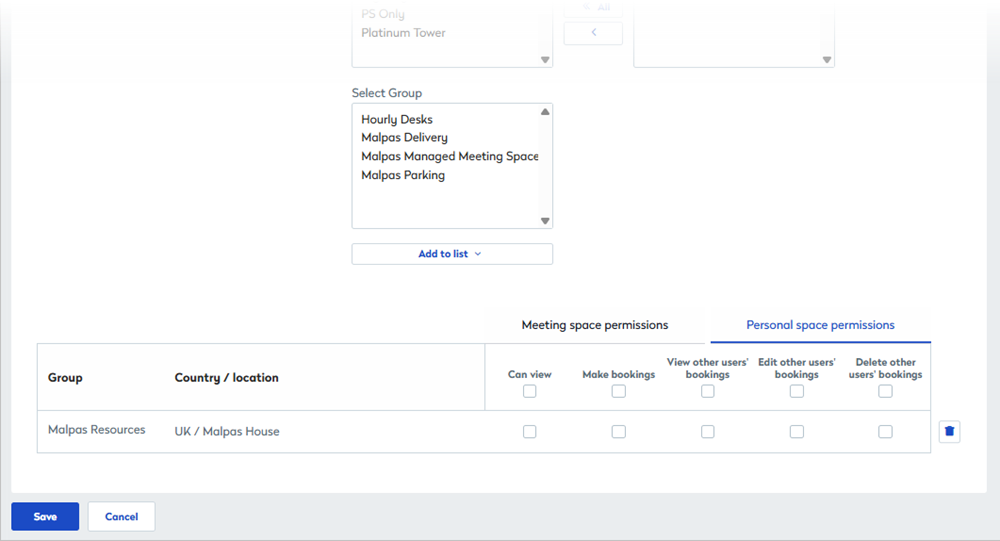
- Meeting space permissions - select the Meeting space permissions tab and tick the check boxes for the booking access to allow for the user. You can tick the check box above the list of groups to select the same permission for all of the groups in the list.
- Personal space permissions - select the Personal space permissions tab and tick the check boxes for the booking access to allow for the user. You can tick the check box above the list of groups to select the same permission for all of the groups in the list.
- Click Save when done.
The applied permissions override the default booking access set for the selected resource groups. Default booking access is still applied to all other groups for the user.