Pre-configure Eptura Engage URL on iOS devices
Create a Microsoft Intune configuration policy to pre-configure your Eptura Engage URL on the Eptura Engage mobile app for iOS mobile devices.
How to pre-configure Eptura Engage URL for iOS devices
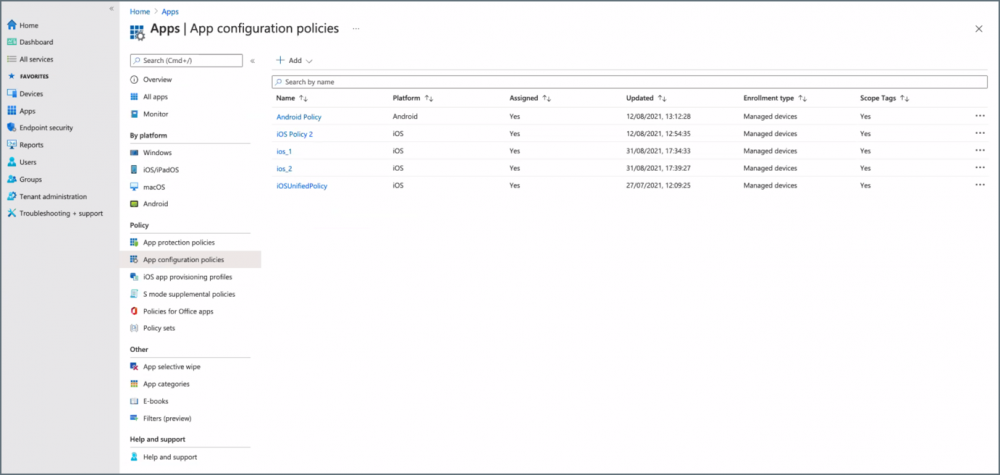
- Launch Microsoft Endpoint Manager and go to Apps from the menu on the left to open the App configuration policies page.
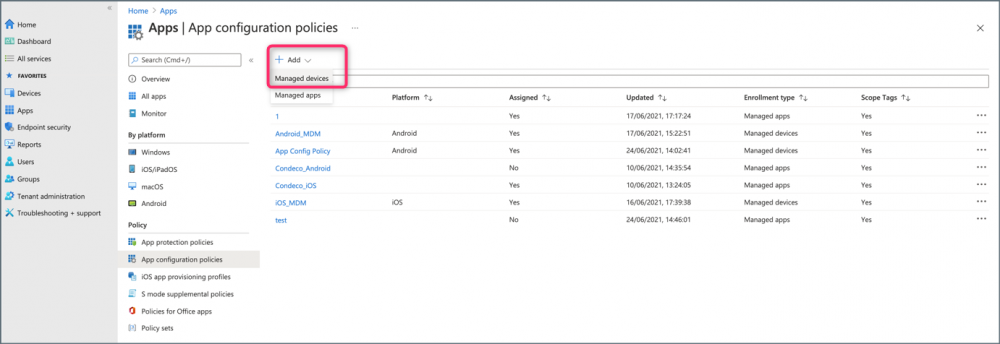
- Click Add and select Managed devices.
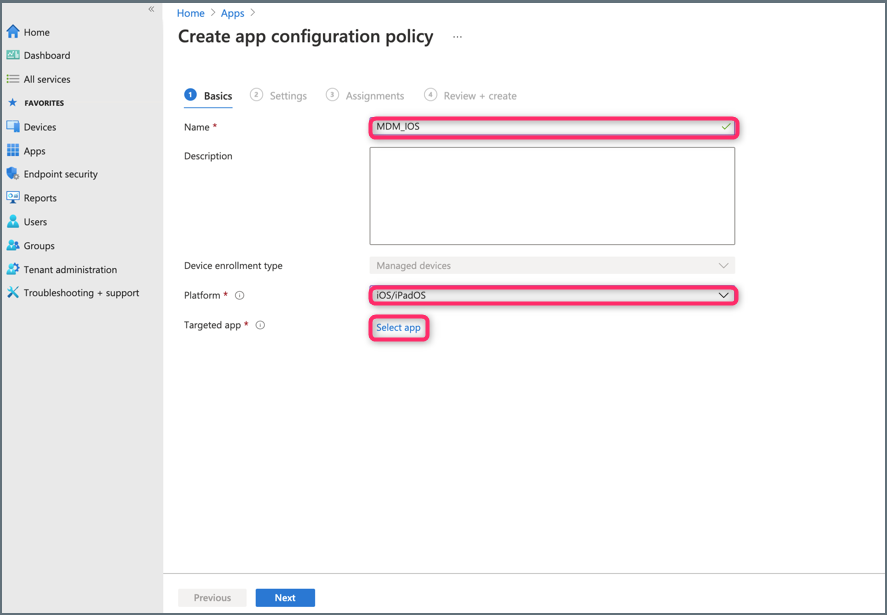
- On the Create app configuration policy page at the Basics stage:
- Enter a name for the new policy.
- Click Platform and select the iOS platform.
- Click Select App to display the Associated app panel on the right.
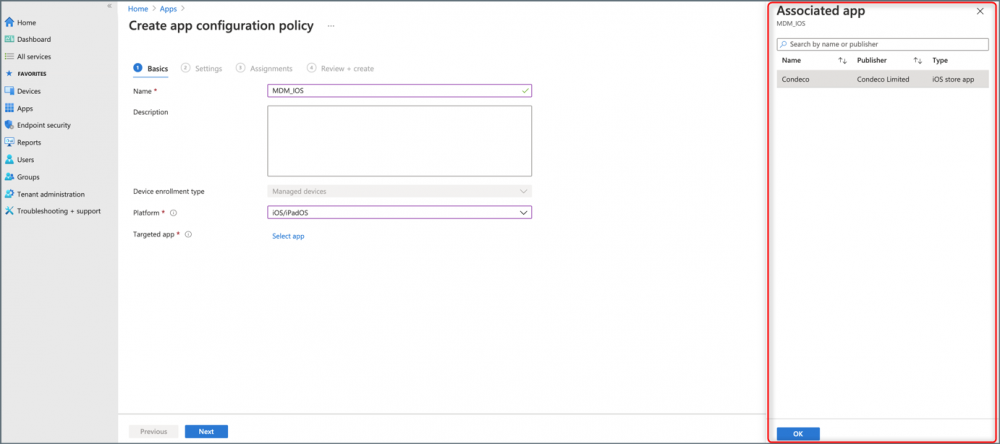
- On the Associated app panel, select the Eptura Engage app from the list and click OK to confirm.
- On the Create app configuration policy page at the Settings stage:
- Click the Configuration settings format drop-down and select Use configuration designer.
- Enter the values for the XML property list:
- Configuration key: Enter ‘Condeco_URL’
- Value type: Enter ‘string’
- Configuration value: Enter your Eptura Engage URL e.g. [yourcompany].condecosoftware.com
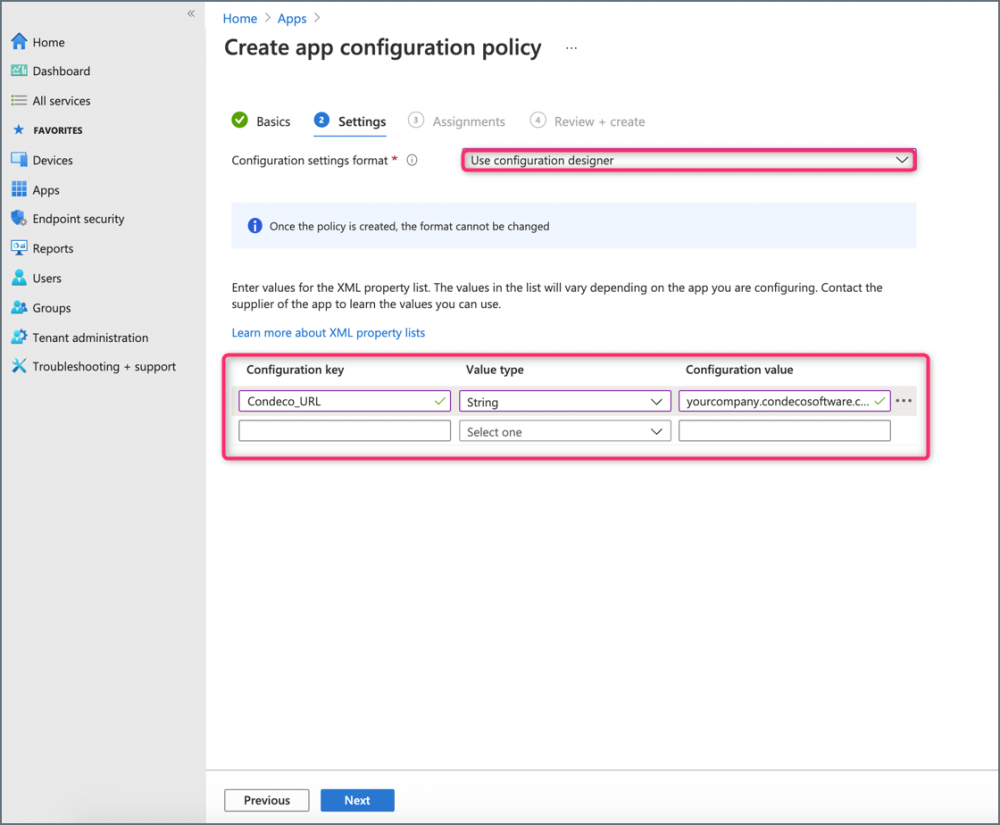
- Click Next at the bottom of the Create app configuration policy page.
- On the Create app configuration policy page at the Assignments stage:
- Click Add groups to display the Select groups to include panel on the right.
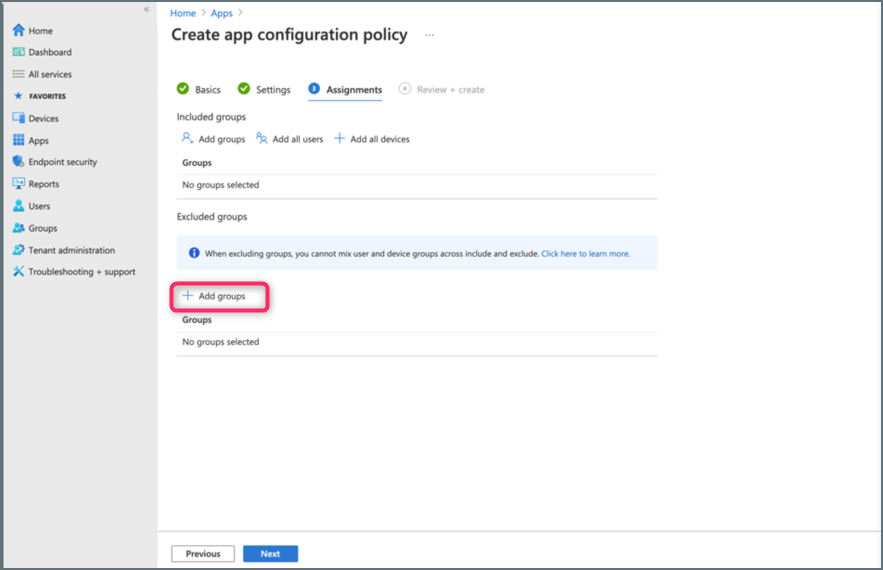
- On the Select groups to include panel, select the group and click Select.
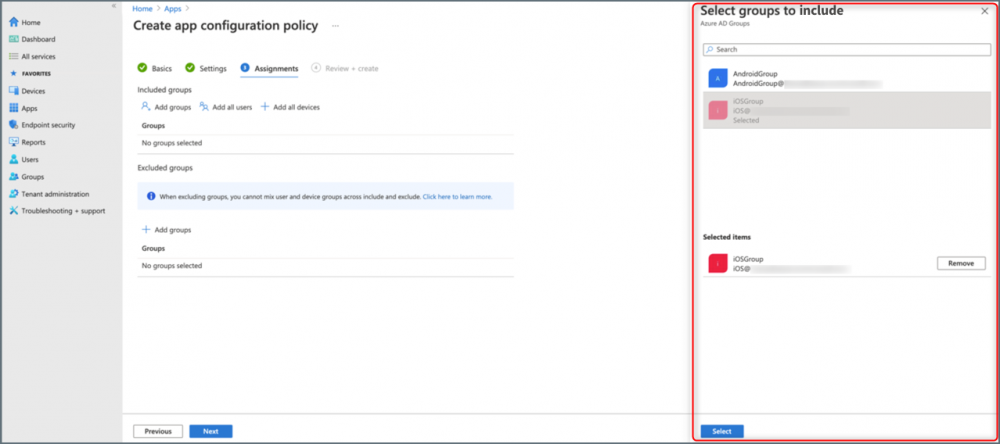
- Click Add groups to display the Select groups to include panel on the right.
- Click Next at the bottom of the Create app configuration policy page.
- On the Create app configuration policy page at the Review + Create stage:
- Review the policy and click Create.
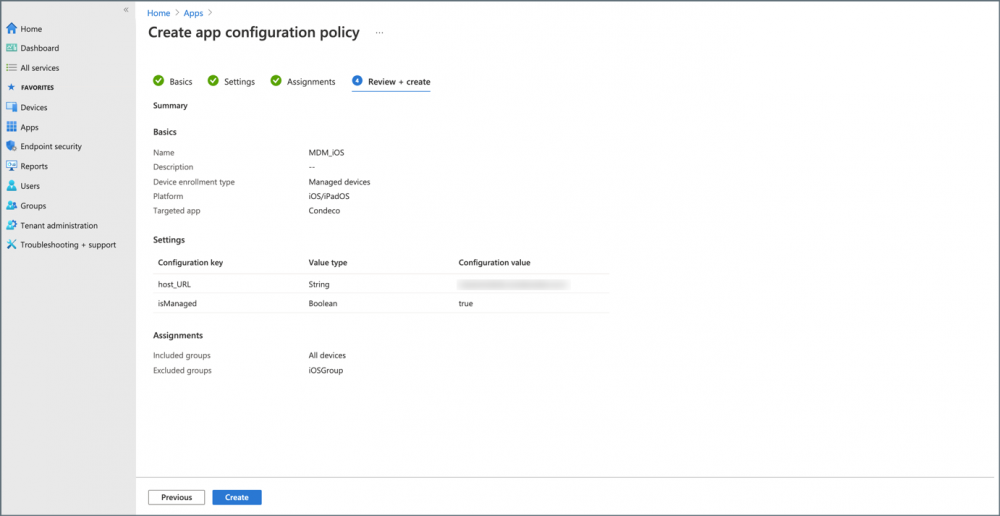
- Review the policy and click Create.
Congratulations! Your Intune configuration policy is now enabled.