Check in to a workspace booking
About check-in and bump
Check into your booking to confirm the workspace is in use. If you do not check in within the required time as defined by the group managing the personal space, your booking might be bumped. When a booking is bumped, the personal space is available for others to book.
Coming soonEarly access: Check-in reminder push notifications are in preview. Contact support to enable this feature for your organization. If the Eptura Engage mobile app is installed on your mobile device and you haven't checked in to your personal space booking, a push notification reminder can be sent to your mobile 15 minutes before the check-in window closes.
Tap the notification to open the Eptura Engage mobile app and either check in or cancel the booking. Administrators can contact support to get this push notification enabled for your organization. |

Check in to your personal space booking from either the Eptura Engage web app, the Eptura Engage mobile app, or the Kiosk. However, if self-certification is required at the location or QR code check-in is required by the personal space, you must check in using the Eptura Engage mobile app. Check-in might be automatic if the booking was made on the same day or proximity-based check-in is enabled.
If you release your booking or your booking is bumped, the personal space is released and available for others to book. However, your working status might continue to show you as in the office. If required, you can change your working status from the Today page using the web app or the Eptura Engage mobile app.
If both AM and PM slots are booked on the same day in a single booking, bumping the AM slot will also automatically bump the PM slot. However, if the AM and PM slots are booked separately (in two different bookings), they are treated independently and bumping the AM slot does not affect the PM booking.
The requirements for check-in, bump, and other booking rules, depend on your organization’s configuration and the group that manages the booked personal space.
How to check in to a personal space booking
If a booked personal space requires you (or a visitor) to check in on the day of a booking, you must check in each day the workspace is booked. If the personal space is not checked in within the time set by your organization, Eptura Engage automatically releases the personal space and it becomes available for other users to book.
If QR code scanning is enabled for your personal space, you might need to check in by scanning the QR code using the Eptura Engage mobile app installed on your mobile device. Learn more: Scan QR code to check-in
When QR codes are enabled, an administrator must check external guests in to their bookings. Learn more: Check in a user
Administrators: Learn how to check in a user
Eptura Engage on the web
Check in to bookings made for yourself or bookings you have made for visitors and colleagues, from Eptura Engage on the web.
Eptura Engage mobile app
Eptura Engage Kiosk
Check in to your own booking from Eptura Engage on the web
From Eptura Engage on the web, check in to your personal space booking from the Today page, the Personal spaces home page, Your bookings page, or the Booking grid for personal spaces.
Check in from the Today page
Your personal space booking for the current day is displayed on a card at the top of the Today page.
Up to two personal space booking cards are displayed on the Today page in the order the bookings were created. For example, if you booked a desk first followed by a locker, and lastly a bicycle space, you will see the desk and the locker bookings displayed in cards, but not the bicycle space. However, only the first personal space booking is displayed if you also have a meeting space booking on the day.
All your bookings for the day are displayed in the Today’s bookings list at the bottom of the Today page.

The options on the card(s) depend on the booking status:
- Before the check-in window has started (A): Click the GPS icon to view the location of the space on the floor plan or click the bin icon to delete the booking before it is checked in.
- Check-in window has started (B): Click the 'Check in' button to check in to the booking. You can also view the location of the space on the floor plan, delete the booking, or click the flag icon to report an issue with the space. Learn more: Report an issue with a personal space ↗️
- Booking is checked in (C): Click the 'Release' button to end the booking early. You can also view the location of the space on the floor plan, or report an issue with the space. Learn more: Report an issue with a personal space↗️
Why is a personal space not listed as available after a booking is deleted or released? Depending on your organization’s configuration, a previously booked personal space might not be available for another booking until after it has been cleaned.
Check in from Your bookings
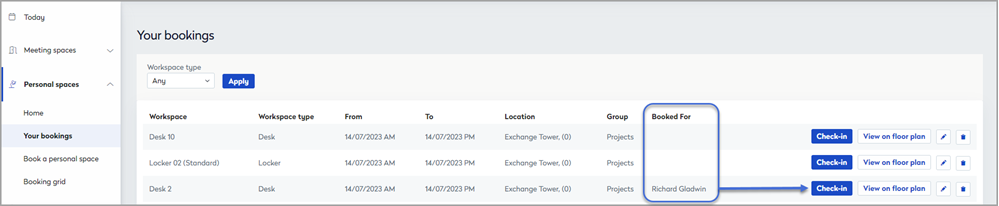
When the check-in period starts, a blue Check-in button is displayed next to the booking in Your bookings from Eptura Engage on the web. Click the blue Check-in button to check in to your booking. You can check in bookings made for yourself and bookings that you made for others, including bookings you made for external guests.

Check-in from Your bookings on the web app
Check-in from mobile app: If QR code check-in is enabled for the personal space, or self-certification is enabled for the location, you must check in using the Eptura Engage mobile app.
Check in a visitor or a colleague from Eptura Engage on the web
The person who created the booking, or an administrator can check in visitors.
Bookings you have made for visitors and colleagues are listed in Your bookings. Click Check-in to check your visitor or colleague in to their booking.