
Calendar
About the calendar
The Eptura Engage mobile app's Calendar provides a central view of your schedule, allowing you to manage bookings, set your in-office status, and see when your team plans to be in the workplace. The calendar view at the top highlights the best days for collaboration using a visual ‘team-o-meter’.
The daily schedule below the calendar view lets you plan when you’ll be working in the office, working remotely, or not working. You can schedule your work plan up to five weeks in advance. It also shows when your team members plan to be in the office, helping you choose the best days to collaborate. Learn more: Your team
Navigating the Calendar
Tap the Calendar icon to open the monthly calendar view with the daily schedule below. Swipe the bar beneath the calendar up to switch the monthly calendar to a weekly view and show more dates in the schedule below, or swipe down to return to the full monthly calendar.
 Swipe up to reveal more daily schedules |
 Swipe down to reveal the full calendar |
Who's in the workplace?Each day on the calendar displays a ‘team-o-meter', showing the proportion of your team planning to be in the office. The length of the blue bar represents attendance for that day, and a blue tick appears when all team members have indicated they’ll be in the workplace. The initials of the team members who have shared they are planning to work in the workplace are displayed on the daily schedule below the calendar. |
 |
Daily scheduleBelow the calendar is your daily schedule for the next five weeks. The daily schedule shows your in-office status and your personal and meeting space bookings. If any of your team members have shared that they are in the workplace, their initials are displayed. Swipe the calendar up to reduce the calendar to a weekly view and see more daily schedules below. Scroll the daily schedule up and down to show more dates. |
 |
Set your work planTo change your in-office status for a date, tap the status button in the daily schedule and choose an option:
If ✨Intelligent booking is enabled, a personal space might be booked for you when you change your status to In office. Learn more: Intelligent booking for personal spaces |
 |
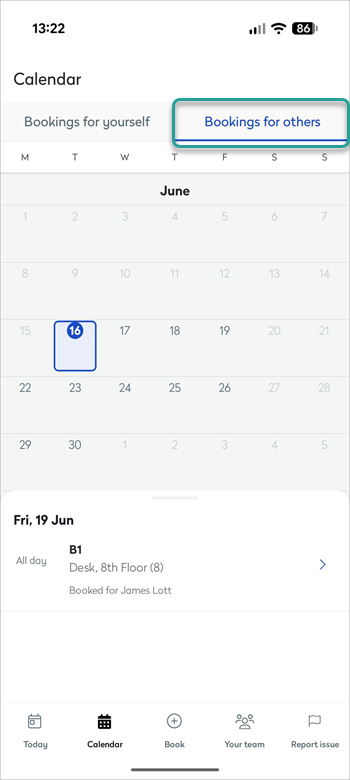
See bookings you've made for othersIf you have booked a personal space for a colleague, an option to toggle between bookings for yourself and bookings for others is displayed at the top. The 'Bookings for yourself' and Bookings for others' tabs are only displayed if you have booked space(s) for colleagues. |
 |
Managing your bookings
Bookings for meeting spaces created by the Eptura Engage Outlook add-in for Microsoft 365:
Some limitations apply when editing bookings in the Eptura Engage mobile app that were created using the Eptura Engage Outlook add-in for Microsoft 365. Find out more
Check in
If you have a booking for the current day and the current time is within the allowed check-in period, tap Check-in to check in to the personal space or meeting space. If you do not check in to your booking within the check-in period defined by the group, the booking may be canceled.
Check out
If you are checked in but want to finish your booking early, check out from either the Today or Calendar screens.
Note that checking out of a personal space does not automatically check out or cancel other personal spaces booked at the same time, such as a parking space or locker. You must check out of every booked personal space individually to free them up for others.
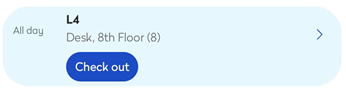
If your organization has enabled cleaning vendors and cleaning is scheduled at the end of a continuous booking period, checking out of a booking might immediately create a cleaning task for the vendor.
Extend or check out of a meeting in progress
The Calendar screen displays any ongoing meeting at the top of the list and when checked in, includes buttons to Extend or Check out the booking.
View a booking on the floor plan
View personal space bookings
Tap a personal space booking to display the location on the floor plan.
View meeting space bookings
Tap a meeting space booking to view more details and and then tap the map icon to display its location on the floor plan. Tap the info icon to view a photo of the space.

Report an issue
Click the Report Issue icon at the bottom to report a problem with a personal space or meeting space.
Learn more:
Editing a booking
You can view and edit bookings from the Calendar on the Eptura Engage mobile app.
Editing a meeting space booking
Find the meeting space booking on the calendar and tap Edit. You can amend the booking title, the date/time, and the number of attendees, and you can choose an alternative meeting space on the same or different floor, but only from the same location. To change the location, cancel the booking and make a new one in the desired location.
Bookings for meeting spaces created by the Eptura Engage Outlook add-in for Microsoft 365:
- If you have subscribed to Eptura Engage through the Eptura Engage Outlook add-in, we recommend attendee numbers are managed in Microsoft Outlook. Using the Eptura Engage Outlook add-in, you can mark your attendees as on-site or remote, and mark external attendees as visitors. Learn more: Eptura Engage Outlook add-in
- Some limitations apply when editing bookings in the Eptura Engage mobile app that were created using the Eptura Engage Outlook add-in for Microsoft 365. Find out more
Bookings for meeting spaces created by the Eptura Engage Outlook add-in for Exchange Sync:
- You can view bookings in the Eptura Engage mobile app that were created using the Eptura Engage Outlook add-in for Exchange Sync, but you cannot edit them.
Recurring bookings: Recurring bookings behave as single events in the Eptura Engage mobile app. Editing a single instance of a recurring booking from the Eptura Engage mobile app will update only that instance.
Editing a personal space booking
If you want to change the date of a personal space booking, cancel the existing booking and make a new booking for the required date/resource.
If you want to swap a booked personal space for a different space, from the floor plan, tap the desired space and tap Swap with this space - the booking is moved to the new space and the original space is released for others to book.

Cancel a booking
Cancel a personal space booking
Tap the bin icon to cancel/delete a booking then tap Delete to confirm the cancellation.

What is deleted when a booking is for multiple consecutive or non-consecutive dates? Only the selected personal space booking is deleted. The personal space is still booked on all other dates associated with the booking.
In-office schedule: Note that booking a personal workspace (such as a desk) automatically changes your status to ‘in office’ for the date of the booking, however, canceling the booking does not automatically change your status which continues to show as ‘in office’ until you choose another status.
Cancel a meeting space booking
Tap a meeting space booking to view more details, then tap the bin icon to delete the booking and tap Yes to confirm.

Eptura Engage Microsoft 365 integrations: If you have subscribed to Eptura Engage through the Eptura Engage Outlook add-in, an associated event/appointment may exist in your Outlook calendar. Deleting the booking only removes the booked room from the Outlook calendar event, it does not delete the Outlook event. If required, the calendar event can be deleted directly from Microsoft Outlook.