Calendar
About the Calendar
The calendar displays all your personal and meeting space bookings for the next five weeks, along with your team members personal space bookings. Delivery point bookings are also displayed.
The calendar lets you plan your daily work schedule by selecting whether you’ll be working in the office, remotely, or not working. You can schedule your work plan up to five weeks in advance. It also shows when your team members plan to be in the office, helping you choose the best days to collaborate. Learn more: Your team
When you have a personal space booking on the current day, you can check in (or check out) directly from the Calendar. The floor plan can also be opened from the Calendar so you can view the location of your booked space.
If Intelligent Booking is enabled for your organization, a convenient workspace is automatically booked when you mark yourself as In office. Learn more: Intelligent booking for personal spaces
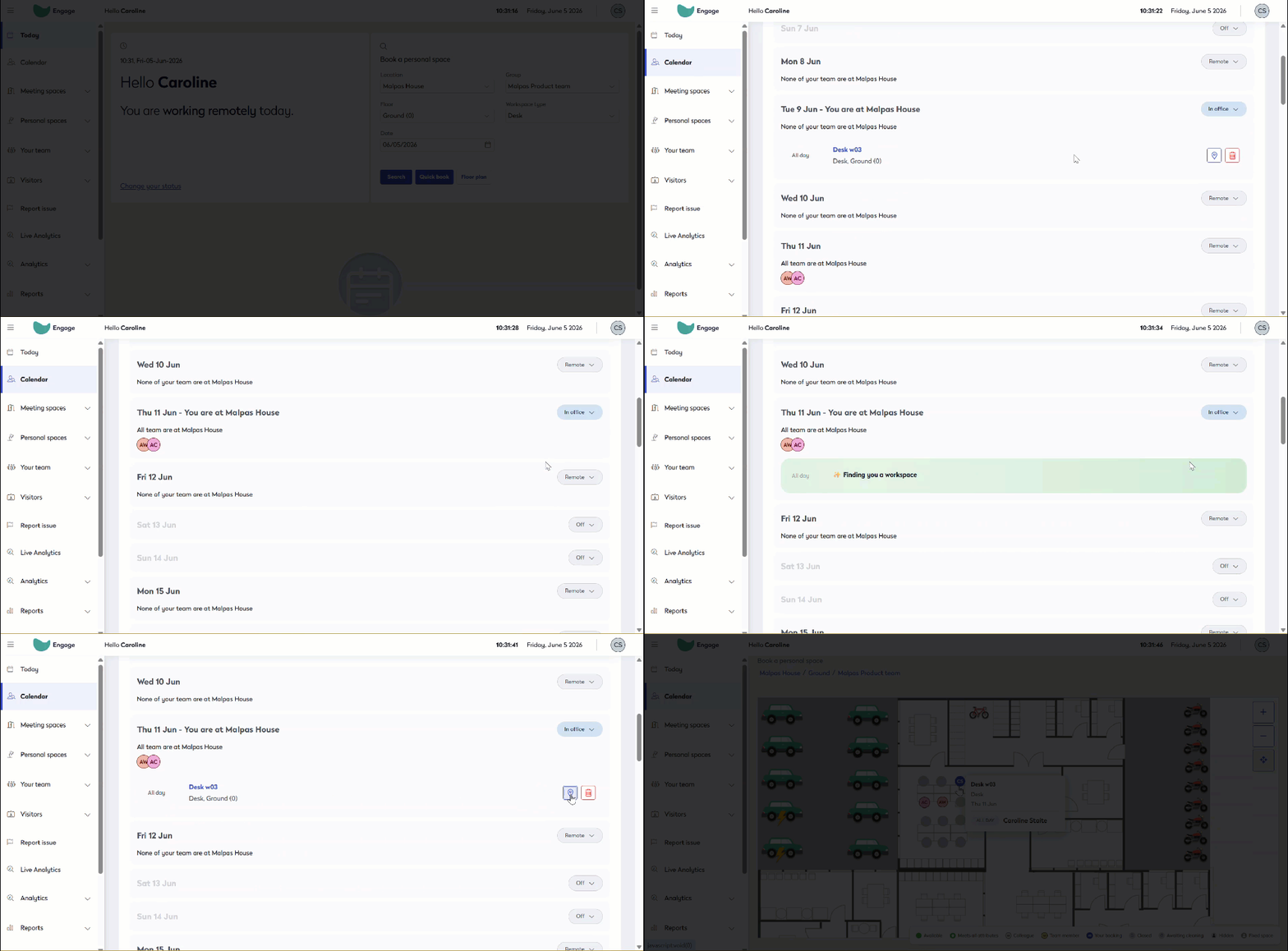
Watch Intelligent Booking automatically book a space near team members when the user marks themselves as In office on the same day
Managing your work plan
- Click Calendar on the left menu to view your work plan and see when your team members are scheduled to be in the office.

- To change your in-office status for a date, click the status button on the right to show the options and select your work plan for that date.

- Set your working status to either In office, Remote, or Off, to share your whereabouts and availability with your colleagues.
- In office - Setting your status to In office uses the default location defined for personal spaces in your user profile. Select Change location and select a location from the list, to set your status to working in another location. If Intelligent Booking is enabled and you set yourself to In office, a workspace is automatically booked for you.

- Remote or Off - If you set your status as Remote or Off for a day where you have a workspace booked, you are prompted to confirm that you are happy to delete the booking - answer I'm sure to delete the booking or Keep as is to retain the booking and keep your status as In office.
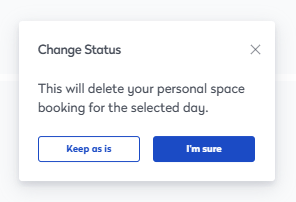
- In office - Setting your status to In office uses the default location defined for personal spaces in your user profile. Select Change location and select a location from the list, to set your status to working in another location. If Intelligent Booking is enabled and you set yourself to In office, a workspace is automatically booked for you.
Managing your bookings
Manage all your bookings for the next five weeks from the Calendar. All personal space bookings are shown - including all-day, hourly, and shift bookings - and all meeting space bookings that you created.
From the Calendar, you can check-in/out to bookings, and view and edit booking details for both personal and meeting space bookings.
Check in/out
When you have a booking on the current day, you can check in and check out directly from the Calendar.

View and edit bookings
Click the personal or meeting space booking in the Calendar to open the booking form where you can make changes.
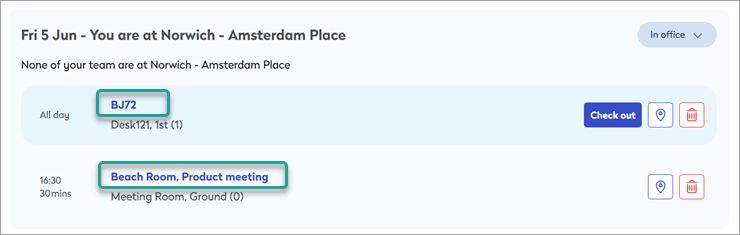
Shift bookings can be deleted but not edited from the calendar.
View booking on the floor plan
Click the navigation icon for a booking to view the space location on the floor plan.

Delete a booking
Click the bin icon to delete a booking.