
Health check
A series of tests can be run from the Health Check screen to check network connectivity and NTP server details of a V3 desk booking screen.
The health check is supported by desk screens on 8.1.40 or later.
Check the network
- To open the admin menu tap and hold the clock on the device for over a second to display the PIN pad. Enter the PIN to continue.
- From the admin menu tap Health Check.
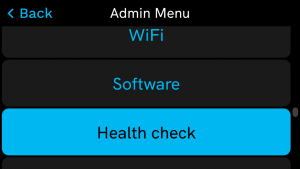
- Tap Network Details.
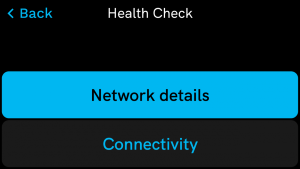
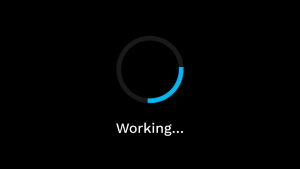
- Wait whilst the endpoints are tested.
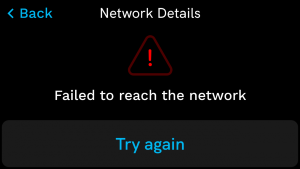
- If unsuccessful, ‘Failed to reach the network’ is displayed with an option to Try again.
- If some or all of the checks are successful, the network details list is displayed.
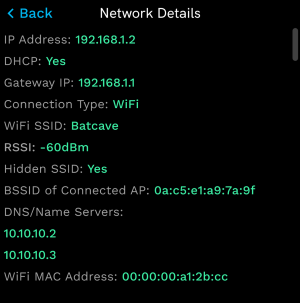
Unsuccessful tests are indicated by a red line.
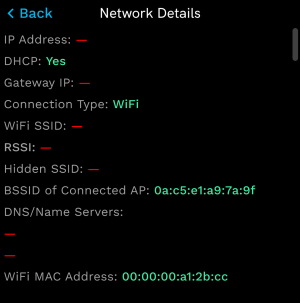
- If unsuccessful, ‘Failed to reach the network’ is displayed with an option to Try again.
Check the strength of the RSSI Wi-Fi signal
Follow the steps to check the strength of the RSSI signal from the Health Check screen.
The RSSI signal strength is a negative number so -60 dMb is stronger than -70 dMb.
- To open the admin menu tap and hold the clock on the device for over a second to display the PIN pad. Enter the PIN to continue.
- From the admin menu tap Health Check.
- Tap Network Details.
- Wait whilst the endpoints are tested.
- The network details list displays the strength of the RSSI signal and the color indicates if the signal strength is Good (green), Weak (amber), or Poor (red).
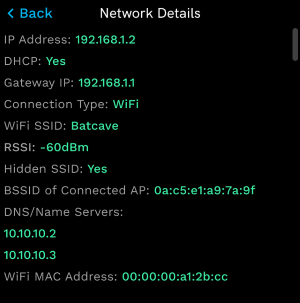
RSSI of -60 dBm or better is Good (green)
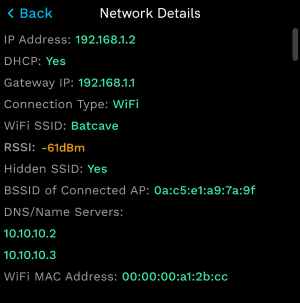
RSSI of -61 to -65 dBm is Weak (amber)
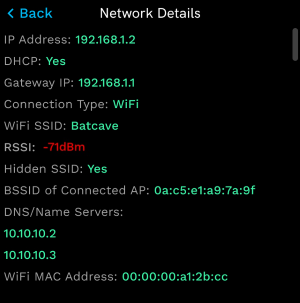
RSSI of -66 dBm or lower is Poor (red)
The RSSI signal strength is also indicated by the color of the Wi-Fi icon on the device. Learn more about the desk booking screen display
Check connectivity
- To open the admin menu tap and hold the clock on the device for over a second to display the PIN pad. Enter the PIN to continue.
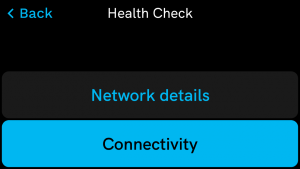
- From the admin menu tap Health Check.
- Tap Connectivity.
- Wait whilst the endpoints are tested.
- If unsuccessful, ‘Failed to reach the network’ is displayed with an option to Try again.
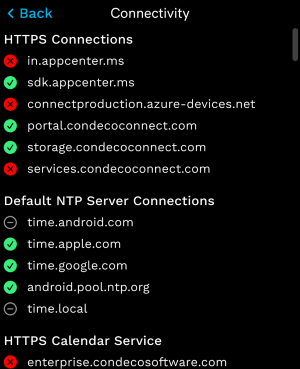
- If some or all of the checks are successful, the HTTPS connections, NTP Server connections and HTTPS calendar service details are displayed.
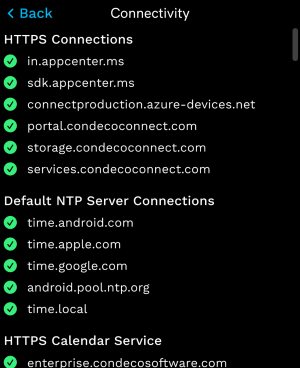
Unsuccessful connections are displayed in red.
- If unsuccessful, ‘Failed to reach the network’ is displayed with an option to Try again.