
Book a Microsoft Teams meetings
Eptura Engage Outlook add-in for Microsoft 365
Include a Microsoft Teams meeting with your booking to ensure the right equipment is ready and available in your meeting space when some attendees will be attending remotely.
To book a Microsoft Teams meeting, start a booking in the usual way using the Eptura Engage Outlook add-in and then follow the steps below to select a Teams room from the list of attributes. Learn more: How to find and book a meeting space
- In your Outlook calendar event, launch the Eptura Engage Outlook add-in Learn more: How to start the add-in.
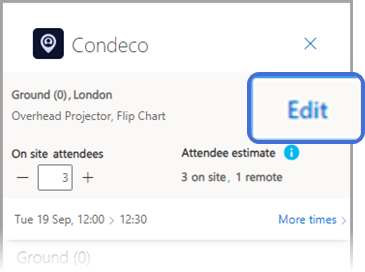
- Click Edit at the top-right of the Eptura Engage Outlook add-in.
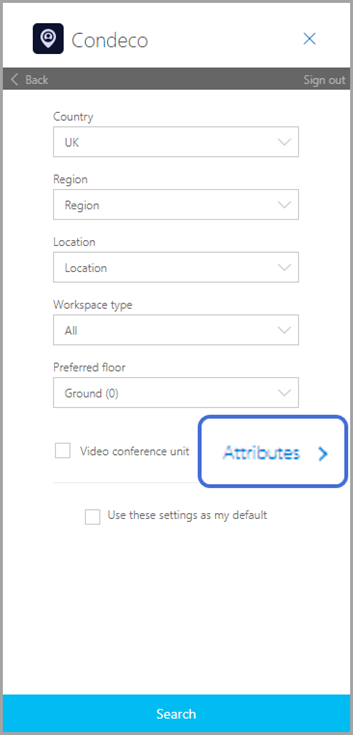
- Click Attributes from the bottom of the screen
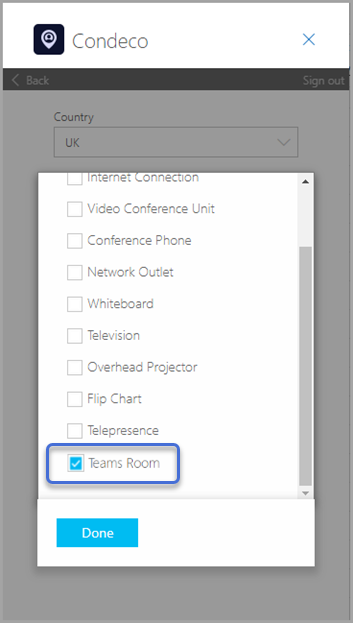
- Select Teams Room from the list of attributes. Click Done to close the Attributes window.
- Click Search. Eptura Engage searches for available meeting spaces offering Teams equipment and able to accommodate the number of on-site attendees selected.
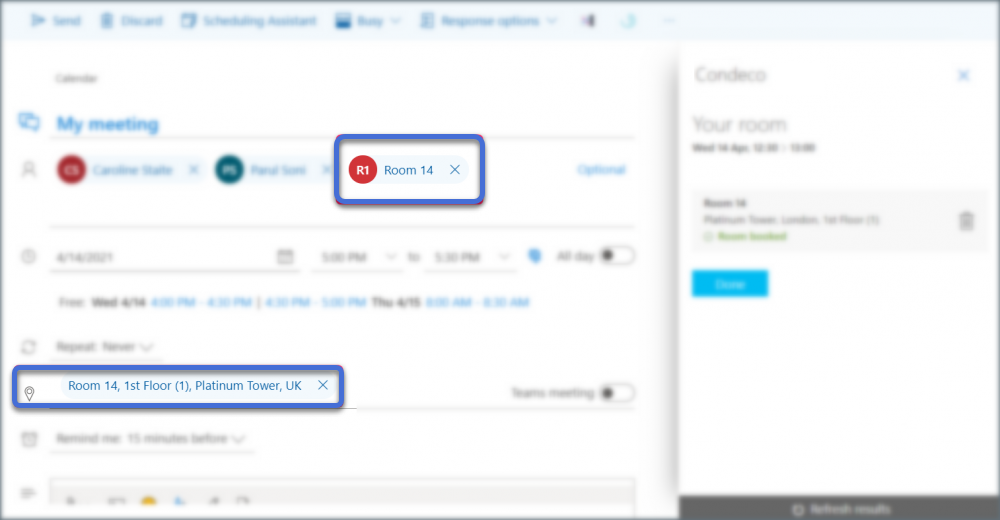
- Select your meeting space and click Book (or Reserve). The Eptura Engage Outlook add-in automatically adds the associated Teams Equipment mailbox to the Outlook appointment and the meeting space is set as the location for your meeting.
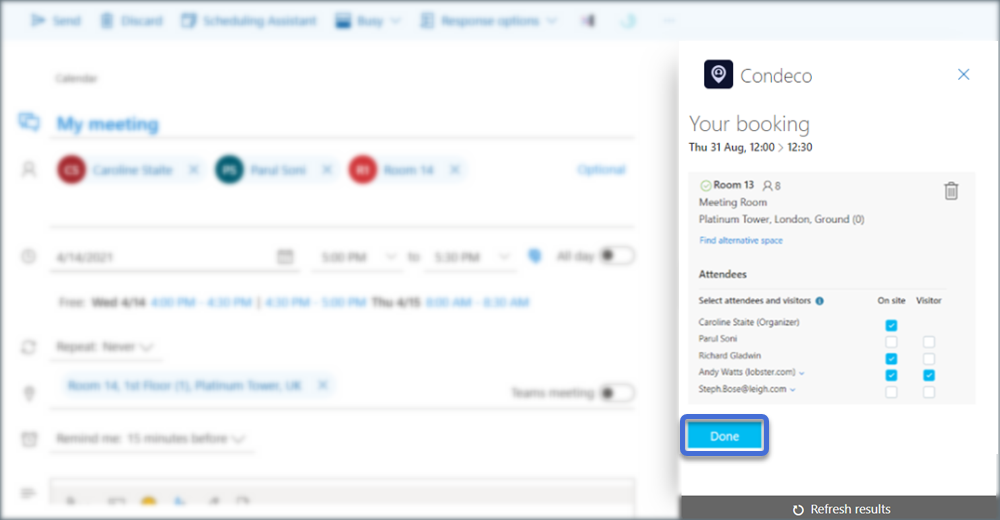
- Set your attendees as On-site and/or Visitor as appropriate. Learn more: Attendees and visitors
- Click Done to close the Eptura Engage Outlook add-in.
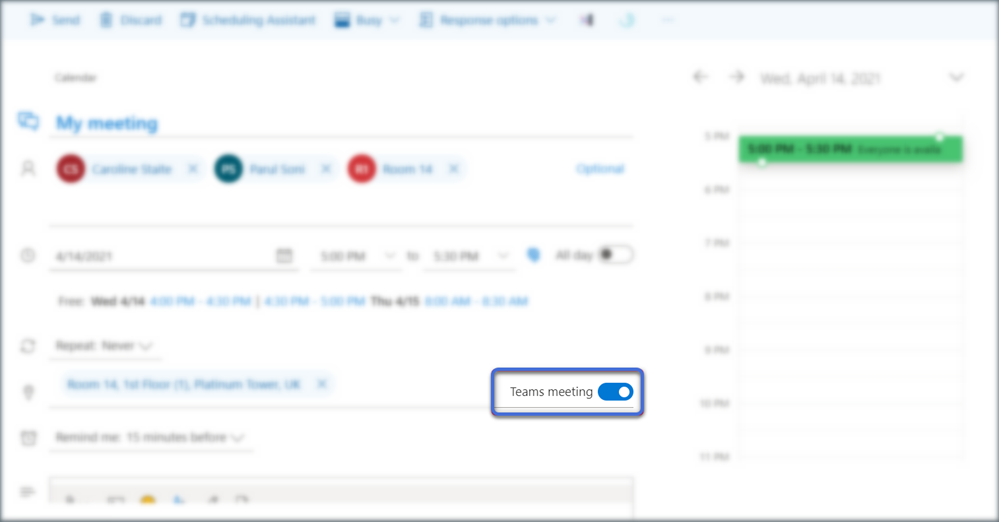
- Back in the Outlook appointment, click the Teams meeting button.
- Add the meeting details and any other requirements. Click Send to send the invite to the attendees and the associated Teams Equipment mailbox.