
Activate an Eptura Room Screen v3
Eptura Room Screen v3 - Setup Guide
Before you start
Before activating a room screen, check the prerequisites have been completed on the Eptura Device Hub. Learn more: Eptura Device Hub and room screens
Before starting the setup, the screen must be connected to an active network connection with access to the internet.
Wi-Fi networks and dual-band screens (2.4 GHz / 5 GHz)
The Eptura Room Screen v3 is available in either single-band or dual-band frequencies. For dual-band screens, we suggest using the Wi-Fi frequency for your network that best suits your environment:
- 2.4 GHz offers better range, and passes through objects better than 5 GHz, but has slower speeds and is prone to interference.
- 5 GHz provides faster speeds and less congestion, but has a shorter range and can struggle to penetrate solid objects. 5 GHz is recommended for high-traffic environments with a direct line of sight to the router.
Process overview
When setting up an Eptura Room Screen v3 for the first time, you are prompted to configure the language, network, time zone, and NTP server. When a successful network connection is established, the screen checks for and installs any updates. When the configuration and software update are complete, the screen can be activated.
Activate an Eptura Room Screen v3
Unless the screen is already mounted to the wall, the following is best done in front of a computer as you will be interacting with the Device Hub as well as the screen.
Power up the screen the same way it will be powered up when in its final position. The Welcome screen displays briefly before the setup process starts.
1. Language
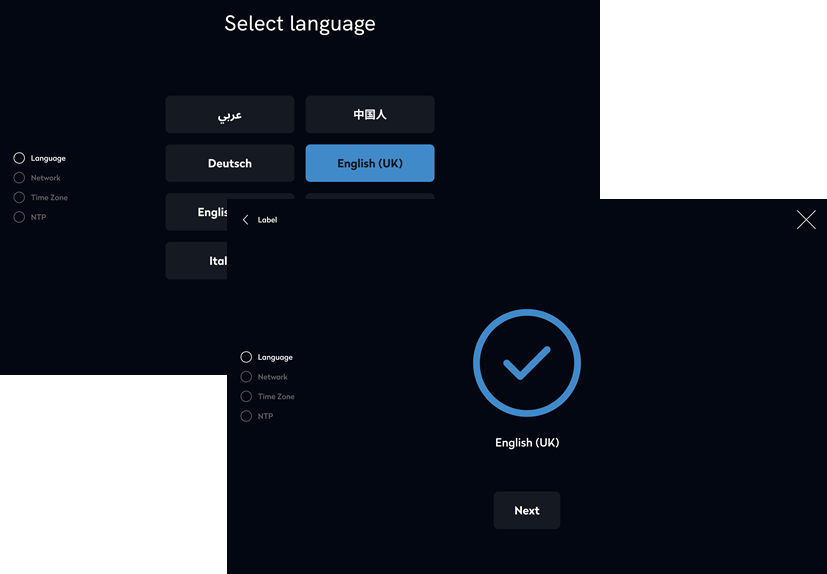
When prompted, tap the language to display on the screen then tap Next.
2. Network
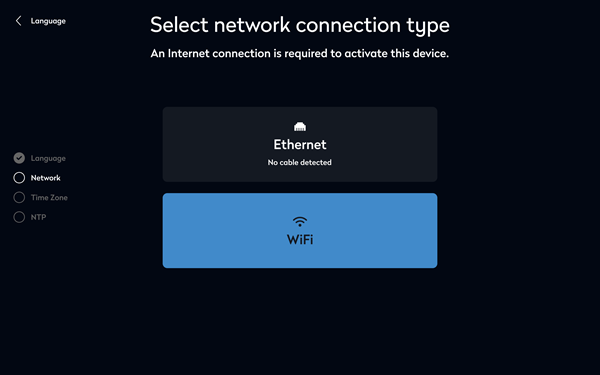
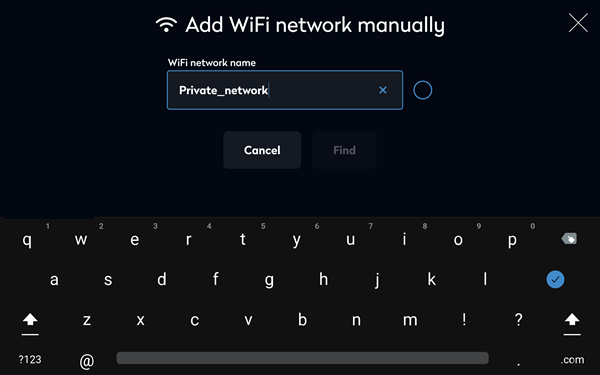
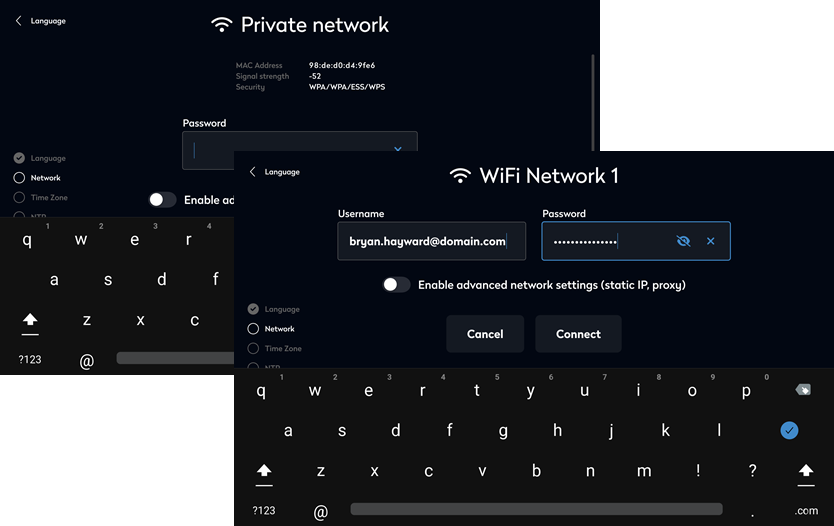
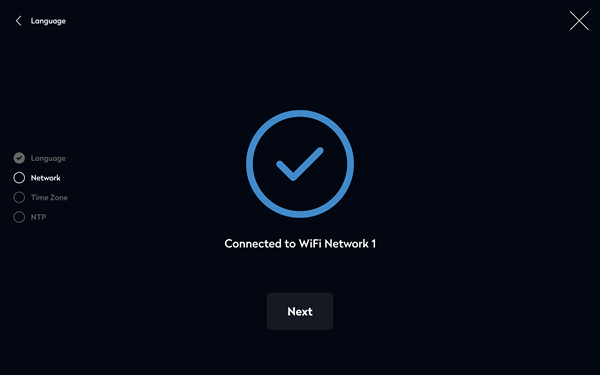
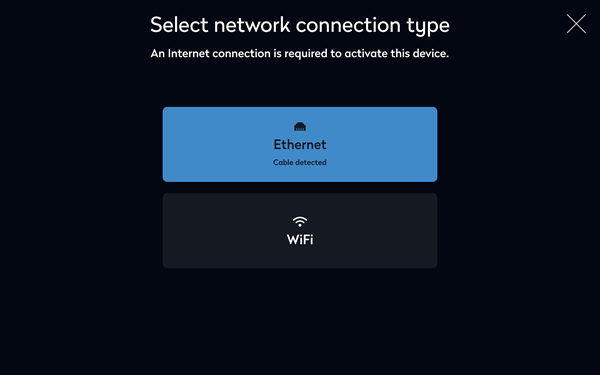
Select the network connection type, either Wi-Fi or Ethernet.
|
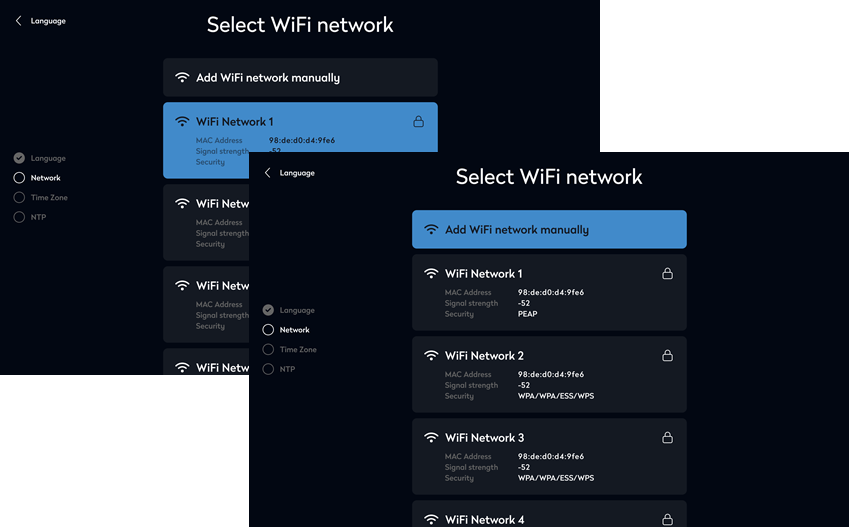
Wi-Fi
5 GHz networks are only visible on the Eptura Room Screen v3 dual-band model.
|
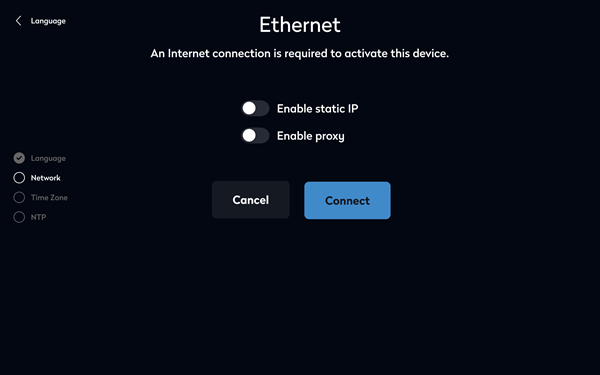
Ethernet
When connected to the Ethernet network, tap Next to continue. |
3. Time zone
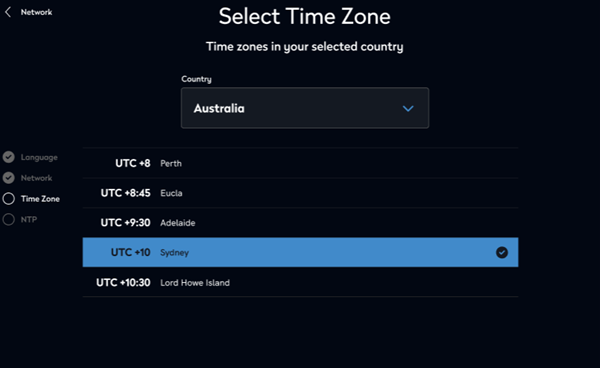
- Tap the first letter of the country for the time zone you want to select, and swipe up and down to scroll to the required country. Tap the country to select.

- Available time zones for the selected country are displayed. You can switch to a different country from here if required; tap the country to display the list of countries.

- Tap the required time zone to set for the country. Swipe to scroll up and down the list if necessary.
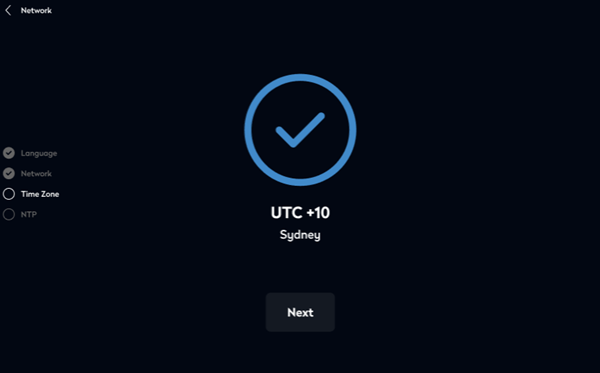
- Tap Next to continue to the next step.
4. NTP server
Choose whether to use a custom NTP server or use the default NTP servers displayed on the screen.
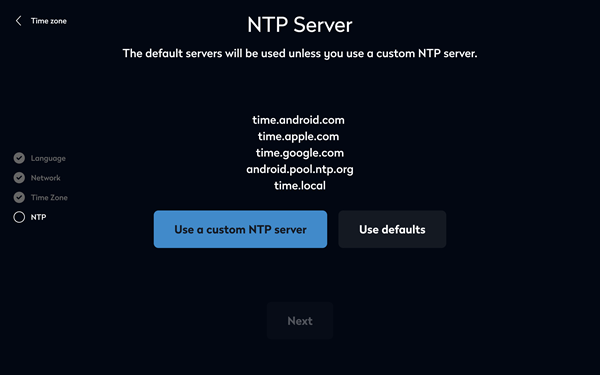
Default NTP servers
- Tap Use defaults then tap Next to jump to the next step, 5. Activate the screen.
Custom NTP server
- Enter the fully qualified host name (FQHN) or IP address of your NTP server. Tap Connect.
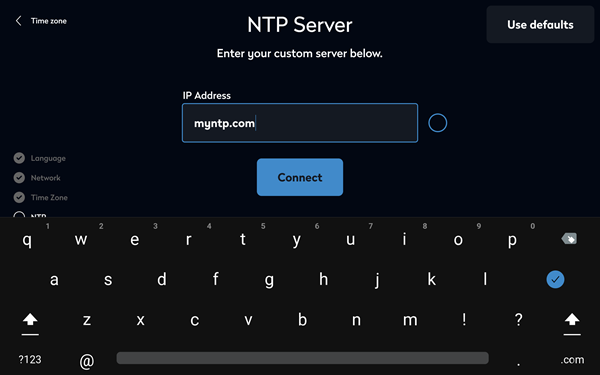
- When connected to the custom or default NTP servers, tap Next.
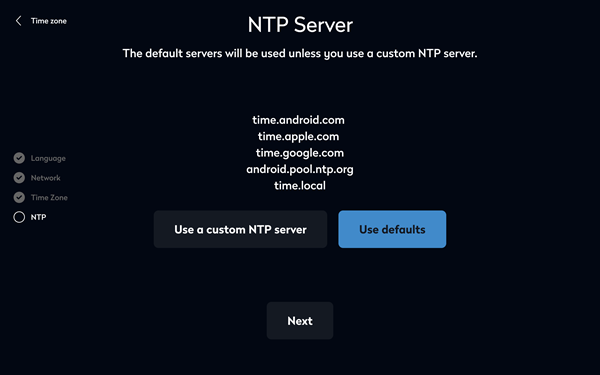
5. Activate the screen
- When the system settings are set, tap Activate screen.
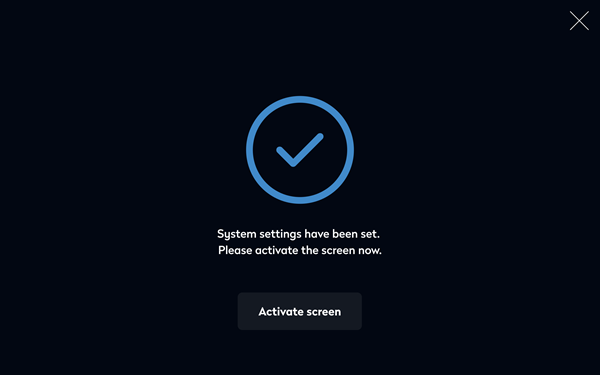
- The screen now retrieves the activation code for the Device Hub.
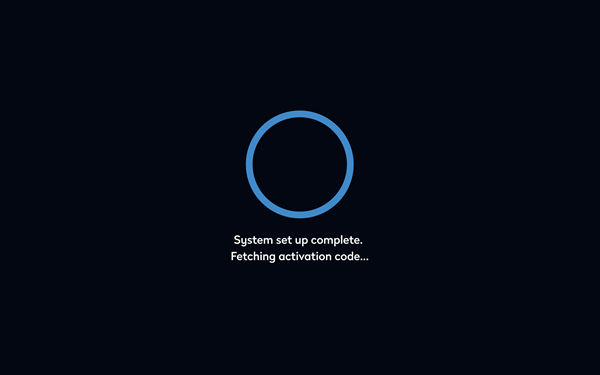
- The screen displays a QR code and an activation code. The code is valid for 5 minutes - if it expires, click Refresh code to generate a new code. Optionally, before scanning the code, you can click Privacy Policy to view the Eptura SaaS Privacy Policy. Learn more: SaaS Privacy Policy

Also displayed on this screen is the Application version, Firmware version, and Device ID.
Scanning the QR code with the camera on your mobile device displays the activation code on the device. Additional QR code functionality is coming soon.
6. Pair the screen
Now pair the Eptura Room Screen v3 with the room resource in the Eptura Device Hub:
- Sign in to the Eptura Device Hub - https://westeurope.condecoconnect.com/
- Navigate to Rooms & Screens from the menu on the left.
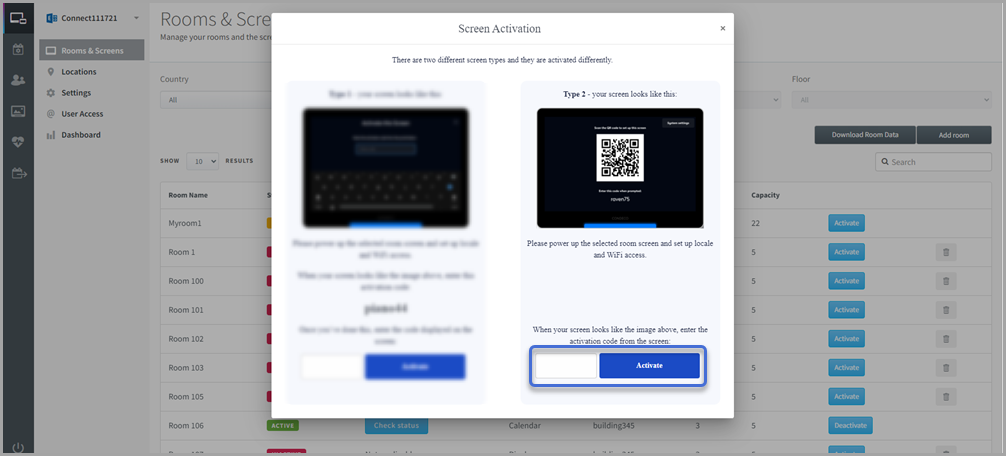
- Find the room resource to pair with the room screen and click the Activate button on the right.

- Enter the activation code from the room screen and click Activate.
- The screen waits for the calendar settings and confirms when successfully activated. Tap OK.
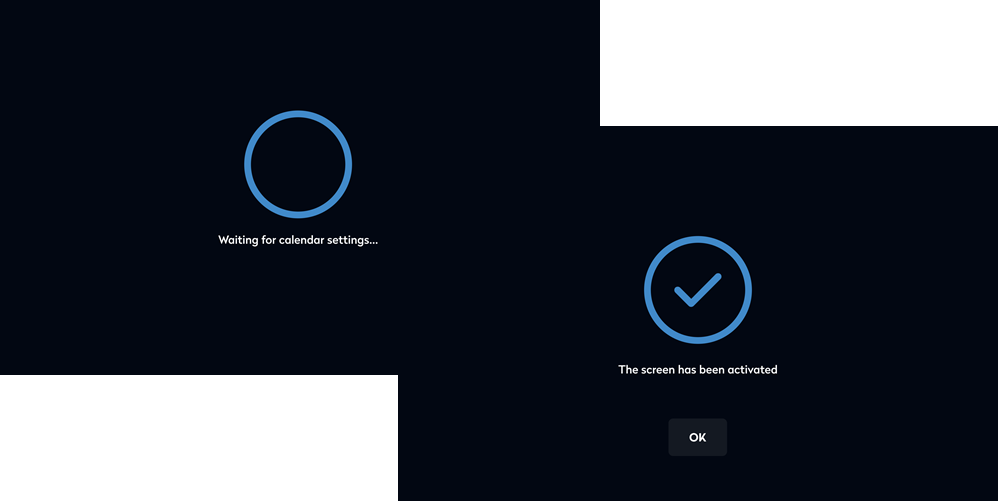
Congratulations! Your Eptura Room Screen v3 is now activated and is ready for use.
If not already mounted you can unplug the screen and mount it at the desired location. Learn more: Mounting the meeting room screen