
Check-in and self-certification
About check-in and self-certification from the mobile app
To control the number of employees arriving at the office at the same time, your organization might have set staggered arrival times for different groups. The allowed arrival and check-in time period is displayed in the personal space booking. Failure to check in within the specified time period might bump the booking and release the space for others to book.
You might also be required to review and agree to a self-certification statement before checking in.
Self-certification
If your organization has enabled self-certification for your location, you must self-certify before checking in each day you are working in the office.
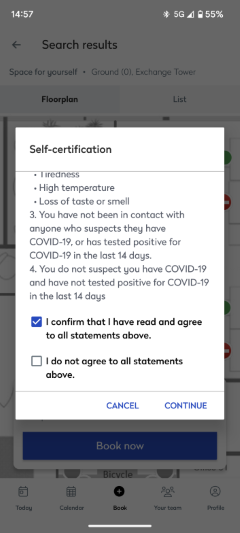
- Tap Complete self-certification from the Today screen or when prompted.
- Read the statements and indicate at the bottom if you agree or disagree.
- Agree: Tap I confirm that I have read and agree to all statements above, then tap Continue. Your self-certification is confirmed, and you can check in to the booking.
- Disagree: Tap I do not agree to all statements above, then tap Continue. Instructions from your organization will be displayed. All your personal space bookings for the day are automatically canceled, regardless of workspace type.
Fixed spaces - If you are assigned a fixed space, you might still be prompted to complete the self-certification when launching the Eptura Engage mobile app, even though you do not need to check in to your fixed space. Learn more: Booking types for personal spaces
If you indicate on the app that you do not agree with the self-certification statement, your response is recorded in the logs, but the fixed space remains assigned to you and is not released.
Checking in
The check-in process for your booked workspace depends on your organization’s configuration. Check-in might be automatic if geolocations are configured, or you might need to scan a QR code displayed at the workspace.
Depending on your organization’s setup, you may be automatically checked in if you book a personal space 5 minutes before the end of the check-in period or when the check-in period has ended.
Reminder notification
Depending on your organization's configuration, if you haven't checked in your personal space booking, a reminder pop-up notification might be sent to your mobile 15 minutes before the check-in window closes. You can check in or release the booking directly from the reminder notification without opening the Eptura Engage mobile app.

The reminder pop-up notification is not enabled by default. Administrators can contact support to enable the reminders for your organization.
Not receiving the reminder pop-up?
Click to find out why the check-in reminder pop-up might not be pushed...
-
Do you have a personal space booking today? The reminder only fires if you have an active personal space booking - there's nothing to remind you about without one.
- Was your device online around 15 minutes before your bump time? That's when the reminder is sent. If your device was turned off or had no signal at that moment, it might have been missed.
-
Is bump enabled for the resource group that manages the personal space? The reminder is tied to the bump time defined in the resource group settings. If the group doesn't have a bump configured, the reminder won't trigger.
-
Is the Eptura Engage mobile app installed? Check-in reminders are mobile push notifications only - they don't appear in the web app.
-
Are you logged into the Eptura Engage mobile app? Your device needs to be registered to receive notifications, and the device is only registered while you are signed in to the mobile app. If you've been logged out, sign back in and test on your next booking day.
-
Are notification permissions enabled for Eptura Engage in your device settings? Make sure notifications are turned on. For iOS - go to Settings > Notifications > Eptura Engage. On Android - go to Settings > Apps > Eptura Engage > Notifications.
Automatic check-in (proximity-based)
If your organization has stored the location coordinates of your workplace in Eptura Engage, you can be automatically checked in when your mobile device is within the vicinity (around 250 meters) of your workplace.
If self-certification is enabled, you must self-certify before arriving, as you can only be checked in automatically if you have already agreed to the self-certification conditions. We recommend self-certifying before leaving home!
Automatic check-in relies on your device's operating system (Android or iOS) sending an 'arrived' signal to Eptura Engage when you near the workplace.
Eptura Engage only ever receives that arrival signal - not your coordinates, your movements, or any location history
Because the operating system only shares this information with apps that have location permissions granted, you must allow the Eptura Engage mobile app to use your location even when it is not open - this allows the arrival signal to be sent when the app is closed - it does not mean Eptura Engage is watching your location in the background.
Eptura Engage does NOT track your location and does NOT store any location details from your device
How does Eptura Engage know when I arrive?
When you create a booking, Eptura Engage registers the booked location's coordinates with your device's Android or iOS operating system (OS) and requests to be notified when your device enters that location on the booking date. When the OS detects that you have arrived, it sends an arrival signal to the Eptura Engage mobile app.
For proximity-based check-in to work, the Eptura Engage app must have permission to use your device's location. If location access is only allowed while the app is open, the OS cannot send the signal when the app is closed.
Read about best practices and required settings that ensure a successful check-in via proximity: Proximity-based check-in
Check in from the mobile app
If you are required to check in to a booking and the time is within the check-in window, the Check in now button is displayed on the Today screen and in your daily schedule on the Calendar. Depending on your organization’s setup, if you make a booking for the current day after the check-in period has started, you may be automatically checked in.
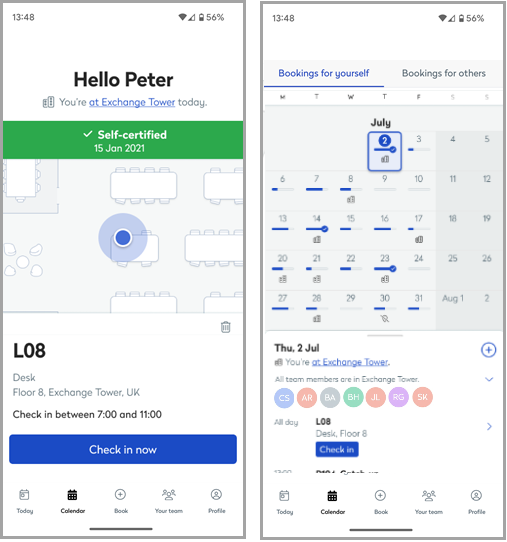
Tap Check in now to check in to the personal space. If you do not check in within a specified check-in period, the booking is canceled.
Scan QR code to check in
If QR code scanning is enabled, a QR icon is displayed at the top-right of the Eptura mobile app Today screen. In addition, if checking in by scanning a QR code is required for the personal or meeting space you have booked, the 'Check-in now' button also displays a QR scan icon.
- Tap the QR icon or Check in now to start the QR code scan process.

- Follow the prompts on your mobile to provide access to your camera to scan the QR code.

These steps vary depending on the type of mobile device - To check in to the booking, scan the QR code displayed at the personal space or meeting space.
You are now checked into the personal space or meeting space.
Invalid QR code. The following message is displayed if a QR code is scanned that is not registered to the booked space:
'Invalid QR code. Scan the QR code at [workspace name] to check in'.
If you are unable to scan the QR code for any reason, your administrator can check in for you from the booking grid for personal spaces or you can check in from Eptura Engage on the web (if the option is enabled for your organization).