
Personal space resources
Personal space resources are configured as either an 'all-day' personal space that can be booked for whole or half-days (depending on your organization's global settings) or as an 'hourly' personal space, bookable for shorter periods as defined by the Group. The resource type cannot be changed when set for a particular resource.
How to create or edit a personal space resource
 |
Eptura platform services If your organization is using Eptura's platform services, your locations, workspace types, resources, and users are centrally managed from Eptura Home:
Other settings are also affected, such as floor plans, zones, advanced setup, and global settings. Learn more
|
Sign in to Eptura Engage as an Admin with Resource Management access and follow the steps to configure resources. Learn more: Administrator admin levels
- Navigate to Application Setup > Resources.
- Select either All day personal spaces or Hourly personal spaces from the 'Resource Type' drop-down as required.
Note: Be sure to select the correct Resource Type, as this cannot be changed after the resource is created.
- Select the Country and Location; personal space resources (of the selected Resource Type) at the location are listed. Optionally, you can further filter the list by Group, Floor, and Workspace type.
- Edit or create a personal space resource:
- Create a new personal space: Click Add Resource.
- Edit an existing personal space: To edit an existing personal space, locate the space in the list or type the name of the space in the search box. Click the Edit icon, or click the Bin icon to permanently remove a personal space.

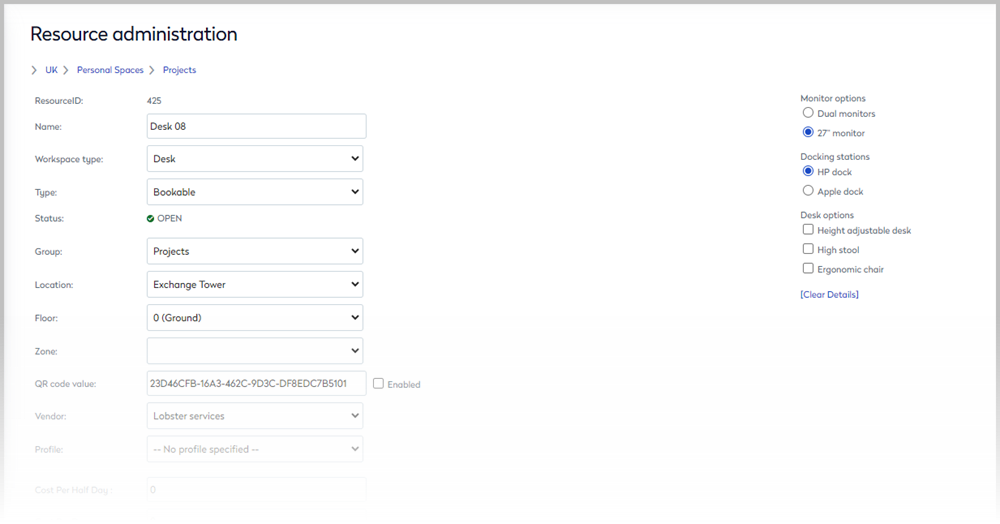
- Refer to the table to complete the resource fields. If Eptura platform services are enabled, some settings are hidden or disabled.
Personal space fields |
Description |
|---|---|
|
Resource ID
|
Not applicable when creating a new personal space. The unique value of personal space. The Resource ID is generated automatically and is only visible on the form when editing a personal space. |
| Name | Enter a name for the personal space. The name is displayed when choosing a space to book. We recommend including the location after the name, for example, a desk in New York might be Desk01-NY. |
| Workspace type | Select the type of workspace from the list. |
|
Type Applies to: 'All day' resources only |
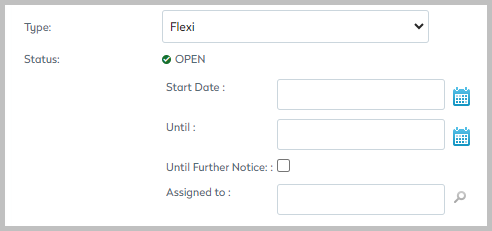
Select the assignment type from the list – Bookable, Fixed, or Flexi. Selecting Fixed or Flexi reveals additional options: If Eptura platform services are enabled, the assignment type is configured for the space in the Portfolio manager, and the fixed and flexi assignments are applied to the user from the Directory. Learn more: Eptura Home |
| Status | Indicates if the personal space is open or closed for bookings. |
| Group | Select the group to manage the booking rules, etc. |
| Location | Select the personal space location. |
| Floor | Select the floor where the personal space is located. |
| Zone | If zones are configured, select the zone where the space is located. |
|
QR code value |
The value of the QR code displayed at the personal space is used to check availability and book a space, and for checking in. If a QR code value exists here, then it is always possible to check in by scanning the QR code, unless QR codes have been disabled in Global setup. Learn more: Enable/disable QR codes |
|
QR check-in required |
Enabling 'QR code check-in required' prevents all* other check-in options. A QR code value must exist to enable this setting. *Check-in via Eptura Engage on the web can be enabled from Global setup if required. Learn more: Enable/disable QR code |
| Vendor | Select the Vendor to manage cleaning services for the space. |
| Profile | This field is not in use. |
|
Cost per half-day Applies to: 'All day' resources only |
If applied, costs can be reported with Eptura Engage Reports. Include VAT where appropriate as VAT is not applied separately for 'all-day' resources.
|
|
Costs per day Applies to: 'All day' resources only |
If applied, costs can be reported with Eptura Engage Reports. Include VAT where appropriate as VAT is not applied separately for 'all-day' resources. |
|
Supplier cost per hour Applies to: 'Hourly'' resources only |
If applied, costs can be reported with Eptura Engage Reports. |
|
Cost per hour Applies to: 'Hourly'' resources only |
If applied, costs can be reported with Eptura Engage Reports. |
|
VAT rate Applies to: 'Hourly'' resources only |
If applied, costs can be reported with Eptura Engage Reports. |
| Wayfinder URI | This field is not in use. |
|
Business Categories Applies to: 'All day' resources only |
If business categories are configured, move the categories the resource relates to, to the right-hand box. |
|
Adjacent personal space Applies to: 'All day' resources only |
Adding information about personal spaces located near each other allows you to see and report who has been sitting close to an employee. A personal space can have up to 10 other spaces marked as 'adjacent'. Learn more: Adding adjacent personal spaces Adjacent personal space settings are not automatically updated when workspaces are moved on the floor plan. |
|
Space image Applies to: 'Hourly'' resources only |
Upload an image of the personal space. Images must be in JPG or PNG format and the filename must not include any special characters or spaces. |
|
Floor plan image Applies to: 'Hourly'' resources only |
Upload an image of a floor plan that highlights the location of the personal space on the floor. Floor plan images added here are not interactive. To upload an interactive floor plan, see Floor plans Images must be in JPG or PNG format and the filename must not include any special characters or spaces. |
- At the top right of the page, tick the attributes available with the personal space.
- Click Save when done.
Changes during peak hours might impact the performance of the application. We recommend changes are made outside of business hours.