
Booking Report
The Booking Report provides row-level information for all-day personal space bookings and meeting space bookings, meeting the criteria of the filtered parameters. To improve performance, the volume of data displayed is limited.
For shift and hourly personal space bookings, see Hourly Personal Space Bookings Report
To open the report, go to Analytics > Utilization & Trends from the module menu on the left and select the Booking Report tab at the bottom of the screen.
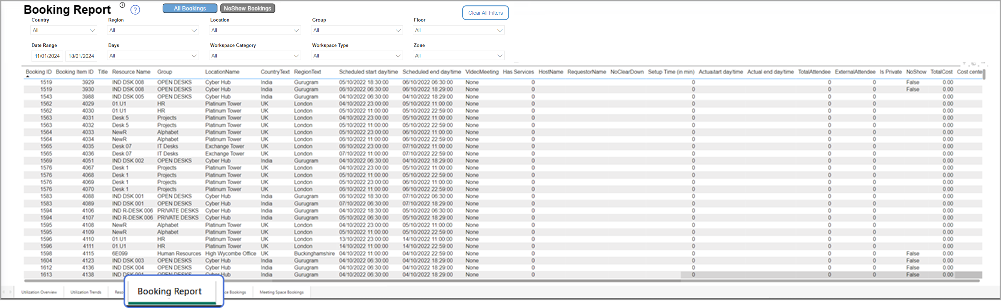
The Booking report canvas can take longer to load because of the more granular data.
Use the filters at the top to show the data by location, group, type of resource and/or workspace type, and by time frame. Learn more: Dashboard filters
By default, the report shows all bookings. You can quickly filter the report to show only no-show bookings using the NoShow Bookings toggle button at the top.

Booking Report column definitions
- Booking ID: Unique booking ID.
- BookingItem ID: Booking item ID.
- Title: The given name of a meeting space booking.
- Resource Name: The name of the booked resource.
- Group: The name of the group managing the booked resource's booking rules and access.
- Location name: The name of the location where the booked resource is located.
- Country name: The country where the booked resource is located.
- Region name: The region where the booked resource is located.
- Scheduled start day/time: The booking's start date and time as scheduled on the booking form.
- Scheduled end day/time: The booking's end date and time as scheduled on the booking form.
- Video meeting: Whether the booking is enabled for Zoom, Teams, Both, or None.
- Has services: Flagged 1 or 0. Booking with requested services = 1. Booking without requested services = 0 (zero).
- Host name: The name of the booking host as noted on the booking form.
- Host department: The department the booking host belongs to.
- Requestor name: The name of the booking requestor as noted on the booking form.
- Requestor department: The department the requestor belongs to.
- Created by: The name of the user who booked the resource.
- Booked for: The name of the user the resource was booked for.
- Booked for email address: The email address of the user the resource was booked for.
- BookingType: 'Fixed', 'Flexi', or 'Bookable', for 'all-day' personal spaces, or 'Meeting space' for all meeting space bookings.
- No clear down: Flagged 1 or 0. Booking with no clean down required = 1. Booking with clean down required = 0.
- Setup time in minutes: The number of minutes reserved before a booking for setting up the meeting space.
- Actual start time: The date and time the booking was checked in.
- Actual end time: The date and time the booking was checked out.
- Total attendee: Total number of attendees as noted on the booking form. Includes internal and external attendees.
- External attendee: Number of external attendees noted on the booking form.
- Is private: True/False flag. True - booking marked as private. False - booking not marked as private.
- No show: True/False flag. True - booking was not checked in. False - booking was checked in.
- Total cost: Total cost of booking including VAT.
- Cost center: The cost center as noted on the booking form.
Use the normal PowerBI functionality to manipulate or export the data in the Resource Report.