
Bookings and requests
About the Requests Dashboard
Authorizers and approvers of managed groups can launch the Requests dashboard from the Meeting space module menu on the left. Authorizers and Approvers can approve, reject, and/or change all details of a requested booking.
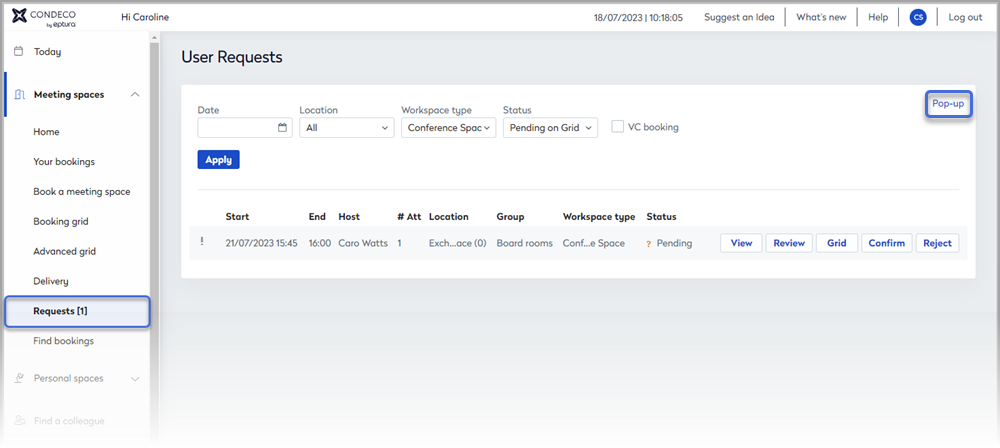
The Requests menu item displays the number of outstanding requests awaiting approval in square brackets.
Click Pop-up to open the dashboard in a separate window.
Dashboard filters
Filter the requests listed in the user requests table by Date, Location, Workspace type, and Status.
Booking status filter:
Click the Status drop-down to list requests in a specific status.
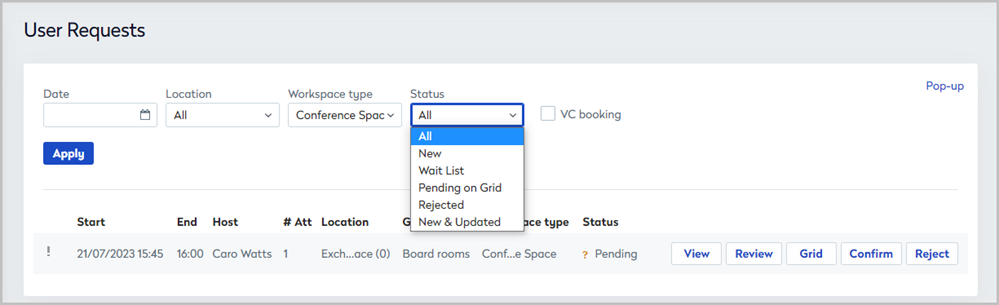
Filter requests by status
- All: Displays all outstanding requests.
- New: Displays the new requests from the current date.
- Waitlist: Displays requests where bookings are on hold. Authorizers and Approvers must manually change the status of bookings on the Waitlist and assign a suitable space.
- Pending on Grid: Displays requests which are reserved but not approved.
- Rejected: Displays all rejected bookings.
- New and updated: Displays only new and updated bookings.
Manage user requests from the dashboard
In the lower section of the dashboard, requests are listed in date/time order with the next scheduled meeting at the top. Request management buttons are to the right of each request.

Request management buttons
Click Confirm or Reject to approve or reject the booking request as appropriate. If rejecting a request, you must provide a reason for the rejection.
Click View to open the booking form and view the request. From the booking form, you can click Confirm booking to approve the request.
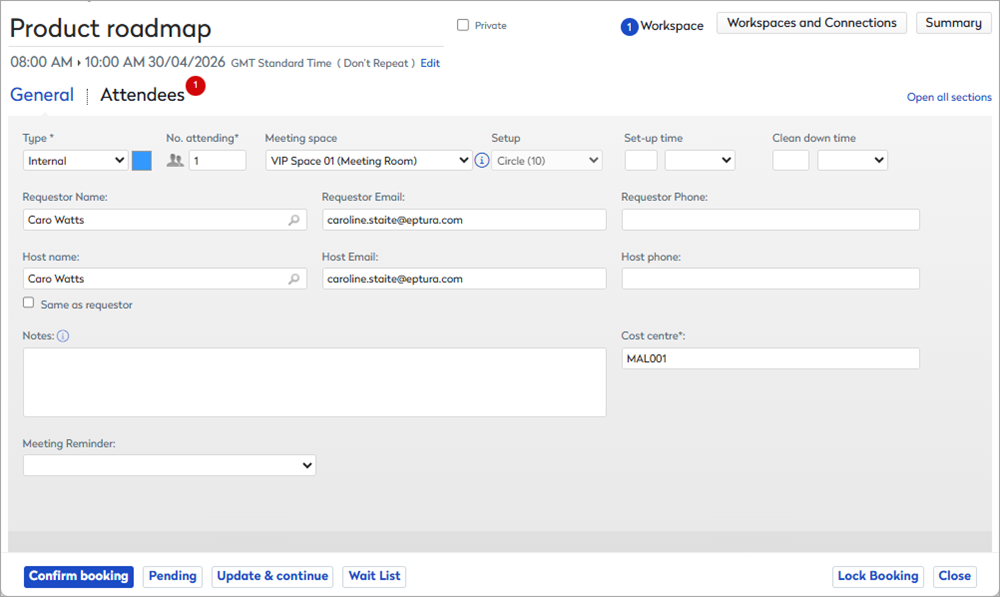
Click Review to open the booking summary in a pop-up window. The 'Review' option is for administrators only. Admins can also access 'Review' from the Today page.
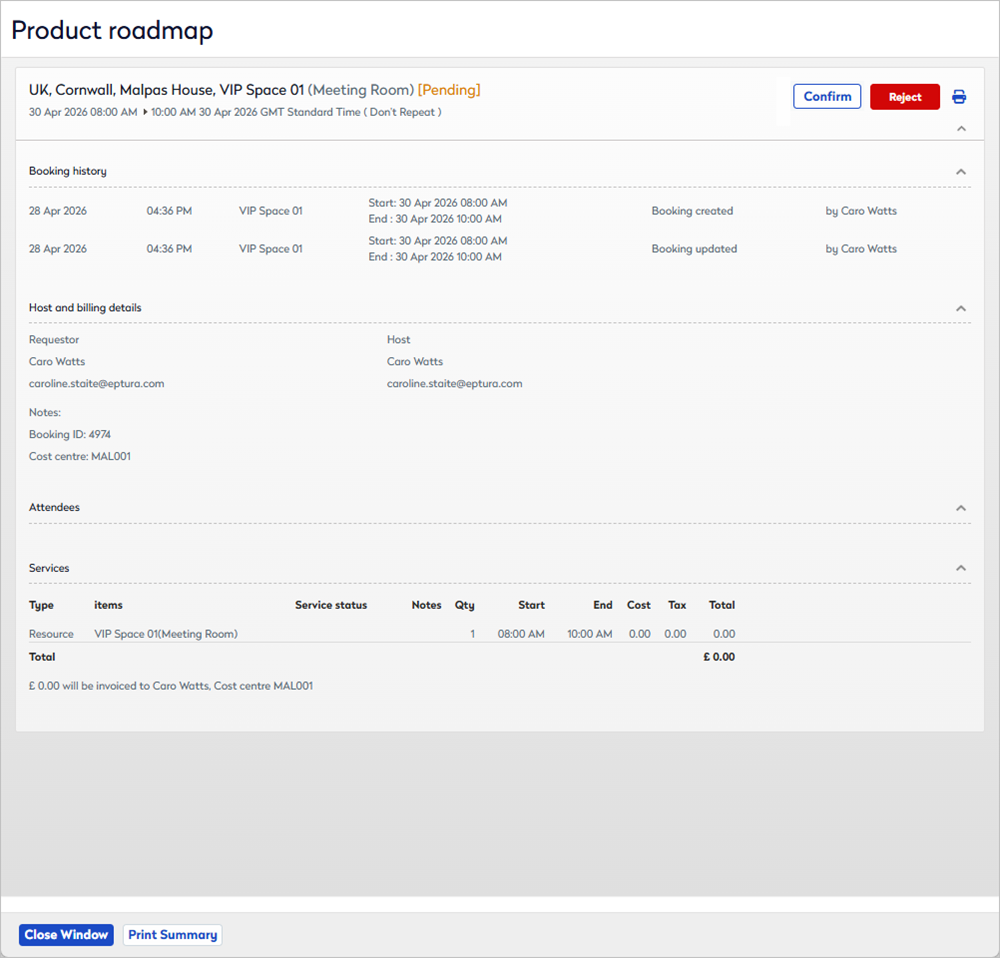
- If the booking is pending, the Confirm / Reject / Close Window / Print Summary buttons are displayed.
- Confirm: Approve the booking request.
- Reject: Reject the booking request. You must provide a reason for the rejection.
- Close Window: Close the pop-up window.
- Print Summary: Print a summary of the page.
- If the booking is not pending (i.e. the booking status is Confirmed/ Rejected / Waitlist / New), the Close Window / Print Summary buttons are displayed.
Click Grid to display the booking on the booking grid.

- From the booking grid, you can:
- Right-click the booking on the grid to Move, Copy or Delete, put it on a Waitlist or Swap with another booking.
- Right-click the booking on the grid and click the status to Confirm the booking request.
- Click the booking on the grid to open the booking form.
Good to know
- For multi-room bookings, Accept / Reject options only appear for pending bookings. i.e. if one booking is confirmed and another is pending, the Accept / Reject button will appear for the pending booking only.
- Only requests that are pending approval are listed on the Request page.
- Self-managed rooms do not require approval and therefore do not appear in Requests.
- If you work as part of a group administrator team, all requests are seen by all members of the team.
- Group administrators are sent an email notification when a request for a booking has been made.
- Requests can also be approved from either of the booking grids. Learn more: Approve pending bookings (from the booking grids)
Keyboard shortcuts
The following keyboard shortcuts are available when managing booking requests:
- Confirm Booking: Ctrl+Shift+Alt+O
- Reject Booking: Ctrl+Shift+Alt+R
- Waitlist Booking: Ctrl+Shift+Alt+W (Related option must be present on the page).