
Restricted groups
About restricted groups and open groups
There are two types of groups, ‘Open Groups’ and ‘Restricted Groups’:
- Open group - All users can book resources in an open group.
- Restricted group - Only users explicitly added to a restricted group can see it and book the resources.
The group type is determined by the default status of the ‘Make bookings’ option for the group. If 'Make bookings' is enabled, the group is an Open Group. If 'Make bookings' is disabled, then the group is a Restricted Group.
Configure a group as 'restricted'
Follow the steps to disable the Make bookings option for the group.
- Navigate to Application Setup > Groups.
- Select the Country and Group
- Click Resource type > Personal spaces.
- Select the Edit Name / Deployment action.
- In the Default Permissions section, disable Make bookings.
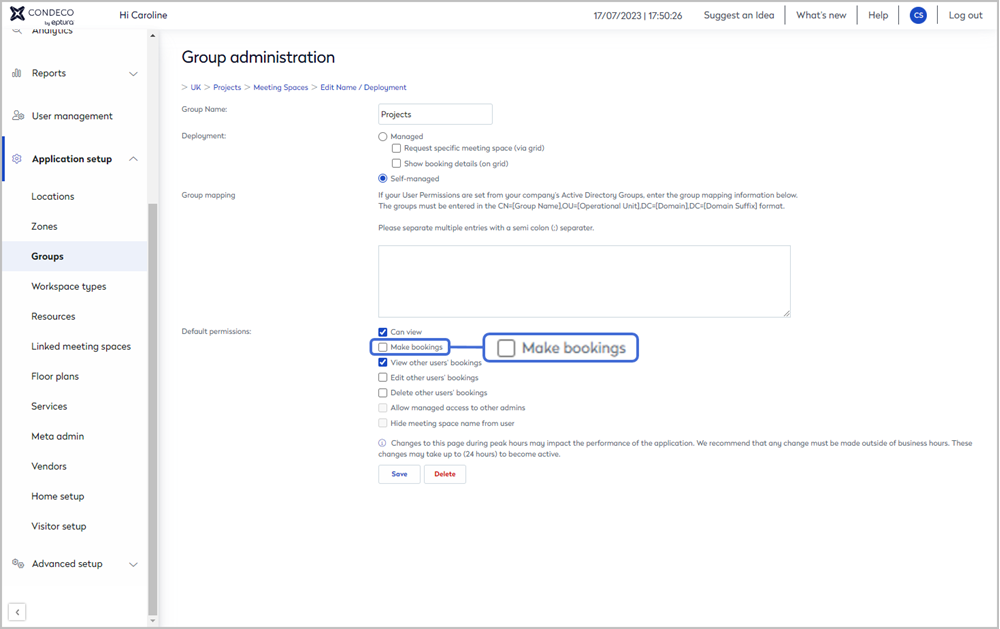
When the Make bookings option is disabled, the group is now a restricted group and only administrators and users explicitly added to the group, can see it.
Add the group to a location
A Group must be added to a Location. When users search for available meeting spaces or personal spaces in a location, only resources belonging to the groups added to the location are searched.
Learn more: Add a group to a location ↗️
Grant access to a restricted group
Access to a restricted group can be granted in the following ways:
- Apply access exceptions for user groups via User group access (recommended)
- Apply access exceptions for individual users via Group permissions
- Apply access exceptions for an individual user via their User profile
Learn more: Managing access to resources