View and manage group permissions
Contents
- View group permissions
- Add users to a group
- Find a member of a group
- Remove users from a group
- Add users to another group
- Export group members to CSV
See also: About Group permissions in User management ↗️
View Group permissions
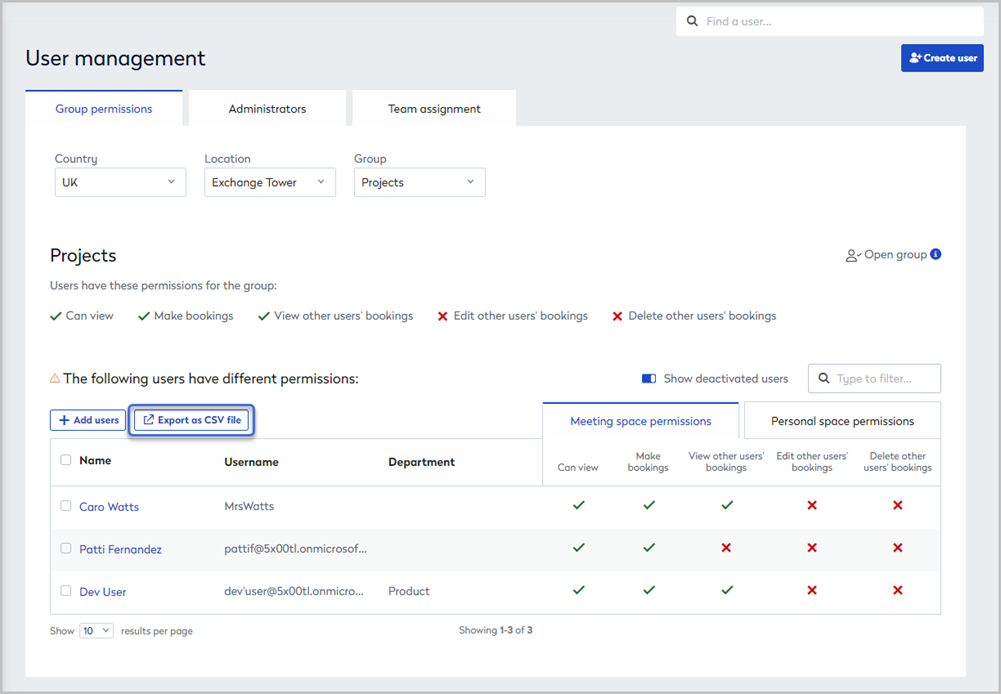
To view the permissions set for a group, from the Group permissions tab in User Management, select the Country and Location (as required) then select the group from the Group drop-down list.
Groups are nested under Open Groups or Restricted Groups as appropriate.
The default access permissions for the group are displayed.
Users who are explicitly added to a group (to override default permissions) are listed in the table below.
If the group manages both meeting space and personal space resources, you can switch between the tabs to view the permissions applied for each resource type.
Adding individual users to a group lets you apply different permissions for meeting spaces and personal spaces within the same group. Use the tabs to switch between them.
Add users to a Group
Add a user to a group to provide different permissions from the default group permissions. By adding a user to a group, you can enable or disable specific actions for that user.
Up to 20 users can be added to a group at a time.
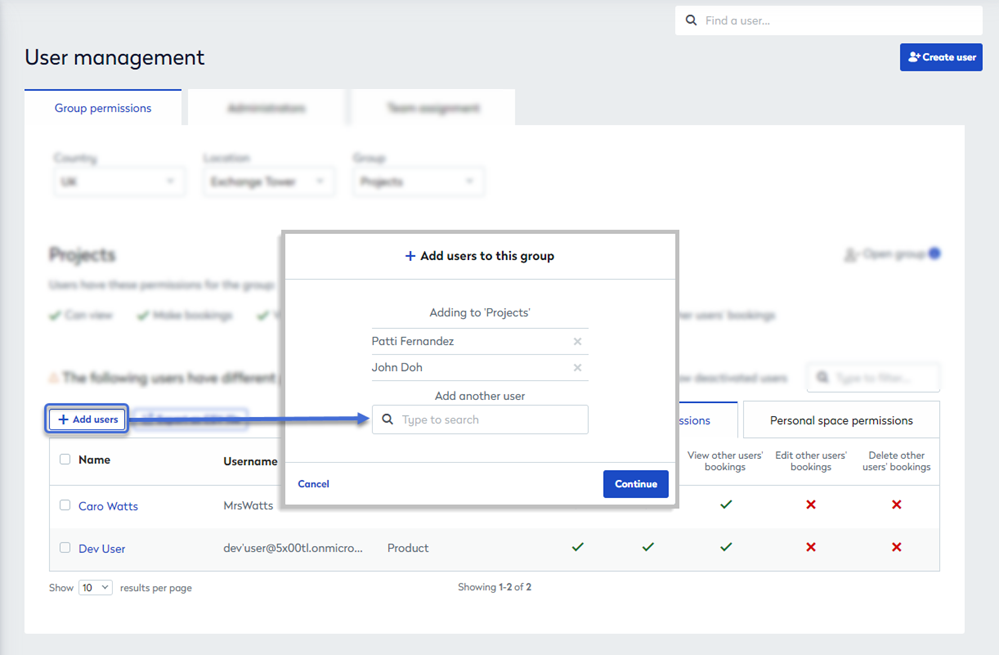
- From the Group permissions tab in User Management, select the location and group from the drop-down lists.
- Click + Add users. Enter the name of the user in the search box and continue adding users (up to 20) then click Continue when done.
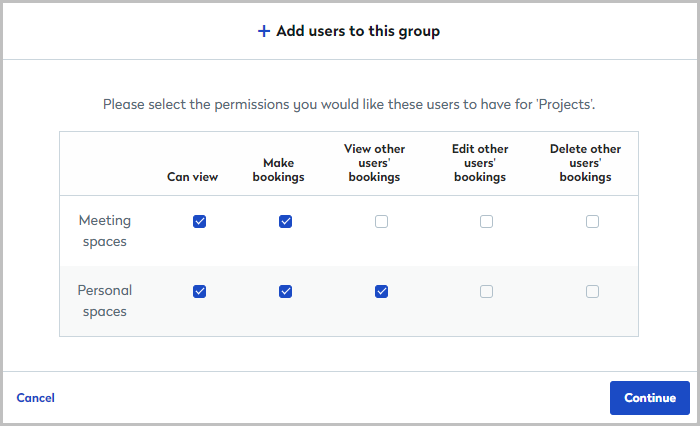
- Select the required permissions for the selected users and click Continue. If the group manages both meeting spaces and personal spaces you will see permission options for each space type, enabling you to select different permissions for each type.
- If a selected user has conflicting permissions, for example, if they are an administrator of the group, a Group Permissions error is displayed, and the conflicting user is not added.
- If a selected user is already listed in the group, the new permissions overwrite the previously applied permissions for that user.
Find a member of a group
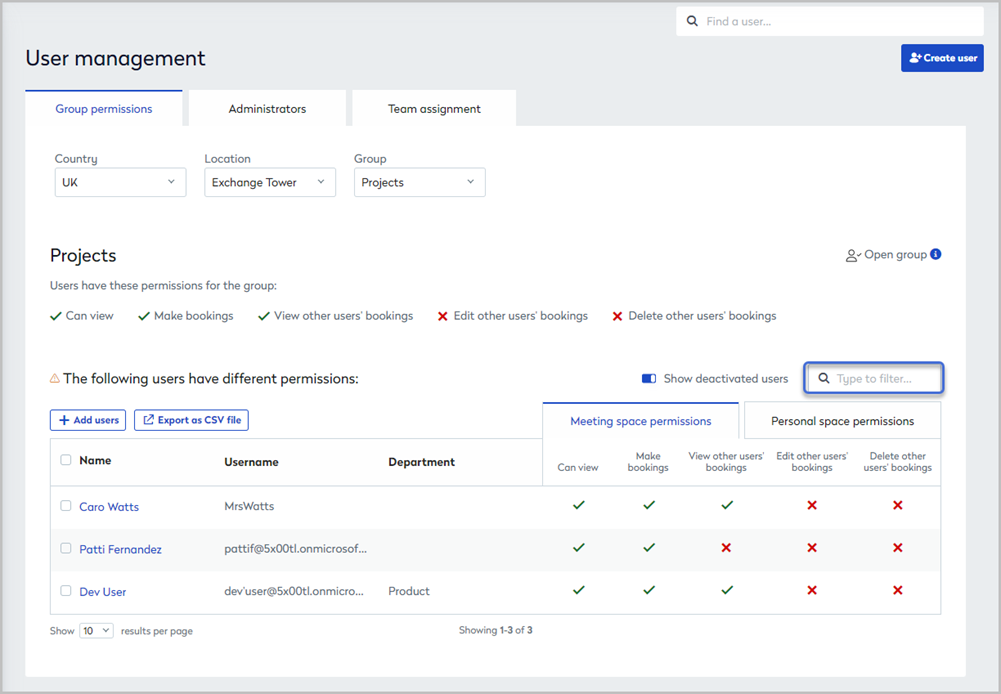
Use the Filter box above the table to find specific users in a group. Enter a name, username, or department.
Remove users from a group
Remove a user from a group to reapply the default group permissions.
- Tick the checkbox to the left of the user(s) you want to remove from the group.
- Click Remove (#) from this group button (the button is only visible when at least one user is selected).
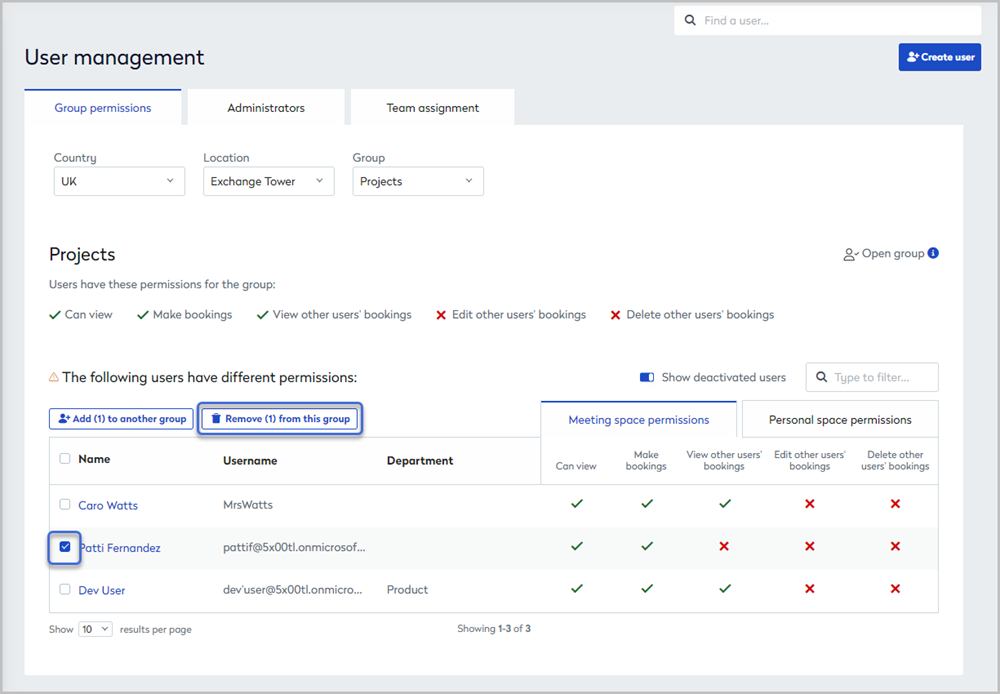
The default group permissions now apply to the removed user(s).
Add users to another group
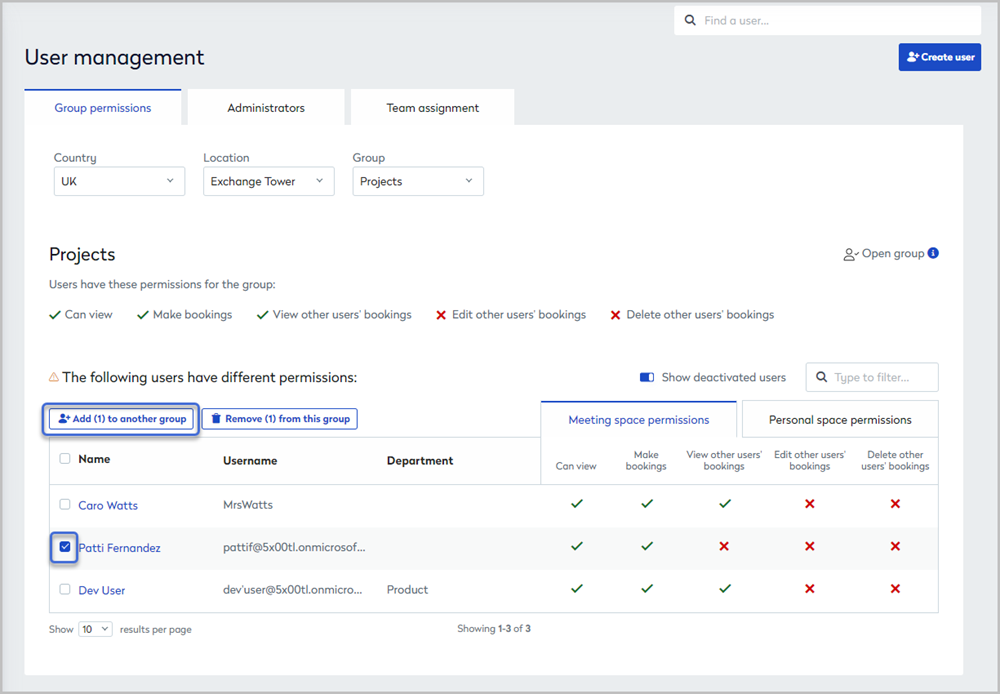
- Tick the checkbox to the left of the user(s) you want to add to another group.
- Click Add (#) to another group (the button is only visible when at least one user is selected).
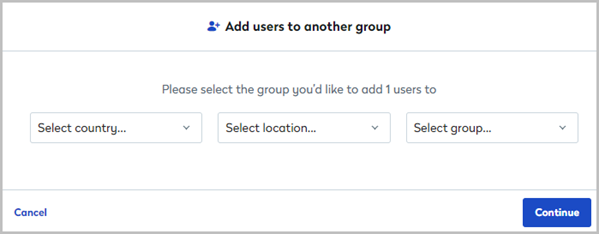
- Select the Country, Location, and Group you want to add the user(s) to, then click Continue.
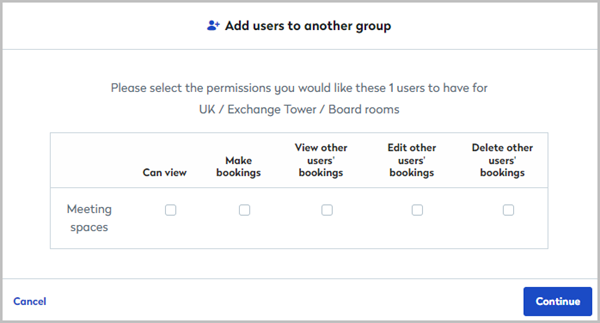
- Select the required permissions and click Continue.
- Review the notice and click Add.
Export group members to CSV
To export all users in the table to a CSV file, click the Export as CSV file button above the table. Note that the button is only displayed when none of the user checkboxes are ticked.